Overview
Windows 11 Home doesn’t include the Local Group Policy Editor (gpedit.msc), but the policy components ship with the OS. This guide shows how to enable it using a safe, built-in DISM command — no third-party installer required.
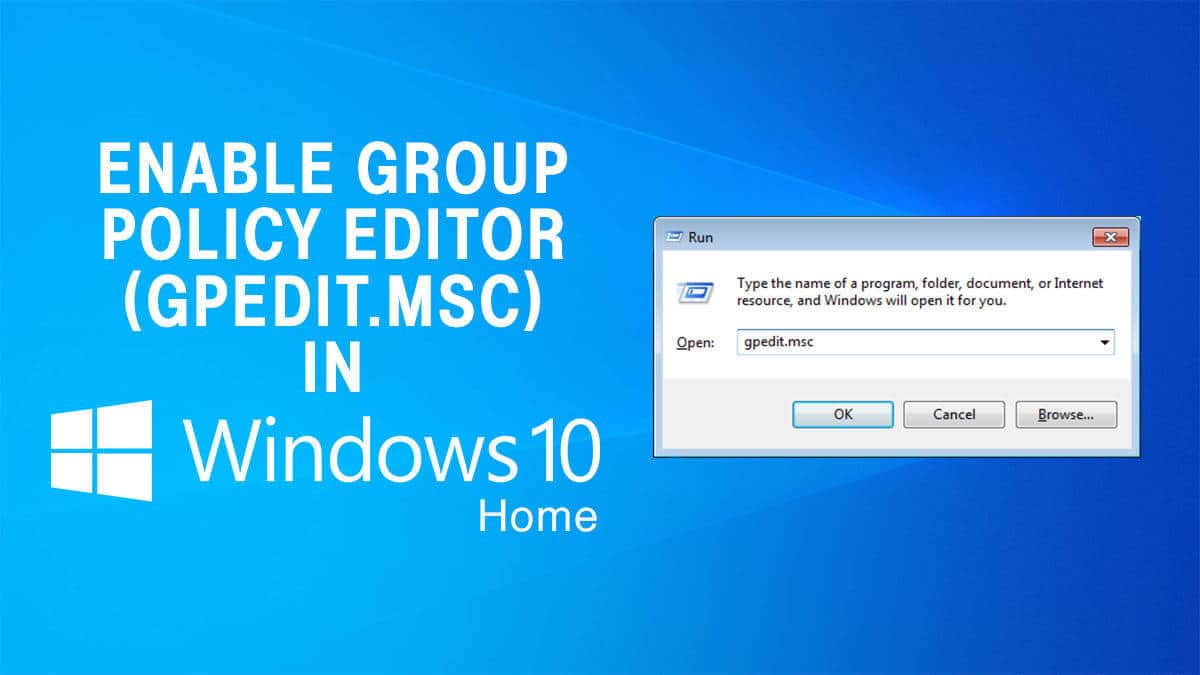
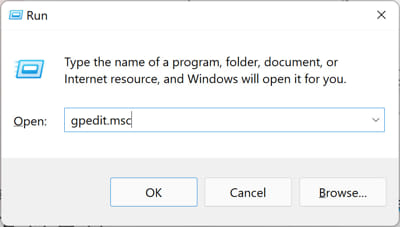
Opening the Group Policy Editor.
Key Takeaways
- gpedit.msc is missing on Windows Home by default.
- A DISM command installs the built-in policy packages.
- No third-party download is needed.
- Policy Plus is a safe alternative editor.
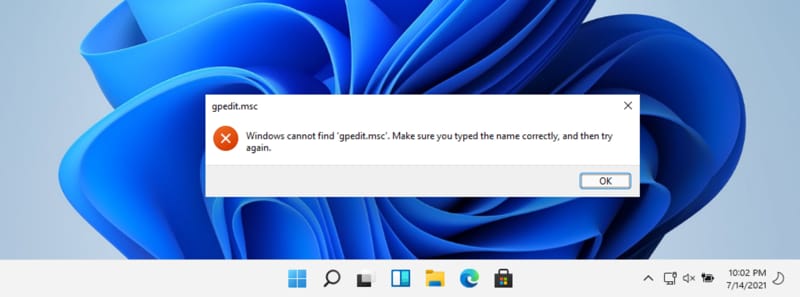
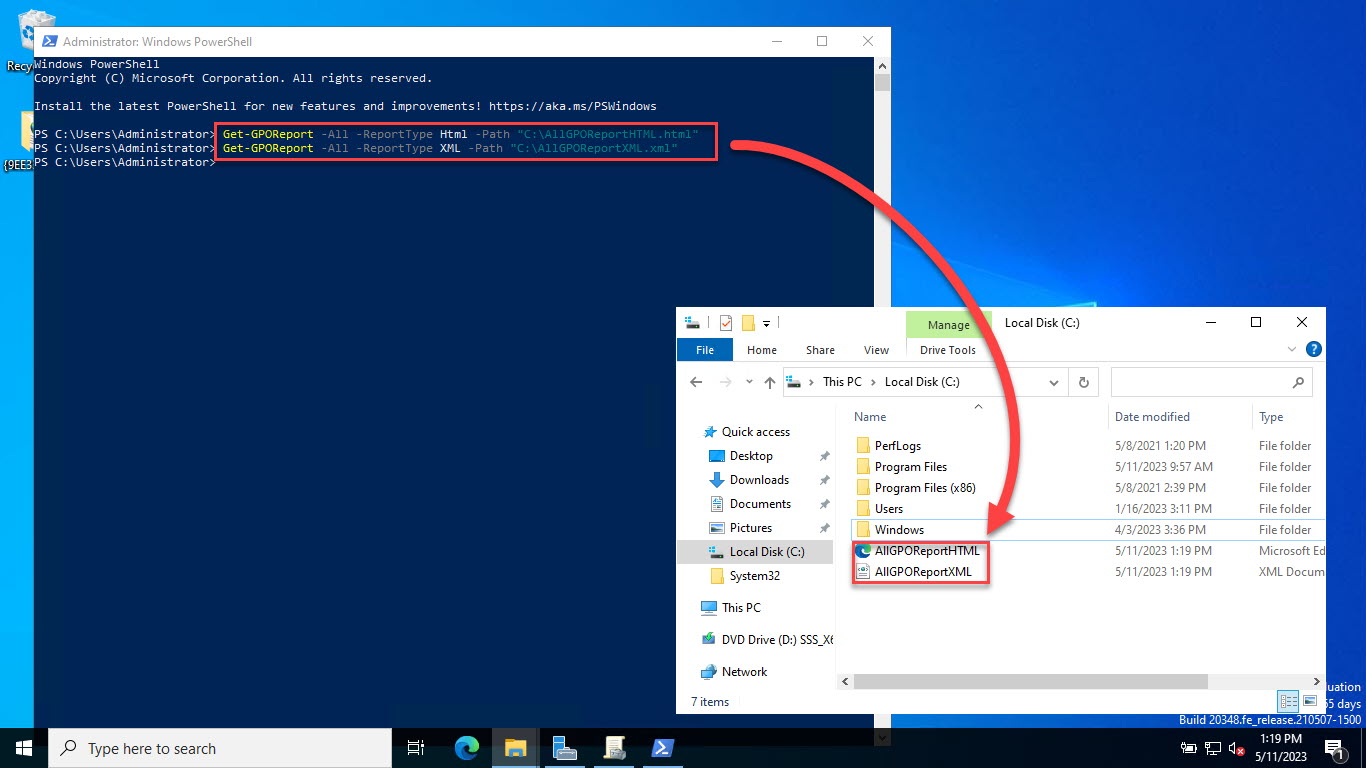
The "cannot find gpedit.msc" prompt on Home.
Enable gpedit.msc with DISM (Recommended)
1. Open Notepad and paste a batch script that runs DISM to add the ClientTools and ClientExtensions Group Policy packages.
2. Save it as gpedit-enable.bat.
3. Right-click the file and choose "Run as administrator".
4. Wait for DISM to install the packages, then reboot.
Note: This method uses Microsoft’s own in-box packages via DISM (FoD), so no external files are downloaded.
Alternative: Command Prompt Commands
1. Open Command Prompt as administrator.
2. Run the two DISM /Online /Add-Package commands that add Microsoft-Windows-GroupPolicy-ClientTools and ClientExtensions packages.
3. Restart the PC.
Open the Group Policy Editor
1. Press Windows + R, type gpedit.msc, and press Enter.
2. The Local Group Policy Editor opens.
3. Make changes, then run gpupdate /force to apply.
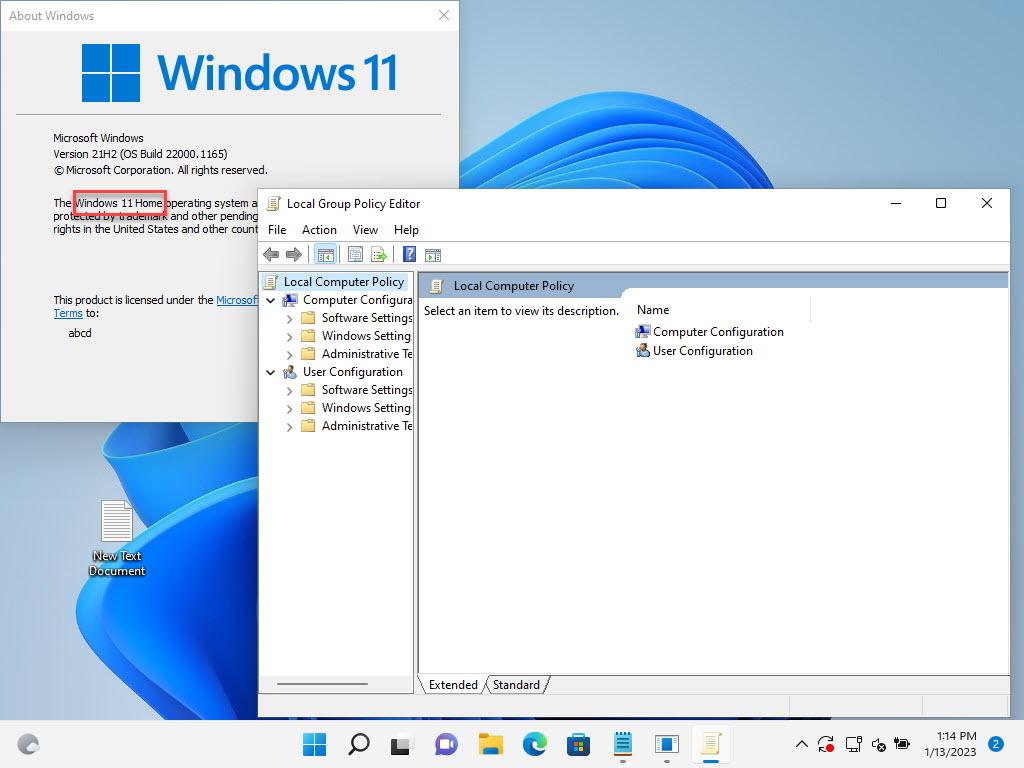
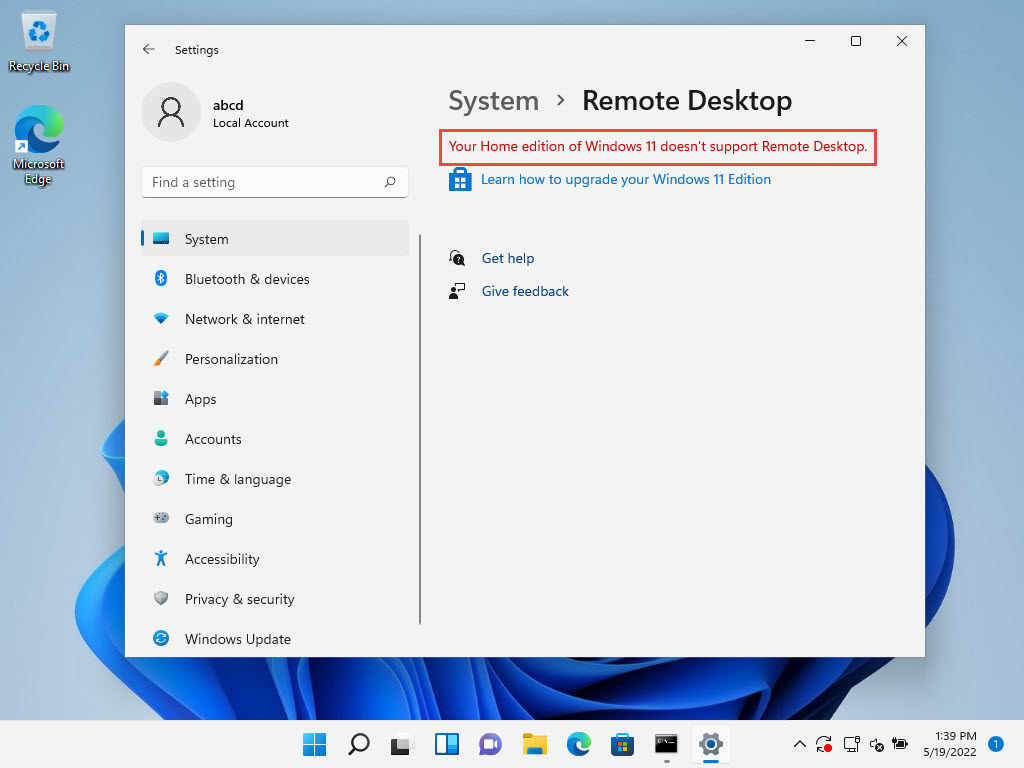
The Local Group Policy Editor installed on Home.
Alternative Tool: Policy Plus
Note: Download Policy Plus only from its official GitHub repository.
1. Download Policy Plus (open-source) from GitHub.
2. Run it to edit local policies with a similar interface.
3. Useful if gpedit.msc still won’t open on Home.
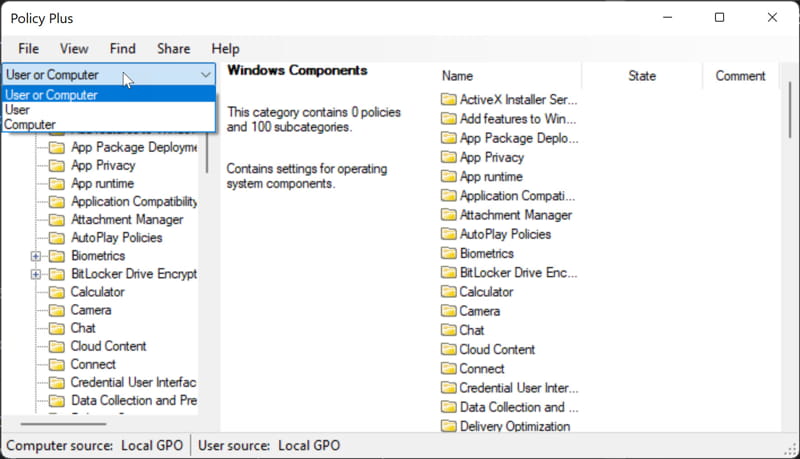
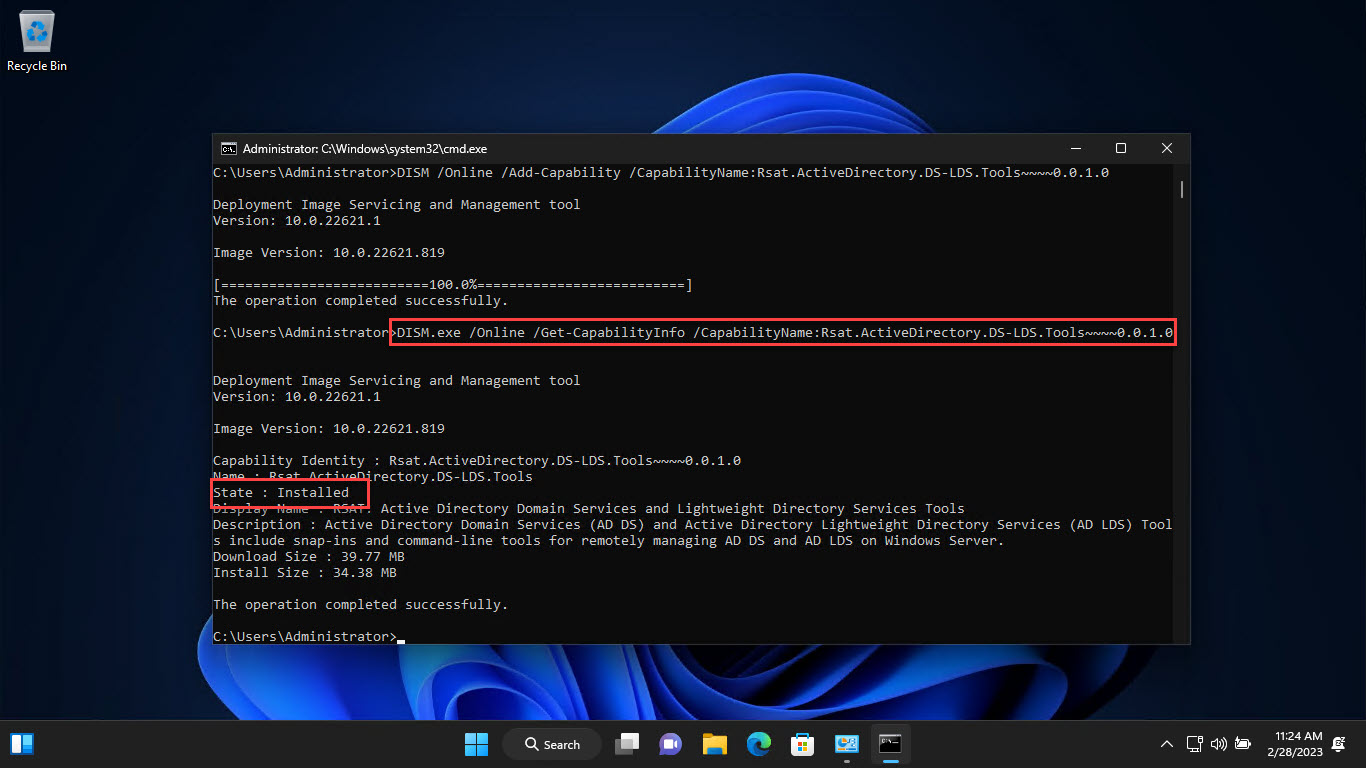
The Policy Plus interface.
Troubleshooting
Problem: gpedit.msc still not found.
Solution: Re-run the DISM script as administrator and reboot; ensure all packages installed without error.
Problem: Policies don’t take effect.
Solution: Run gpupdate /force; note that Home has limited policy enforcement compared to Pro.
Problem: Changes revert.
Solution: On Home, some policies aren’t fully honoured — the equivalent Registry tweak may be more reliable.
Problem: DISM errors out.
Solution: Ensure Windows is updated and the component store is healthy (run DISM /RestoreHealth first).
Conclusion
You can add the Group Policy Editor to Windows 11 Home using Microsoft’s in-box packages via DISM — no external installer needed. Once enabled, gpedit.msc works as on Pro, and Policy Plus is a solid open-source alternative if you prefer.
</w:pBdr><w:spacing w:before="220" w:after="40"/></w:pPr><w:r><w:rPr><w:b/><w:bCs/><w:color w:val="0B5394"/><w:sz w:val="21"/><w:szCs w:val="21"/><w:rFonts w:ascii="Calibri" w:cs="Calibri" w:eastAsia="Calibri" w:hAnsi="Calibri"/></w:rPr><w:t xml:space="preserve">About TechHub
This guide is part of the TechHub Knowledge Base. For more step-by-step IT guides and support, visit techhub.com.lk.