Overview
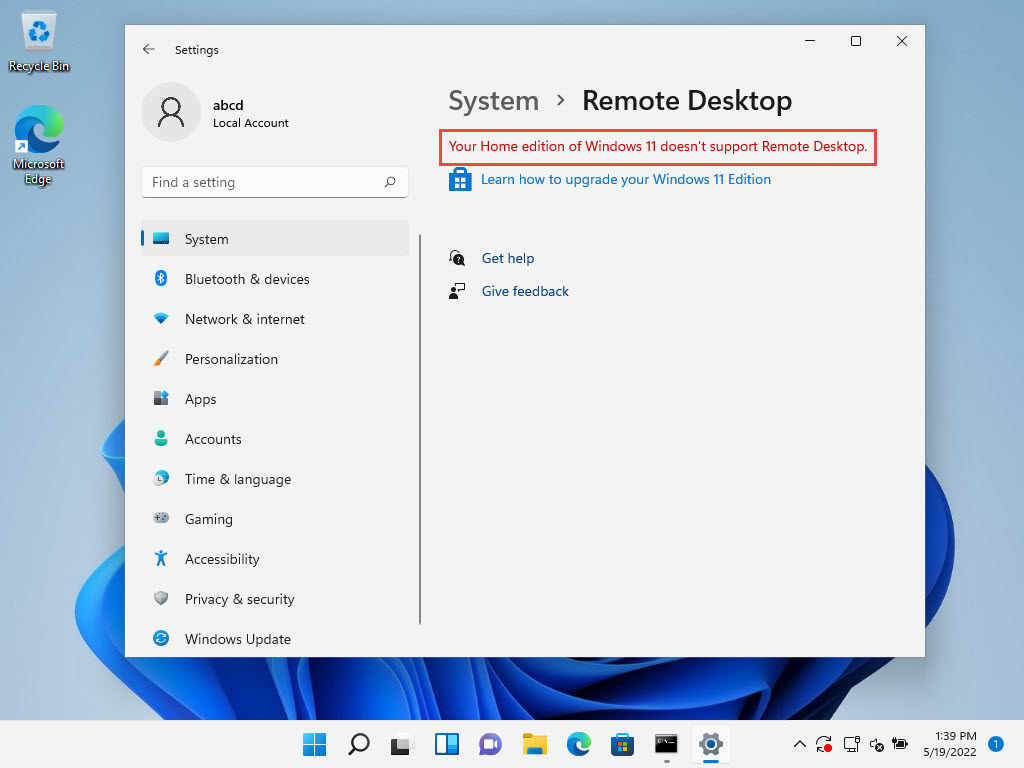
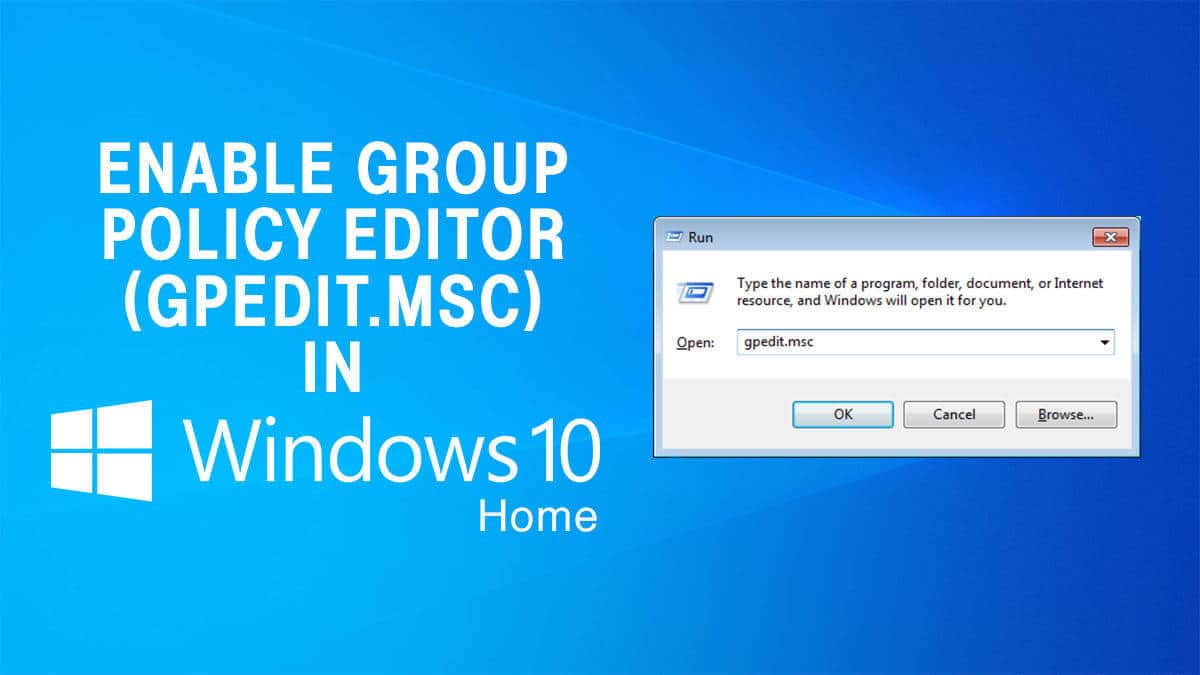
The Local Group Policy Editor (gpedit.msc) is included in Windows Pro and Enterprise but not in Home, so Home users get a "gpedit.msc not found" error. The required components are still present in Home and can be enabled. This guide shows how, plus a portable alternative.
Enable the Group Policy Editor on Windows Home editions.
Key Takeaways
- gpedit.msc is missing on Home but its components ship with the OS.
- A short DISM script enables the editor without third-party software.
- Policy Plus is a portable alternative that works on Home directly.
- Some Pro/Enterprise-only policies may not take effect on Home.
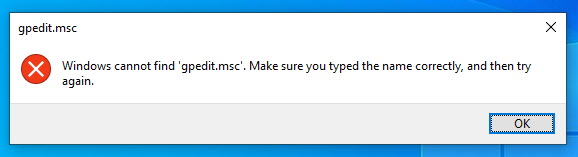
The "gpedit.msc not recognized" error on Windows Home.
Method 1 — Enable gpedit With a DISM Script
1. Open Notepad and paste a script that installs the Group Policy packages, for example:
2. FOR %F IN ("%SystemRoot%\servicing\Packages\Microsoft-Windows-GroupPolicy-ClientTools-Package~*.mum") DO (DISM /Online /NoRestart /Add-Package:"%F")
3. FOR %F IN ("%SystemRoot%\servicing\Packages\Microsoft-Windows-GroupPolicy-ClientExtensions-Package~*.mum") DO (DISM /Online /NoRestart /Add-Package:"%F")
4. Save the file with a .bat extension, then right-click it and Run as administrator.
5. Wait for it to finish, then test by running gpedit.msc.
Method 2 — Open the Group Policy Editor
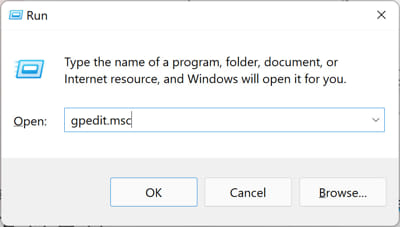
1. Press Windows key + R, type gpedit.msc, and press Enter.
2. The Local Group Policy Editor opens.
3. Browse Computer Configuration and User Configuration to change policies.
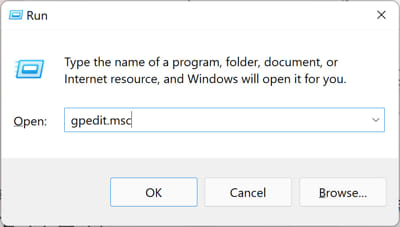
Open the Group Policy Editor with the gpedit.msc command.
Method 3 — Use Policy Plus (Portable Alternative)
1. Download Policy Plus from its official open-source page.
2. Run the portable executable (no installation needed).
3. It provides a Group Policy-style interface and works on Home editions, including editing registry-backed policies.
Limitations
- Some policies are only honoured by Pro/Enterprise editions and may not apply on Home.
- Many policies just write registry values — those generally work everywhere.
- For unsupported policies, edit the equivalent registry key directly.
Troubleshooting
Problem: gpedit.msc still not found after the script.
Solution: Re-run the .bat file as administrator and confirm both ClientTools and ClientExtensions packages installed without errors.
Problem: A policy has no effect.
Solution: It may be Pro/Enterprise-only. Apply the equivalent registry change instead, or use Policy Plus.
Problem: The script throws errors.
Solution: Ensure you ran it elevated and that the Packages folder paths exist; some third-party "installers" are riskier — prefer the built-in DISM method.
Problem: You prefer not to modify the OS.
Solution: Use Policy Plus, which runs portably without enabling the built-in editor.
Conclusion
You can bring the Group Policy Editor to Windows Home with a short DISM script that enables the built-in components, or simply run Policy Plus. Just remember that a few policies remain Pro/Enterprise-only.
</w:pBdr><w:spacing w:before="220" w:after="40"/></w:pPr><w:r><w:rPr><w:b/><w:bCs/><w:color w:val="0B5394"/><w:sz w:val="21"/><w:szCs w:val="21"/><w:rFonts w:ascii="Calibri" w:cs="Calibri" w:eastAsia="Calibri" w:hAnsi="Calibri"/></w:rPr><w:t xml:space="preserve">About TechHub
This guide is part of the TechHub Knowledge Base. For more step-by-step IT guides and support, visit techhub.com.lk.