How to Disable or Pause Windows Updates in Windows 10 and 11
Control automatic updates — and understand why pausing is safer than permanently disabling them.
Overview
Windows installs updates automatically to fix bugs and security holes. You can pause or disable them, but doing so has real security trade-offs. This guide covers the safer options first, then how to disable updates if you truly need to.
Managing Windows updates.
Warning: Disabling Windows Updates leaves your PC exposed to security vulnerabilities. Prefer pausing updates or setting active hours; only disable them temporarily and re-enable as soon as possible.
Key Takeaways
- Updates deliver security fixes — keep them on when possible.
- Pause updates or set active hours for control without full disable.
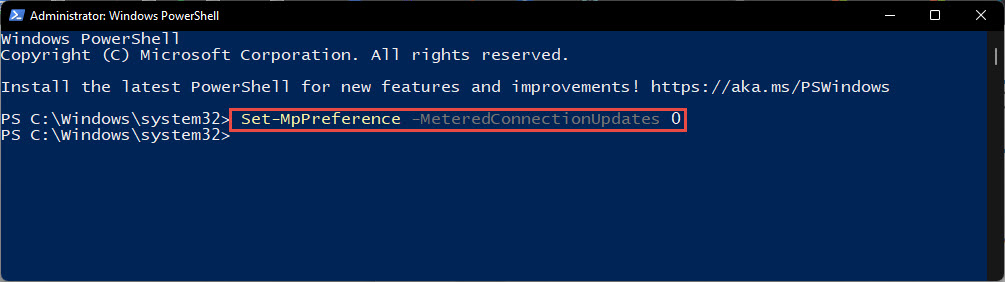
- Metered connection limits automatic downloads.
- Services/Group Policy can disable updates (not recommended long-term).
Safer Option: Pause Updates
1. Open Settings > Windows Update.
2. Click "Pause updates" (choose a duration).
3. Set "Active hours" so restarts avoid your working time.
4. Resume updates when convenient.
Method 1: Set a Metered Connection
1. Open Settings > Network & Internet > your Wi-Fi/Ethernet > properties.
2. Turn on "Metered connection".
3. Windows limits automatic update downloads on that network.
Method 2: Disable the Windows Update Service (Temporary)
1. Run services.msc.
2. Find "Windows Update" (wuauserv).
3. Stop it and set Startup type to Disabled.
4. Re-enable (Automatic) and start it to restore updates — don’t leave it off long-term.
The Windows Update service.
Method 3: Group Policy (Pro)
1. Run gpedit.msc.
2. Go to Computer Configuration > Administrative Templates > Windows Components > Windows Update.
3. Set "Configure Automatic Updates" to Disabled (or "Notify for download and install").
4. Run gpupdate /force.
Troubleshooting
Problem: Updates re-enable themselves.
Solution: Windows may restart the service after major updates — pausing/metered options are more reliable than disabling the service.
Problem: Missing important security fixes.
Solution: Re-enable updates regularly; running unpatched is risky. Consider "Notify" instead of full disable.
Problem: gpedit.msc missing.
Solution: You’re on Home — use pause, metered connection, or the service method.
Problem: Want updates back.
Solution: Set Windows Update service to Automatic and start it, or set the policy to Not Configured, then check for updates.
Conclusion
You can pause, meter, or disable Windows Updates — but disabling them long-term is a security risk. Favour pausing and active hours for everyday control, reserve service/Group Policy disabling for temporary needs, and re-enable updates as soon as you can.