4 Ways to Disable Windows Automatic Restart
Stop Windows from rebooting automatically after updates or a system crash.
Overview
Windows can restart on its own after installing updates or a blue-screen crash — sometimes losing your work. This guide shows four ways to disable automatic restart: Group Policy, Registry, Task Scheduler, and the crash (BSOD) setting.
Disabling automatic restart after Windows updates.
Key Takeaways
- Stop post-update restarts via Group Policy or the Registry.
- Task Scheduler can disable the reboot task.
- Turn off auto-restart on BSOD to read the error.
- Set active hours as a simpler alternative.
Method 1: Group Policy
1. Run gpedit.msc (Pro/Enterprise).
2. Go to Computer Configuration > Administrative Templates > Windows Components > Windows Update.
3. Enable "No auto-restart with logged on users for scheduled automatic updates installations".
4. Run gpupdate /force.
Method 2: Registry
Warning: Editing the Registry incorrectly can cause problems. Back up the Registry first.
1. Open regedit and go to HKEY_LOCAL_MACHINE\SOFTWARE\Policies\Microsoft\Windows.
2. Create a WindowsUpdate key, then an AU subkey inside it.
3. Create a DWORD "NoAutoRebootWithLoggedOnUsers" and set it to 1.
4. Restart to apply.
Method 3: Task Scheduler
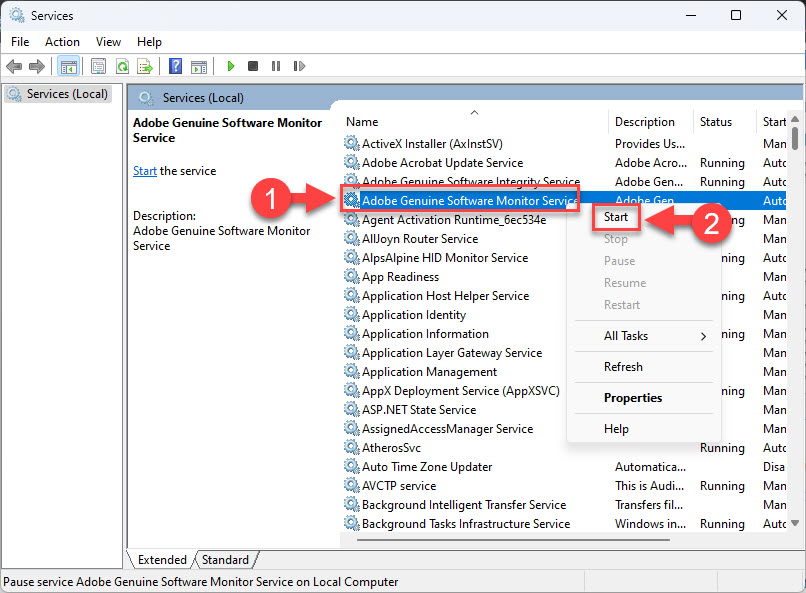
1. Open Task Scheduler (taskschd.msc).
2. Go to Task Scheduler Library > Microsoft > Windows > UpdateOrchestrator.
3. Disable the "Reboot"/reboot task.
4. This stops the orchestrated auto-restart.
Method 4: Disable Auto-Restart on Crash (BSOD)
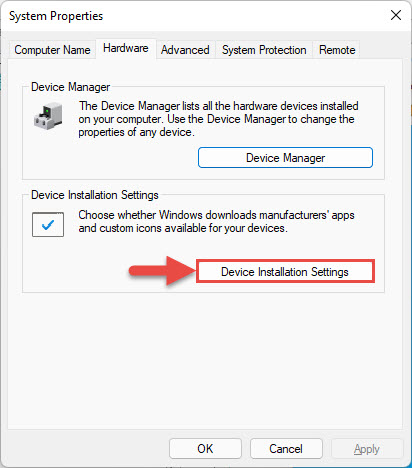
1. Run sysdm.cpl > Advanced > Startup and Recovery > Settings.
2. Untick "Automatically restart" under System failure.
3. Click OK; now a BSOD stays on screen so you can read the stop code.
Troubleshooting
Problem: gpedit.msc missing.
Solution: You’re on Windows Home — use the Registry method instead.
Problem: Reboot task re-enables itself.
Solution: Windows Update may reset it — the Group Policy/Registry setting is more durable.
Problem: Still restarts after updates.
Solution: Set Active Hours (Settings > Windows Update) so restarts avoid your working time.
Problem: Want to read a BSOD.
Solution: Disable "Automatically restart" in Startup and Recovery to keep the screen visible.
Conclusion
You can stop unwanted reboots via Group Policy or the NoAutoRebootWithLoggedOnUsers Registry value, disable the UpdateOrchestrator reboot task, and turn off auto-restart on crashes in Startup and Recovery. Setting Active Hours is an easy extra safeguard.