Windows 11 Hardening Guide: Strengthen Your PC’s Security
Practical steps to reduce Windows 11’s attack surface — passwords, encryption, firewall, and more.
Overview
Hardening means configuring Windows 11 to reduce its attack surface and resist compromise. This guide covers practical, high-impact steps — from strong authentication to encryption, firewall, and permissions.
Hardening Windows 11 for better security.
Key Takeaways
- Use strong passwords/passphrases and a password manager.
- Enable BitLocker encryption and the firewall.
- Keep Windows updated and limit remote access.
- Tighten UAC, app permissions, and Memory Integrity.
1. Strong Authentication
1. Set a long, unique password/passphrase for every account.
2. Use a reputable password manager.
3. Enable Windows Hello (PIN/biometrics) where available.
4. Disable automatic login (run netplwiz and require a password).
2. Enable Encryption and Firewall
1. Turn on BitLocker (Settings > Privacy & security > Device encryption / BitLocker) and back up the recovery key.
2. Ensure Windows Defender Firewall is on for all network profiles.
3. Limit Remote Access and Ports
1. Disable Remote Desktop if you don’t use it (Settings > System > Remote Desktop).
2. Close/disable unnecessary listening services and ports.
3. Only enable remote features you actually need.
4. Keep Windows and Apps Updated
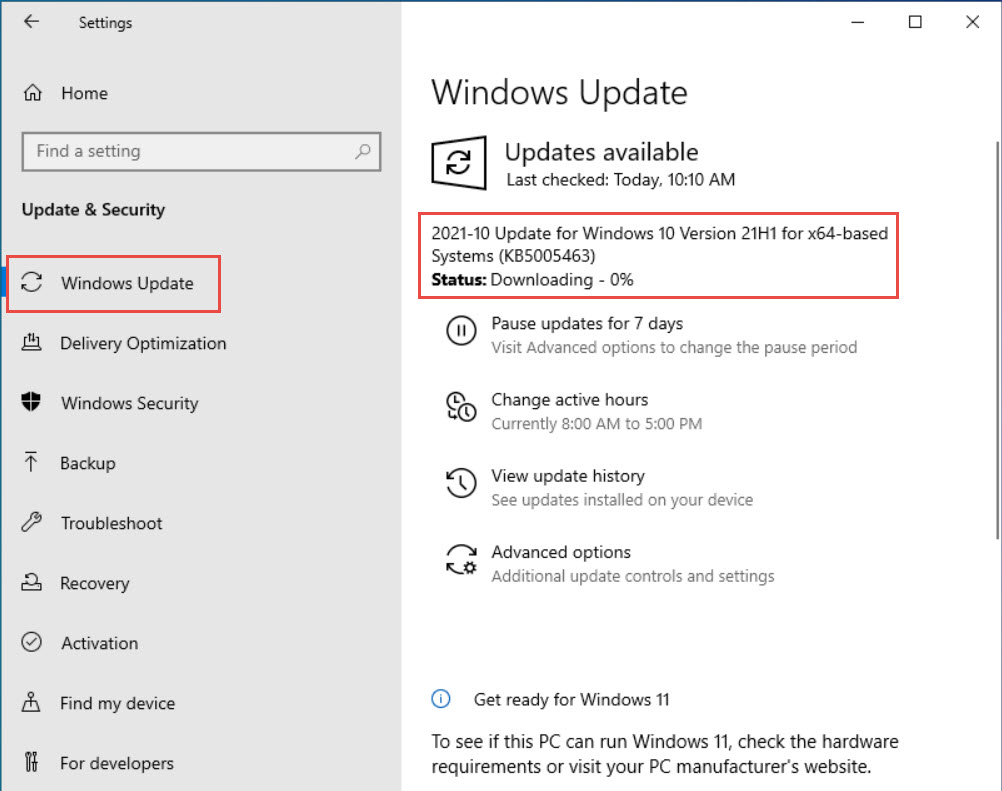
1. Install Windows updates promptly (Settings > Windows Update).
2. Update apps and drivers from official sources.
3. Enable automatic updates where practical.
5. Tighten UAC, Permissions, and Memory Integrity
1. Set User Account Control to a higher notification level.
2. Review app permissions (camera, mic, location) and revoke what’s unneeded.
3. Enable Memory Integrity (Core Isolation) under Windows Security > Device security.
4. Consider Microsoft’s Security Baseline for advanced, policy-based hardening.
Troubleshooting
Problem: Memory Integrity won’t enable.
Solution: An incompatible driver is blocking it — update/remove the flagged driver, then enable it.
Problem: BitLocker unavailable.
Solution: Ensure TPM is enabled and you’re on a supported edition; Device Encryption may be the Home equivalent.
Problem: Security Baseline breaks an app.
Solution: Baselines are strict — test in a lab first and adjust specific policies that conflict.
Problem: Locked out after hardening.
Solution: Keep recovery keys and an admin account; revert the specific change that caused the lockout.
Conclusion
Hardening Windows 11 is layered: strong authentication, encryption, an active firewall, prompt updates, minimal remote access, and tightened UAC/permissions/Memory Integrity. Apply these steps, keep recovery keys safe, and test advanced baselines before wide rollout.