Overview
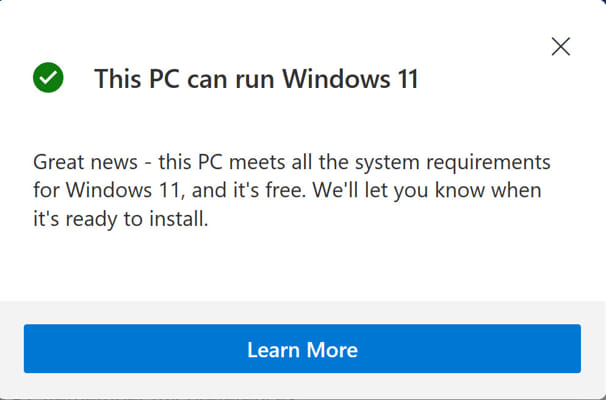
KB5005463 is a Windows 10 update whose main job is to install Microsoft’s PC Health Check app. That app checks whether your PC meets the Windows 11 system requirements and reports the system’s overall health. This guide explains what the update does, how to install or remove it, and how to use the PC Health Check app.
KB5005463 installs the PC Health Check app on Windows 10.
Key Takeaways
- KB5005463 installs the PC Health Check app on Windows 10.
- The app tells you whether your PC can run Windows 11 and why, if not.
- You can install it through Windows Update or remove it if you do not need it.
- It is informational only — it does not change your Windows 11 eligibility.
What Is KB5005463?
KB5005463 is a small servicing update that deploys the PC Health Check app to Windows 10 systems. Microsoft released it so users could easily check Windows 11 readiness. The update itself does not upgrade your OS — it simply adds the diagnostic app.
How to Download and Install KB5005463
1. Open Settings > Update & Security > Windows Update.
2. Click Check for updates; KB5005463 is delivered automatically to eligible Windows 10 PCs.
3. Allow the update to install — it adds the PC Health Check app.
4. If it is not offered, you can download the PC Health Check app directly from Microsoft’s Windows 11 page instead.
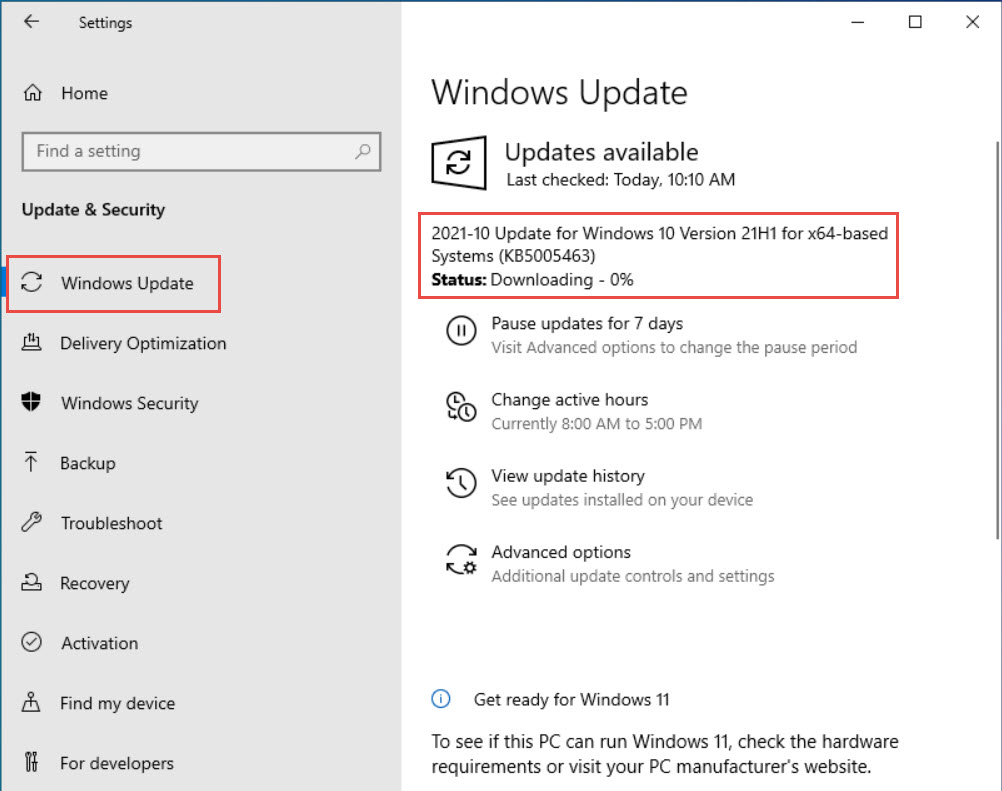
KB5005463 downloading through Windows Update.
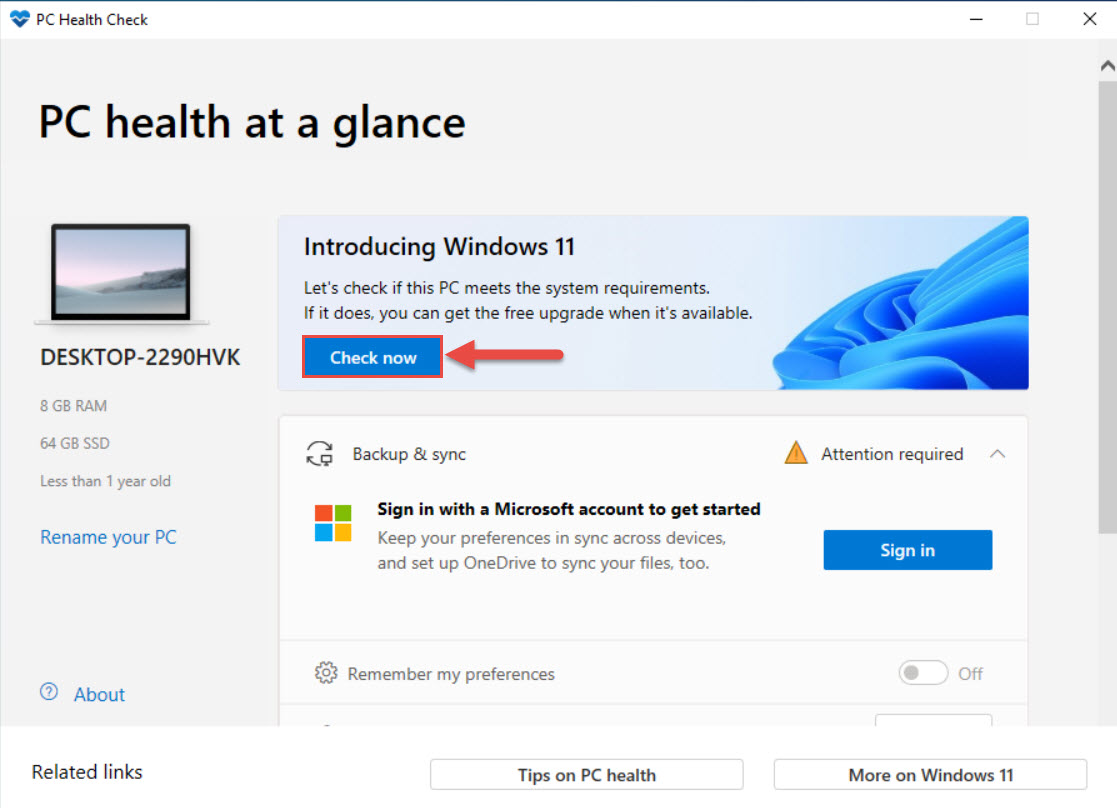
The PC Health Check app installed and ready to run.
PC Health Check App Features
- Windows 11 compatibility check — tells you whether your PC meets the requirements, and which checks fail.
- System health overview — backup status, storage capacity, battery condition, and startup time.
- Quick links to manage updates and device specifications.
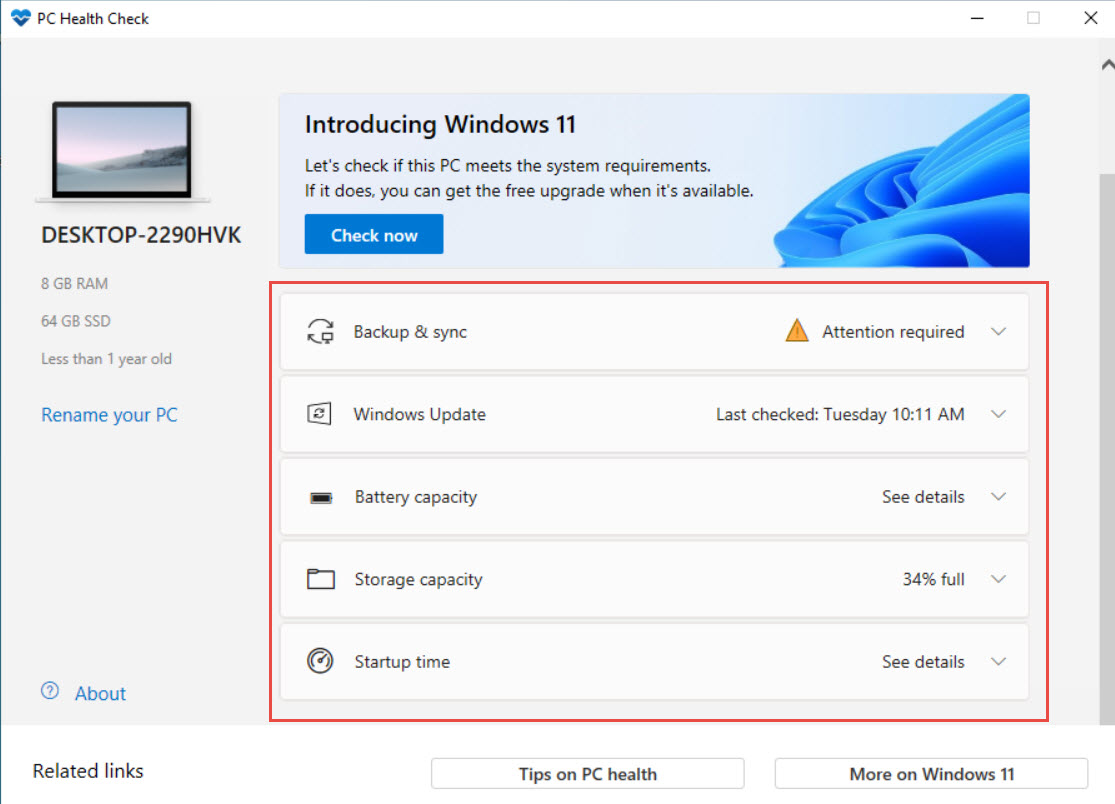
The PC Health Check app reports compatibility and system health.
How to Remove KB5005463 / the App
1. To remove the app: open Settings > Apps > Apps & features, find Windows PC Health Check, and click Uninstall.
2. To roll back the update: open Settings > Update & Security > Windows Update > View update history > Uninstall updates.
3. Locate KB5005463 in the list, select it, and click Uninstall.
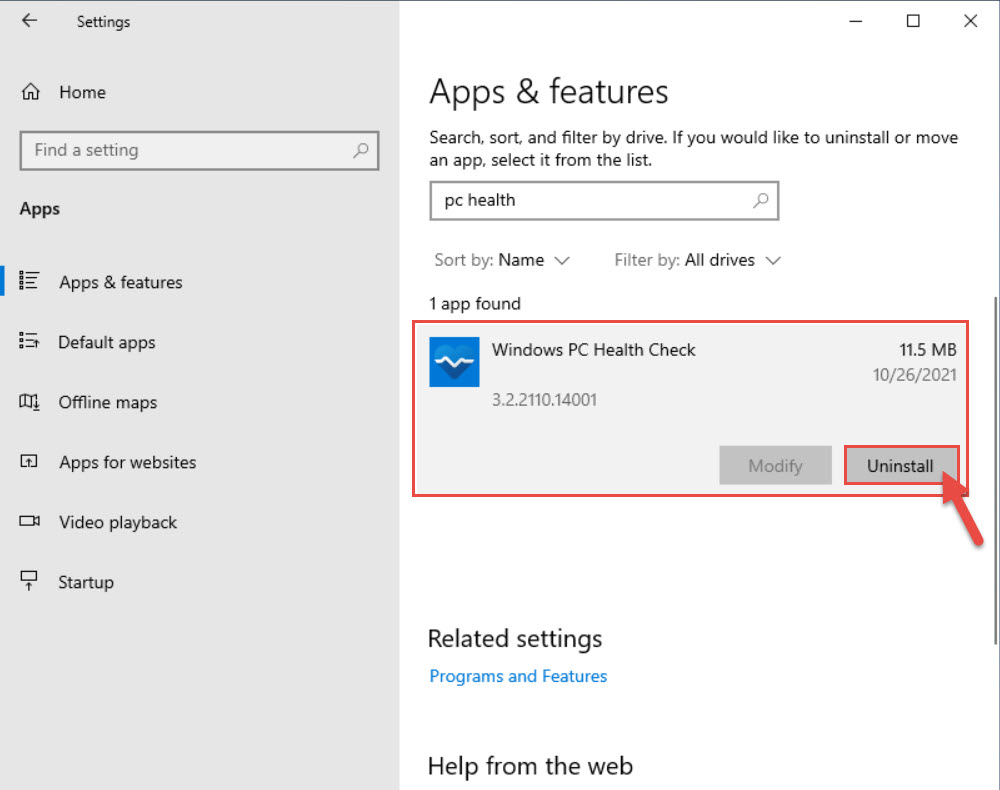
Uninstalling the PC Health Check app.
Troubleshooting
Problem: KB5005463 keeps reinstalling after removal.
Solution: It is an optional/recommended update and may be re-offered. Hide it using Windows Update troubleshooter tools, or simply leave the app uninstalled.
Problem: PC Health Check says my PC is not compatible.
Solution: Click "See all results" to find the failing check. Enabling TPM 2.0 and Secure Boot in UEFI often resolves the most common failures.
Problem: The app will not open.
Solution: Reinstall it from Microsoft’s Windows 11 page, or run Windows Update to repair the deployment.
Problem: I do not need Windows 11 readiness checks.
Solution: Uninstall the PC Health Check app; it is informational and removing it does not affect Windows 10.
Conclusion
KB5005463 is a lightweight update that simply adds the PC Health Check app to Windows 10. Use the app to see whether your PC can run Windows 11 and to review system health, and remove it easily if you no longer need it.
</w:pBdr><w:spacing w:before="220" w:after="40"/></w:pPr><w:r><w:rPr><w:b/><w:bCs/><w:color w:val="0B5394"/><w:sz w:val="21"/><w:szCs w:val="21"/><w:rFonts w:ascii="Calibri" w:cs="Calibri" w:eastAsia="Calibri" w:hAnsi="Calibri"/></w:rPr><w:t xml:space="preserve">About TechHub
This guide is part of the TechHub Knowledge Base. For more step-by-step IT guides and support, visit techhub.com.lk.