Windows 10 සහ 11 වල Windows Updates disable හෝ pause කරන ආකාරය
Automatic updates control කරන්න — සහ permanently disable කරනවාට වඩා pause කිරීම ඇයි safer කියලා තේරුම් ගන්න.
Overview
Windows මගින් bugs සහ security holes fix කරන්න updates automatically install කරනවා. ඔබට ඒවා pause හෝ disable කරන්න පුළුවන්, නමුත් එහෙම කිරීමේ සැබෑ security trade-offs තියෙනවා. මේ guide එකෙන් මුලින්ම safer options ආවරණය කරනවා, ඊට පස්සේ ඇත්තටම ඕන නම් updates disable කරන ආකාරය.
Windows updates manage කිරීම.
Warning: Windows Updates disable කිරීමෙන් ඔබේ PC එක security vulnerabilities වලට නිරාවරණය වෙනවා. updates pause කිරීම හෝ active hours set කිරීම prefer කරන්න; ඒවා temporary විදිහට විතරක් disable කරලා හැකි ඉක්මනින් ආපහු enable කරන්න.
Key Takeaways
- Updates මගින් security fixes ලබා දෙනවා — පුළුවන් නම් ඒවා on තියාගන්න.
- සම්පූර්ණයෙන් disable නොකර control කරන්න updates pause කරන්න හෝ active hours set කරන්න.
- Metered connection එකකින් automatic downloads limit කරනවා.
- Services/Group Policy මගින් updates disable කරන්න පුළුවන් (long-term වලට recommend නොකරයි).
Safer Option: Pause Updates
1. Settings > Windows Update open කරන්න.
2. "Pause updates" click කරන්න (duration එකක් තෝරන්න).
3. "Active hours" set කරන්න එමගින් restarts ඔබේ working time එකෙන් වළකින්න.
4. පහසු වෙලාවක updates resume කරන්න.
Method 1: Set a Metered Connection
1. Settings > Network & Internet > ඔබේ Wi-Fi/Ethernet > properties open කරන්න.
2. "Metered connection" turn on කරන්න.
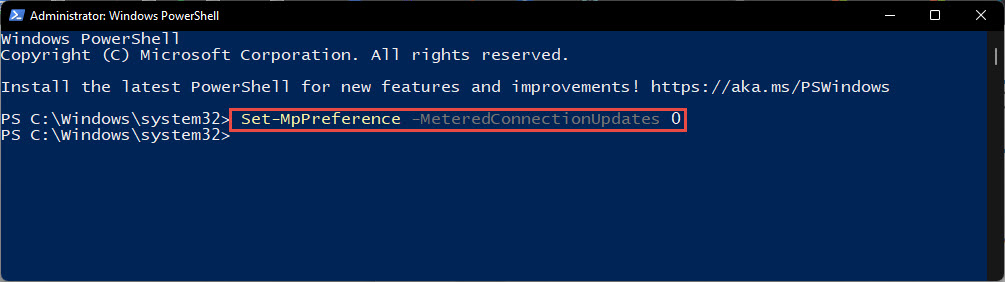
3. Windows එම network එකේ automatic update downloads limit කරනවා.
Method 2: Disable the Windows Update Service (Temporary)
1. services.msc run කරන්න.
2. "Windows Update" (wuauserv) හොයාගන්න.
3. එය Stop කරලා Startup type එක Disabled ලෙස set කරන්න.
4. Updates restore කරන්න එය ආපහු enable (Automatic) කරලා start කරන්න — long-term වලට off තියන්න එපා.
Windows Update service එක.
Method 3: Group Policy (Pro)
1. gpedit.msc run කරන්න.
2. Computer Configuration > Administrative Templates > Windows Components > Windows Update වෙත යන්න.
3. "Configure Automatic Updates" එක Disabled ලෙස set කරන්න (හෝ "Notify for download and install").
4. gpupdate /force run කරන්න.
Troubleshooting
Problem: Updates තමන්ම ආපහු enable වෙනවා.
Solution: Major updates වලට පස්සේ Windows මගින් service එක ආපහු start කරන්න පුළුවන් — service එක disable කරනවාට වඩා pausing/metered options වඩා reliable.
Problem: වැදගත් security fixes miss වෙනවා.
Solution: Updates නිතිපතා ආපහු enable කරන්න; unpatched විදිහට run කිරීම risky. සම්පූර්ණයෙන් disable කරනවා වෙනුවට "Notify" consider කරන්න.
Problem: gpedit.msc නෑ.
Solution: ඔබ Home එකේ — pause, metered connection, හෝ service method එක භාවිතා කරන්න.
Problem: Updates ආපහු ඕන.
Solution: Windows Update service එක Automatic ලෙස set කරලා start කරන්න, හෝ policy එක Not Configured ලෙස set කරන්න, ඊට පස්සේ updates check කරන්න.
Conclusion
ඔබට Windows Updates pause, meter, හෝ disable කරන්න පුළුවන් — නමුත් ඒවා long-term disable කිරීම security risk එකක්. දෛනික control එකට pausing සහ active hours favour කරන්න, temporary needs වලට service/Group Policy disabling reserve කරන්න, සහ හැකි ඉක්මනින් updates ආපහු enable කරන්න.