Overview
DVI (Digital Visual Interface) is a display connector found on many monitors and older graphics cards. It comes in several types — DVI-A, DVI-D, and DVI-I — and in single- and dual-link versions. This guide explains the differences so you choose the right cable.
DVI comes in several connector types and link configurations.
Key Takeaways
- DVI-D is digital, DVI-A is analog, and DVI-I carries both.
- Dual-link DVI supports higher resolutions/refresh rates than single-link.
- Match the connector type and link to your monitor and GPU.
- For modern setups, HDMI or DisplayPort are usually preferable.
What Is DVI?
DVI transmits video between a source (like a GPU) and a display. Depending on the type, it carries a digital signal, an analog signal, or both — bridging the gap between older VGA (analog) and newer digital standards.
Single-Link vs Dual-Link
- Single-link — supports up to around 1920×1200 at 60 Hz.
- Dual-link — adds extra pins for higher bandwidth, supporting up to 2560×1600 (and higher refresh at 1080p).
- Use dual-link for high-resolution or high-refresh monitors.
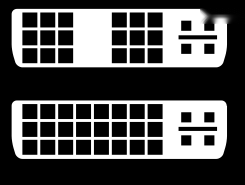
Single-link versus dual-link DVI pin layouts.
Connector Types
- DVI-A — analog only; compatible with VGA signals via adapter.
- DVI-D — digital only; the most common for modern monitors.
- DVI-I — integrated; carries both digital and analog, the most flexible.
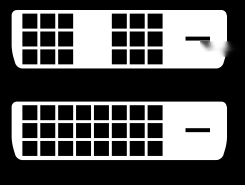
A DVI-D connector (digital only).
Which DVI Cable Should You Use?
- For a digital monitor at standard resolution — DVI-D single-link.
- For high-resolution/refresh — DVI-D or DVI-I dual-link.
- To connect analog (VGA) gear — DVI-A or DVI-I with the right adapter.
- When possible, prefer HDMI or DisplayPort for modern displays.
Frequently Asked Questions
Problem: My monitor is blurry over DVI.
Solution: You may be using an analog (DVI-A) path; switch to a digital DVI-D connection, and use dual-link for high resolutions.
Problem: The cable will not fit.
Solution: DVI-D plugs may lack the four analog pins a DVI-I socket has; check the connector type — DVI-D fits DVI-I sockets, but not vice versa.
Problem: I cannot reach my monitor’s full resolution.
Solution: Use a dual-link DVI cable and a dual-link-capable port; single-link tops out around 1920×1200.
Problem: Should I still use DVI?
Solution: It works well, but HDMI/DisplayPort support higher resolutions, audio, and newer features — prefer them on modern hardware.
Conclusion
DVI-D is digital, DVI-A is analog, and DVI-I does both; dual-link adds bandwidth for higher resolutions. Match the type and link to your hardware — or move to HDMI/DisplayPort for the most capable, modern connection.
</w:pBdr><w:spacing w:before="220" w:after="40"/></w:pPr><w:r><w:rPr><w:b/><w:bCs/><w:color w:val="0B5394"/><w:sz w:val="21"/><w:szCs w:val="21"/><w:rFonts w:ascii="Calibri" w:cs="Calibri" w:eastAsia="Calibri" w:hAnsi="Calibri"/></w:rPr><w:t xml:space="preserve">About TechHub
This guide is part of the TechHub Knowledge Base. For more step-by-step IT guides and support, visit techhub.com.lk.