How to Enable Hyper-V on Windows 10 (Home and Pro)
Activate the built-in hypervisor on Windows 10 to run virtual machines.
Overview
Hyper-V lets you create and run virtual machines on Windows 10. It’s built into Pro/Enterprise/Education and can be added to Home with a script. This guide covers requirements and enabling it.
Enabling Hyper-V on Windows 10.
Key Takeaways
- Requires 64-bit Windows 10 and hardware virtualization.
- Pro/Enterprise/Education include Hyper-V.
- Windows 10 Home needs a DISM script to add it.
- Enable via Optional Features, DISM, or PowerShell.
Step 1: Check Support and Enable Virtualization
1. Run systeminfo (Hyper-V Requirements) or check Task Manager > Performance > CPU > Virtualization.
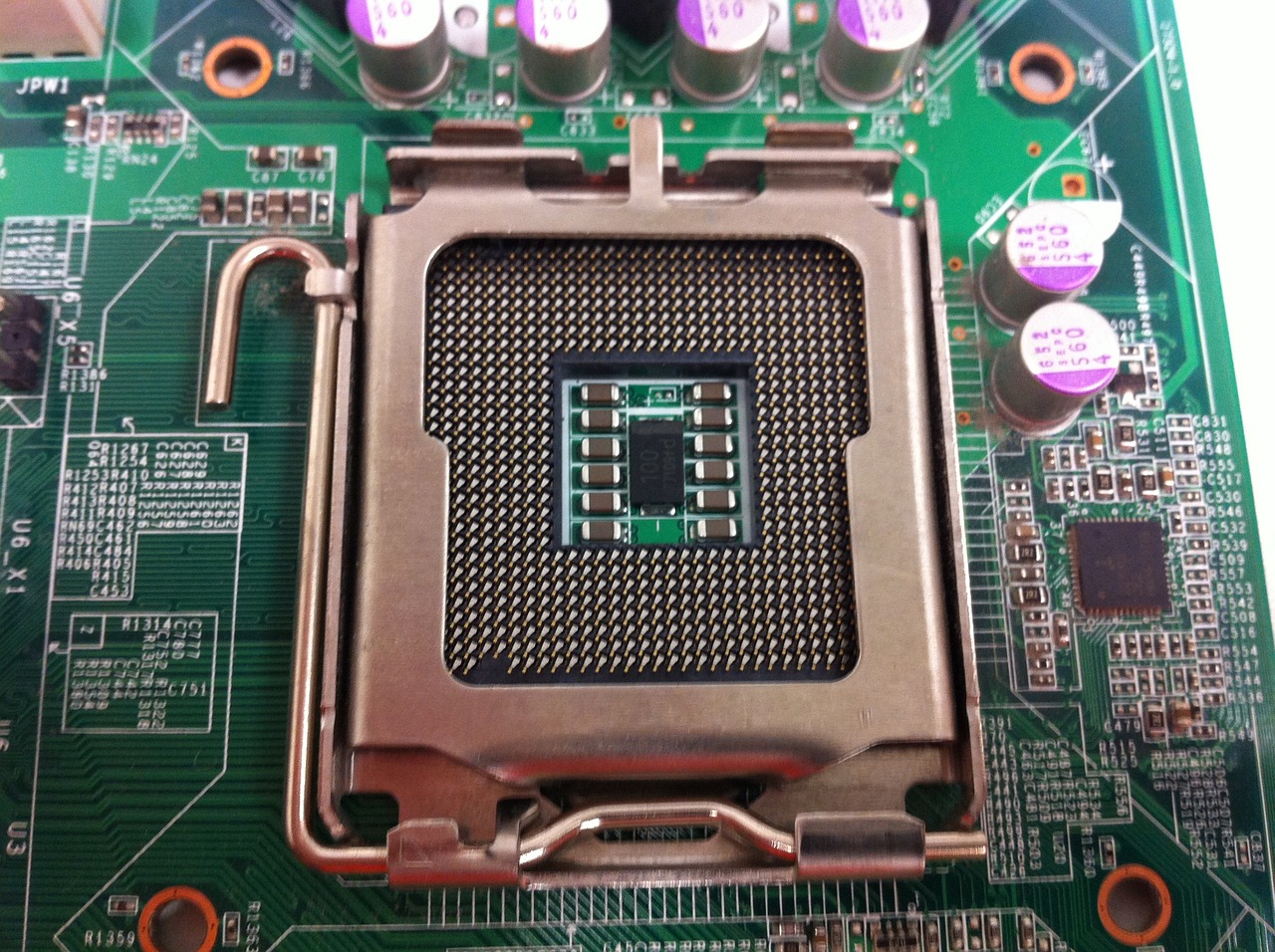
2. Enable Intel VT-x / AMD-V in BIOS/UEFI if it’s off.
3. Reboot into Windows.
Enable Hyper-V on Windows 10 Home
1. Create a .bat script that installs the Hyper-V packages via DISM.
2. Run it as administrator and accept UAC.
3. Press Y to restart when prompted.
4. Hyper-V Manager appears after reboot.
Enable Hyper-V on Pro/Enterprise/Education
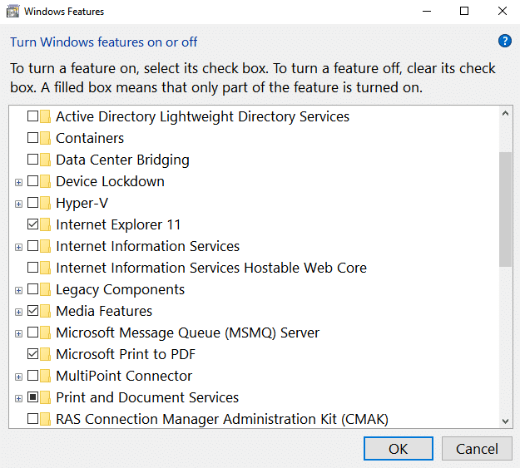
1. Optional Features: run optionalfeatures, tick "Hyper-V", OK, and restart.
2. Command Prompt (admin): DISM /Online /Enable-Feature /All /FeatureName:Microsoft-Hyper-V
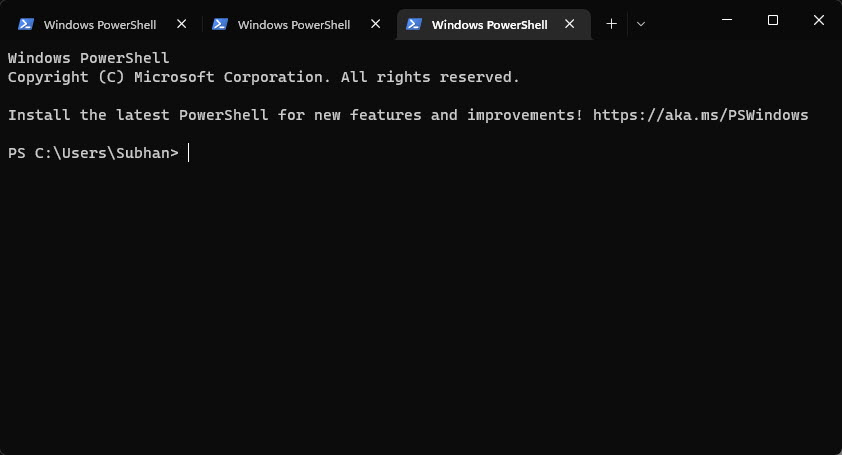
3. PowerShell (admin): Enable-WindowsOptionalFeature -Online -FeatureName Microsoft-Hyper-V -All
4. Restart.
Disable Hyper-V
1. Run optionalfeatures and untick "Hyper-V" (or use Disable-WindowsOptionalFeature).
2. Restart the PC.
Troubleshooting
Problem: Option greyed out.
Solution: Enable virtualization in BIOS and confirm a 64-bit CPU with SLAT support.
Problem: Home script won’t work.
Solution: Run as administrator with Windows updated so the Hyper-V packages are available.
Problem: VMs fail to start.
Solution: Ensure virtualization is on and no conflicting hypervisor is running.
Problem: Breaks another VM app.
Solution: Disable Hyper-V (and hypervisorlaunchtype) when using some third-party hypervisors.
Conclusion
On Windows 10, enable virtualization in BIOS then turn on Hyper-V via Optional Features/DISM/PowerShell (Pro and up), or run a DISM script to add it to Home. Hyper-V Manager then lets you create and manage virtual machines.