Windows 10 (Home සහ Pro) එකේ Hyper-V Enable කරන්නේ කොහොමද
Virtual machines run කරන්න Windows 10 එකේ built-in hypervisor එක activate කරගන්න.
Overview
Hyper-V එකෙන් ඔයාට Windows 10 එකේ virtual machines හදලා run කරන්න පුළුවන්. මේක Pro/Enterprise/Education වල built-in විදිහට තියෙනවා, Home එකට script එකකින් add කරගන්නත් පුළුවන්. මේ guide එකෙන් requirements සහ මේක enable කරන විදිය කියලා දෙනවා.
Windows 10 එකේ Hyper-V enable කිරීම.
Key Takeaways
- 64-bit Windows 10 එකයි hardware virtualization එකයි ඕන.
- Pro/Enterprise/Education වල Hyper-V තියෙනවා.
- Windows 10 Home එකට මේක add කරගන්න DISM script එකක් ඕන.
- Optional Features, DISM, හෝ PowerShell හරහා enable කරන්න පුළුවන්.
Step 1: Check Support and Enable Virtualization
1. systeminfo (Hyper-V Requirements) run කරන්න, නැත්නම් Task Manager > Performance > CPU > Virtualization check කරන්න.
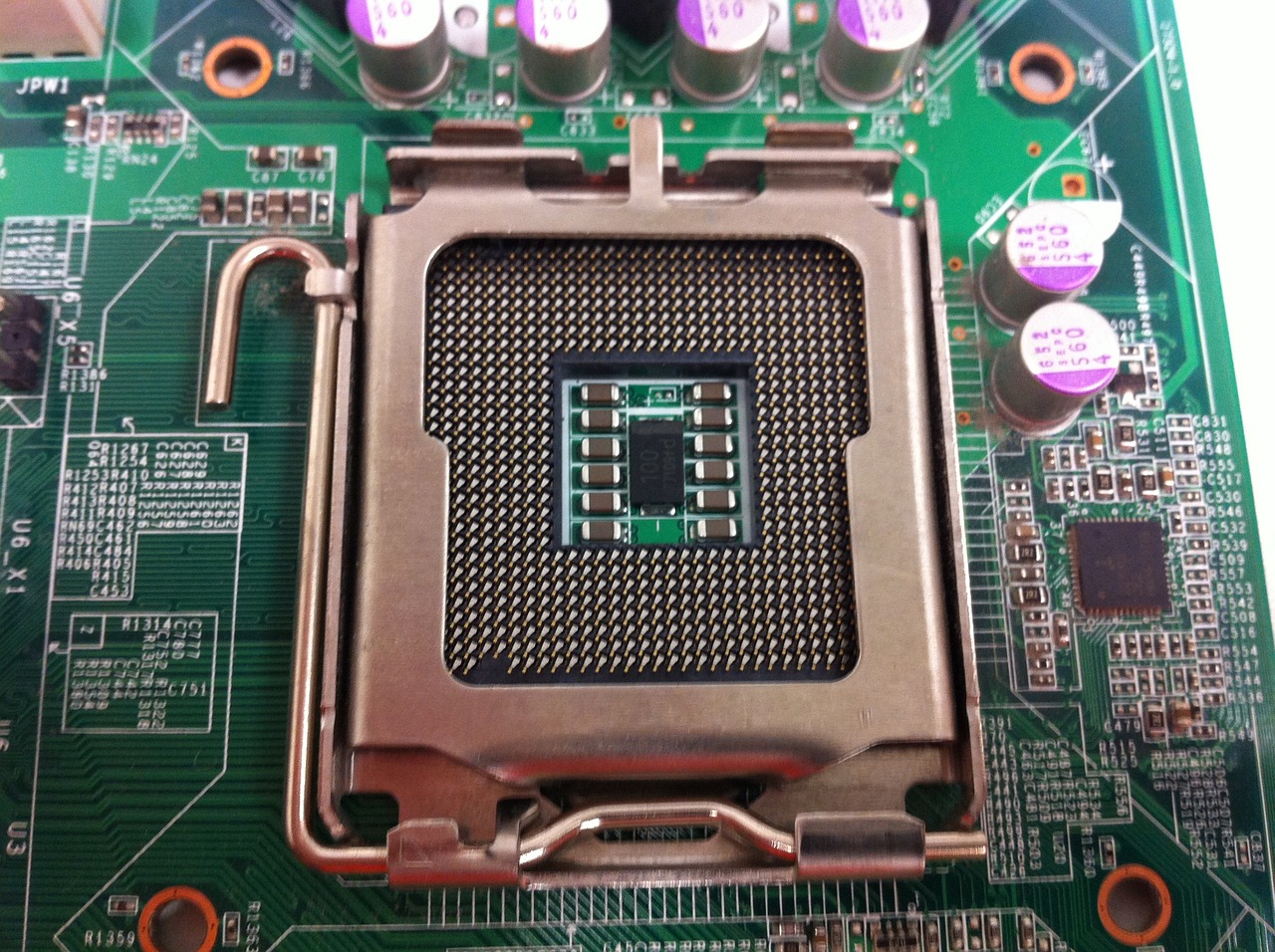
2. BIOS/UEFI එකේ Intel VT-x / AMD-V off නම් enable කරන්න.
3. Windows එකට reboot කරන්න.
Enable Hyper-V on Windows 10 Home
1. DISM හරහා Hyper-V packages install කරන .bat script එකක් හදන්න.
2. ඒක administrator විදිහට run කරලා UAC එක accept කරන්න.
3. Prompt එක ආවම restart කරන්න Y press කරන්න.
4. Reboot එකට පස්සේ Hyper-V Manager එක පෙනෙනවා.
Enable Hyper-V on Pro/Enterprise/Education
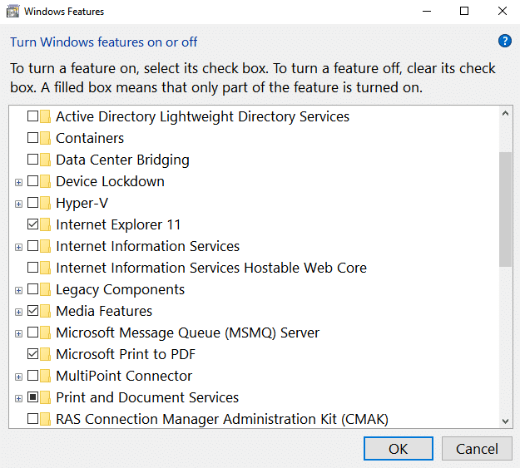
1. Optional Features: optionalfeatures run කරලා "Hyper-V" tick කරලා, OK කරලා, restart කරන්න.
2. Command Prompt (admin): DISM /Online /Enable-Feature /All /FeatureName:Microsoft-Hyper-V
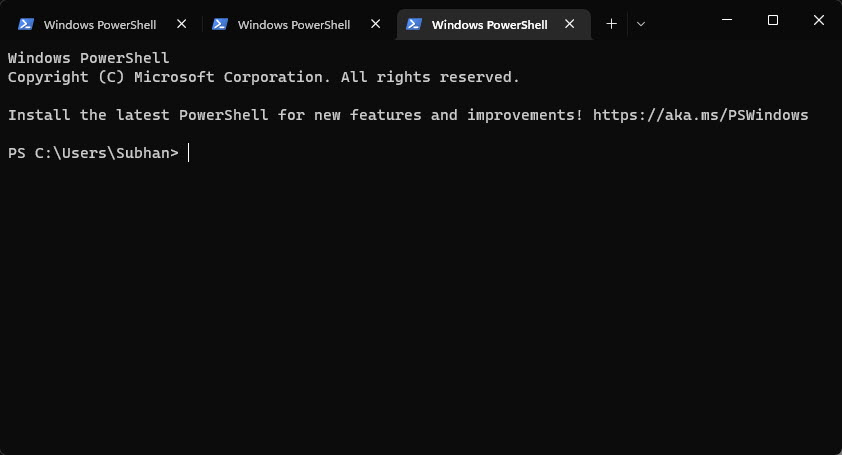
3. PowerShell (admin): Enable-WindowsOptionalFeature -Online -FeatureName Microsoft-Hyper-V -All
4. Restart කරන්න.
Disable Hyper-V
1. optionalfeatures run කරලා "Hyper-V" untick කරන්න (නැත්නම් Disable-WindowsOptionalFeature use කරන්න).
2. PC එක restart කරන්න.
Troubleshooting
Problem: Option එක greyed out වෙලා.
Solution: BIOS එකේ virtualization enable කරලා, SLAT support එක තියෙන 64-bit CPU එකක්ද කියලා confirm කරන්න.
Problem: Home script එක වැඩ කරන්නේ නෑ.
Solution: Windows එක update කරලා, Hyper-V packages available වෙන විදිහට administrator විදිහට run කරන්න.
Problem: VMs start වෙන්නේ නෑ.
Solution: Virtualization on ද කියලා බලලා, conflicting hypervisor එකක් run වෙන්නේ නෑ කියලා confirm කරන්න.
Problem: තව VM app එකක් break වෙනවා.
Solution: සමහර third-party hypervisors use කරනකොට Hyper-V (සහ hypervisorlaunchtype) disable කරන්න.
Conclusion
Windows 10 එකේ, මුලින්ම BIOS එකේ virtualization enable කරලා ඊට පස්සේ Optional Features/DISM/PowerShell හරහා (Pro සහ ඊට උඩ) Hyper-V on කරන්න, නැත්නම් Home එකට add කරගන්න DISM script එකක් run කරන්න. ඊට පස්සේ Hyper-V Manager එකෙන් virtual machines හදලා manage කරන්න පුළුවන්.