Overview
RemoteFX vGPU was a Hyper-V feature that shared a physical graphics card among virtual machines to accelerate 3D and video workloads. Microsoft has since disabled and removed RemoteFX vGPU by default because of serious security vulnerabilities. This guide explains the recommended modern alternatives first, then documents how the legacy RemoteFX option was enabled for isolated lab or testing environments where it may still be required.
The RemoteFX 3D Video Adapter option shown disabled in Hyper-V VM settings.
<w:bottom w:val="single" w:color="FBE4E4" w:sz="2" w:space="4"/><w:left w:val="single" w:color="C0392B" w:sz="24" w:space="8"/><w:right w:val="single" w:color="FBE4E4" w:sz="2" w:space="4"/></w:pBdr><w:shd w:fill="FBE4E4" w:color="auto" w:val="clear"/><w:spacing w:before="80" w:after="160"/><w:ind w:left="120" w:right="120"/></w:pPr><w:r><w:rPr><w:b/><w:bCs/><w:color w:val="C0392B"/><w:sz w:val="21"/><w:szCs w:val="21"/><w:rFonts w:ascii="Calibri" w:cs="Calibri" w:eastAsia="Calibri" w:hAnsi="Calibri"/></w:rPr><w:t xml:space="preserve">Warning: Microsoft disabled RemoteFX vGPU through security updates because of critical vulnerabilities (including CVE-2020-1036 and related flaws) that could allow code execution on the host. Do not enable RemoteFX on production or internet-connected hosts. For any current need, use GPU partitioning (GPU-P) or Discrete Device Assignment (DDA) instead.
Key Takeaways
- RemoteFX vGPU is deprecated and removed by default for security reasons.
- GPU Partitioning (GPU-P) and Discrete Device Assignment (DDA) are the supported, safer replacements.
- Any RemoteFX use should be limited to isolated, offline test labs.
- GPU acceleration in Hyper-V requires a compatible graphics adapter and up-to-date drivers.
Recommended: Use a Supported GPU Feature
Before considering RemoteFX, evaluate the modern options. Discrete Device Assignment (DDA) passes an entire physical GPU through to a single VM and is ideal for high-performance workloads. GPU Partitioning (GPU-P) shares a supported GPU across multiple VMs and is used by Windows features such as Windows Sandbox and WSL. Both are actively supported and avoid the RemoteFX security issues.
1. Confirm your GPU and driver support DDA or GPU-P (check the vendor documentation for NVIDIA, AMD or Intel).
2. Open an elevated PowerShell window on the Hyper-V host.
3. For DDA, dismount the device from the host and assign it to the target VM using the Add-VMAssignableDevice cmdlets.
4. For GPU-P, use the Add-VMGpuPartitionAdapter cmdlet against the VM.
5. Start the VM and install the matching GPU drivers inside the guest.
Legacy Reference: Enabling RemoteFX vGPU
The steps below describe how RemoteFX was enabled on older Hyper-V hosts, for archival and isolated-lab reference only. On patched systems the option is greyed out until a Group Policy is enabled to re-expose it.
1. On the Hyper-V host, open the Local Group Policy Editor (gpedit.msc).
2. Navigate to Computer Configuration > Administrative Templates > Windows Components > Remote Desktop Services > Remote Desktop Session Host > RemoteFX for Windows Server.
3. Enable the policy that configures RemoteFX, then run "gpupdate /force" from an elevated Command Prompt.
4. Shut down the target virtual machine completely.
5. Open the VM Settings, click "Add Hardware", and select "RemoteFX 3D Video Adapter".
6. Apply the settings and start the VM.
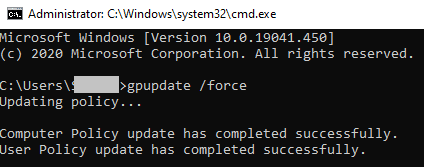
Applying updated policy with gpupdate /force before configuring the adapter.
<w:bottom w:val="single" w:color="DEEAF6" w:sz="2" w:space="4"/><w:left w:val="single" w:color="0B5394" w:sz="24" w:space="8"/><w:right w:val="single" w:color="DEEAF6" w:sz="2" w:space="4"/></w:pBdr><w:shd w:fill="DEEAF6" w:color="auto" w:val="clear"/><w:spacing w:before="80" w:after="160"/><w:ind w:left="120" w:right="120"/></w:pPr><w:r><w:rPr><w:b/><w:bCs/><w:color w:val="0B5394"/><w:sz w:val="21"/><w:szCs w:val="21"/><w:rFonts w:ascii="Calibri" w:cs="Calibri" w:eastAsia="Calibri" w:hAnsi="Calibri"/></w:rPr><w:t xml:space="preserve">Note: On fully patched Windows builds RemoteFX vGPU has been removed entirely and cannot be re-enabled. Treat DDA and GPU-P as the only forward-looking options.
Troubleshooting
Problem: The RemoteFX 3D Video Adapter option is greyed out.
Solution: The feature is disabled by security updates. It can only be exposed on unpatched legacy hosts via Group Policy, which is strongly discouraged. Use DDA or GPU-P instead.
Problem: The VM will not start after adding the adapter.
Solution: Ensure the host GPU and drivers actually support the feature and that no security update has removed RemoteFX. Remove the adapter to restore the VM, then switch to a supported GPU method.
Problem: GPU acceleration is unavailable inside the guest.
Solution: Install the correct GPU drivers inside the VM and confirm the assignment succeeded with Get-VMAssignableDevice or Get-VMGpuPartitionAdapter on the host.
Problem: Security scanners flag the RemoteFX configuration.
Solution: This is expected — RemoteFX vGPU is a known risk. Disable it and migrate the workload to Discrete Device Assignment or GPU Partitioning.
Conclusion
RemoteFX vGPU once offered shared GPU acceleration in Hyper-V, but Microsoft removed it because of critical security flaws. For any GPU workload today, use the supported and safer Discrete Device Assignment or GPU Partitioning features, and reserve RemoteFX only for fully isolated legacy test environments.
About TechHub
This guide is part of the TechHub Knowledge Base. For more step-by-step IT guides and support, visit techhub.com.lk.