Overview
RemoteFX vGPU කියන්නේ 3D සහ video workloads accelerate කරන්න physical graphics card එකක් virtual machines අතරේ share කරපු Hyper-V feature එකක්. දරුණු security vulnerabilities නිසා Microsoft එක RemoteFX vGPU එක default විදිහට disable කරලා අයින් කරලා තියෙනවා. මේ guide එකෙන් මුලින්ම recommend කරන modern alternatives පැහැදිලි කරනවා, ඊට පස්සේ legacy RemoteFX option එක තාමත් ඕන වෙන්න පුළුවන් isolated lab හෝ testing environments වලට ඒක enable කරපු හැටි document කරනවා.
Hyper-V VM settings වල disabled විදිහට පෙන්නන RemoteFX 3D Video Adapter option එක.
Warning: Microsoft එක RemoteFX vGPU එක disable කරේ critical vulnerabilities (CVE-2020-1036 සහ ඒ ආශ්රිත flaws ඇතුළුව) නිසා — ඒවා host එකේ code execution එකට ඉඩ දෙන්න පුළුවන්. Production හෝ internet-connected hosts වල RemoteFX enable කරන්න එපා. දැන් ඕන කවර හෝ දෙයකට, ඒ වෙනුවට GPU partitioning (GPU-P) හෝ Discrete Device Assignment (DDA) use කරන්න.
Key Takeaways
- RemoteFX vGPU deprecated වෙලා, security හේතූන් නිසා default විදිහට අයින් කරලා තියෙනවා.
- GPU Partitioning (GPU-P) සහ Discrete Device Assignment (DDA) තමයි supported, safer replacements.
- ඕනෑම RemoteFX පාවිච්චියක් isolated, offline test labs වලට විතරක් සීමා කරන්න ඕන.
- Hyper-V එකේ GPU acceleration වලට compatible graphics adapter එකකුයි up-to-date drivers ඕන.
Recommended: Use a Supported GPU Feature
RemoteFX ගැන හිතන්න කලින්, modern options evaluate කරන්න. Discrete Device Assignment (DDA) එකෙන් සම්පූර්ණ physical GPU එකක් එක VM එකකට pass කරනවා, high-performance workloads වලට ideal. GPU Partitioning (GPU-P) එකෙන් supported GPU එකක් VMs කිහිපයක් අතරේ share කරනවා, Windows Sandbox සහ WSL වගේ Windows features වලින් use කරනවා. දෙකම actively supported, RemoteFX security issues වළක්වනවා.
1. ඔයාගේ GPU එකයි driver එකයි DDA හෝ GPU-P support කරනවද කියලා confirm කරන්න (NVIDIA, AMD හෝ Intel වලට vendor documentation එක බලන්න).
2. Hyper-V host එකේ elevated PowerShell window එකක් open කරන්න.
3. DDA වලට, device එක host එකෙන් dismount කරලා Add-VMAssignableDevice cmdlets පාවිච්චි කරලා target VM එකට assign කරන්න.
4. GPU-P වලට, VM එකට එරෙහිව Add-VMGpuPartitionAdapter cmdlet එක use කරන්න.
5. VM එක start කරලා guest එක ඇතුළේ matching GPU drivers install කරන්න.
Legacy Reference: Enabling RemoteFX vGPU
පහළ steps වලින් පෙන්නන්නේ පරණ Hyper-V hosts වල RemoteFX enable කරපු හැටි — archival සහ isolated-lab reference එකට විතරයි. Patched systems වල option එක greyed out වෙලා තියෙනවා, ඒක ආයෙත් expose කරන්න Group Policy එකක් enable කරනකම්.
1. Hyper-V host එකේ, Local Group Policy Editor (gpedit.msc) open කරන්න.
2. Computer Configuration > Administrative Templates > Windows Components > Remote Desktop Services > Remote Desktop Session Host > RemoteFX for Windows Server එකට navigate කරන්න.
3. RemoteFX configure කරන policy එක enable කරලා, elevated Command Prompt එකකින් "gpupdate /force" run කරන්න.
4. Target virtual machine එක සම්පූර්ණයෙන්ම shut down කරන්න.
5. VM Settings open කරලා, "Add Hardware" click කරලා, "RemoteFX 3D Video Adapter" තෝරන්න.
6. Settings apply කරලා VM එක start කරන්න.
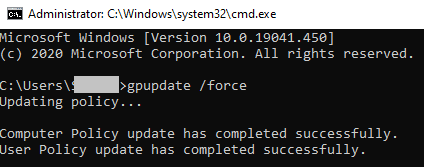
Adapter එක configure කරන්න කලින් gpupdate /force එකෙන් updated policy එක apply කරන එක.
Note: සම්පූර්ණයෙන්ම patched Windows builds වල RemoteFX vGPU එක සම්පූර්ණයෙන්ම අයින් කරලා තියෙනවා, ආයෙත් re-enable කරන්න බෑ. DDA සහ GPU-P තමයි ඉදිරියට තියෙන එකම options විදිහට සලකන්න.
Troubleshooting
Problem: RemoteFX 3D Video Adapter option එක greyed out වෙලා.
Solution: Feature එක security updates වලින් disable වෙලා. ඒක expose කරන්න පුළුවන් unpatched legacy hosts වල Group Policy හරහා විතරයි, ඒක තදින්ම discourage කරනවා. ඒ වෙනුවට DDA හෝ GPU-P use කරන්න.
Problem: Adapter එක add කරාට පස්සේ VM එක start වෙන්නේ නෑ.
Solution: Host GPU එකයි drivers එකයි ඇත්තටම feature එක support කරනවද, security update එකක් RemoteFX අයින් කරලා නැද්ද කියලා confirm කරන්න. VM එක restore කරන්න adapter එක remove කරලා, supported GPU method එකකට switch කරන්න.
Problem: Guest එක ඇතුළේ GPU acceleration available නෑ.
Solution: VM එක ඇතුළේ හරි GPU drivers install කරන්න, host එකේ Get-VMAssignableDevice හෝ Get-VMGpuPartitionAdapter එකෙන් assignment එක succeed වුණා කියලා confirm කරන්න.
Problem: Security scanners RemoteFX configuration එක flag කරනවා.
Solution: මේක බලාපොරොත්තු වෙන දෙයක් — RemoteFX vGPU එක known risk එකක්. ඒක disable කරලා workload එක Discrete Device Assignment හෝ GPU Partitioning එකට migrate කරන්න.
Conclusion
RemoteFX vGPU එකෙන් එක කාලෙක Hyper-V එකේ shared GPU acceleration දුන්නත්, critical security flaws නිසා Microsoft එක ඒක අයින් කරා. අද කවර හෝ GPU workload එකකට, supported සහ safer Discrete Device Assignment හෝ GPU Partitioning features use කරන්න, RemoteFX එක reserve කරන්න fully isolated legacy test environments වලට විතරයි.
About TechHub
මේ guide එක TechHub Knowledge Base එකේ කොටසක්. තව step-by-step IT guides සහ support වලට techhub.com.lk එකට යන්න.