Overview
අලුතෙන් Windows install කරපු වෙලාවක ඇතැම් විට ඔයාගේ Ethernet හෝ Wi-Fi adapter එකට වැඩ කරන driver එකක් නැතුව එනවා. එතකොට කරදරකාරී loop එකක් හැදෙනවා: driver එක download කරන්න internet එක ඕන, ඒත් online යන්න driver එක ඕන. Offline driver installer tools මේ ප්රශ්නෙ විසඳන්නේ hardware driver ගොඩක් තියෙන ලොකු library එකක් bundle කරලා, ඒක USB flash drive එකක දාගෙන disconnect වුණු machine එකේ install කරන්න පුළුවන් වෙන නිසා. මේ guide එකෙන් විශ්වාසවන්ත option හතරක් පෙන්නනවා.
Key Takeaways
- Offline driver tools මගින් internet access නැති PC එකකට network drivers install කරන්න පුළුවන්.
- වැඩ කරන computer එකක tool එක download කරලා, ඒක USB drive එකකට copy කරලා, target PC එකේ run කරන්න.
- තියෙනවා නම් හැමවෙලාවෙම මුලින්ම ඔයාගේ device හෝ motherboard manufacturer එකේ official driver එකට priority දෙන්න.
- Install වෙනකොට bundle වෙලා එන extra software ගැන අවධානයෙන් ඉන්න, install කරන්න බලාපොරොත්තු නොවුණු දේවල් decline කරන්න.
Note: වඩාත්ම විශ්වාසවන්ත driver එක හැමවෙලාවෙම ඔයාගේ hardware manufacturer (Intel, Realtek, Dell, HP, Lenovo, etc.) විසින් publish කරන එකයි. ඒ sites වලට කොහෙත්ම යන්න බැරි වෙලාවකදී විතරක් මේ tools පාවිච්චි කරන්න.
Method 1: DriverPack Solution
DriverPack Solution ලොකුම offline driver collection එකක් maintain කරනවා, එයාලට සම්පූර්ණ offline network edition එකකුත් තියෙනවා.
1. internet access තියෙන computer එකක, official DriverPack website එකට ගිහින් offline network installer එක download කරන්න.
2. download කරගත්ත package එක USB flash drive එකකට copy කරන්න.
3. USB drive එක target PC එකට plug කරලා executable එක run කරන්න.
4. automatic selection එක accept කරනවා වෙනුවට, install වෙන්නේ මොන drivers ද කියලා හරියටම review කරන්න Expert Mode එකට switch වෙන්න.
5. network adapter driver එක විතරක් select කරලා, Install click කරලා prompt වුණාම reboot කරන්න.
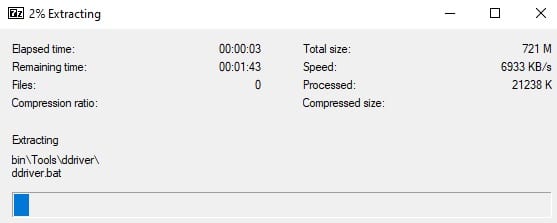
DriverPack install වෙන්න කලින් එයාගේ driver library එක extract කරලා ready කරගන්නවා.
Tip: Expert Mode එකෙන් DriverPack එකට එපා වෙච්ච extra applications install වීම වළක්වනවා, ඒ නිසා හැමවෙලාවෙම ඒක පාවිච්චි කරන්න.
Method 2: Driver Easy
Driver Easy ඔයාගේ hardware එක scan කරලා නැති drivers match කරනවා. එයාගේ offline scan feature එක හදලා තියෙන්නේ connection එකක් නැති PC එකකට හරියටම.
1. connect වුණු PC එකක Driver Easy install කරලා Offline Scan option එක තෝරන්න.
2. generate වුණු offline scan file එක USB drive එකකට save කරලා ඒක connect වුණු computer එකකට move කරන්න.
3. ඒ scan file එක ආපහු Driver Easy එකට load කරලා matching network driver එක download කරන්න.
4. download කරගත්ත driver එක USB drive එකට copy කරලා, offline PC එකට ආපහු ගිහින් install කරන්න.
Method 3: 3DP Net
3DP Net කියන්නේ network adapter drivers විතරක් අරගෙන යන පොඩි, focused tool එකක්, ඒ නිසා ඒක lightweight සහ ඉක්මන්.
1. වැඩ කරන PC එකක 3DP Net download කරලා තනි package එක USB drive එකකට copy කරන්න.
2. ඒක offline computer එකේ run කරන්න — ඒක automatically ඔයාගේ network card එක detect කරනවා.
3. network card entry එක expand කරලා install කරන්න driver version එක click කරන්න.
4. installation wizard එක follow කරලා PC එක restart කරන්න.
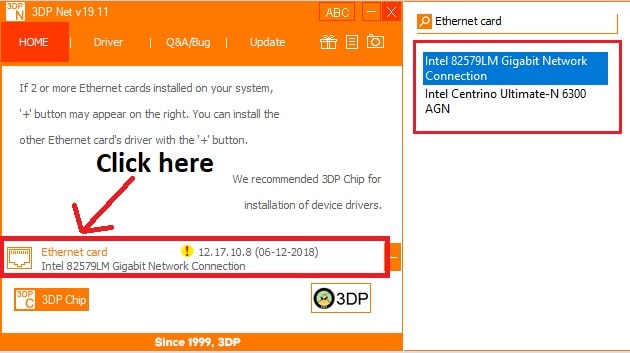
3DP Net detect කරගත්ත network adapter එක install කරන්න ready කරලා පෙන්නනවා.
Method 4: Snappy Driver Installer
Snappy Driver Installer කියන්නේ free, open-source tool එකක්, ඒකට සම්පූර්ණ offline පාවිච්චියට කලින්ම full driver packs download කරගන්න පුළුවන්.
1. connect වුණු PC එකක Snappy Driver Installer download කරලා ඒකට network driver packs ගන්න දෙන්න.
2. download කරගත්ත packs ඇතුළුව සම්පූර්ණ Snappy folder එකම USB drive එකකට copy කරන්න.
3. offline PC එකේ Snappy run කරලා, suggest කරන network driver එක review කරලා ඒක select කරන්න.
4. Install click කරලා reboot කරලා process එක complete කරන්න.
Warning: මේ tools හැම එකක්ම එයාගේ official website එකෙන් විතරක් download කරන්න. Third-party sites වල repackage කරපු installers වල බොහෝවිට adware හෝ malware තියෙනවා.
Troubleshooting
Problem: Tool එක driver එකක් install කරනවා ඒත් network adapter එක තාමත් පේන්නේ නෑ.
Solution: Device Manager open කරලා, Network adapters සහ Other devices යටතේ කහ warning icon එකක් තියෙන item එකක් තියෙනවද බලලා, matching driver එක reinstall කරලා reboot කරන්න.
Problem: Windows එකෙන් driver එක unsigned හෝ incompatible warning එකකින් block කරනවා.
Solution: ඔයාගේ හරි adapter model එකට සහ Windows build එකට match වෙන driver version එකක් තෝරන්න; අවශ්ය නම් manufacturer එකෙන් කෙලින්ම signed driver එක ගන්න.
Problem: Installer එක extra browser toolbars හෝ අදාළ නැති apps add කරන්න හදනවා.
Solution: Tool එකේ expert හෝ custom mode එක පාවිච්චි කරලා, continue කරන්න කලින් හැම optional component එකක්ම uncheck කරන්න.
Problem: හරිම අලුත් adapter එකකට driver එකක් හම්බවෙන්නේ නෑ.
Solution: Device Manager (Details tab) එකේ adapter එකේ hardware ID එක identify කරලා, Intel හෝ Realtek වගේ chipset vendor එකෙන් හරි driver එක download කරන්න.
Conclusion
Offline driver installers මගින් හිර වුණු, disconnect වුණු PC එකක් ආපහු වැඩ කරන machine එකක් බවට පත් කරනවා. මේ tools වලින් එකක් ඔයාගේ standard recovery kit එකේ කොටසක් විදිහට USB drive එකක තියාගන්න, ඒත් ආපහු online වුණාම හැමවෙලාවෙම official manufacturer drivers වලට priority දෙන්න.
About TechHub
මේ guide එක TechHub Knowledge Base එකේ කොටසක්. තව step-by-step IT guides සහ support වලට techhub.com.lk එකට යන්න.