Overview
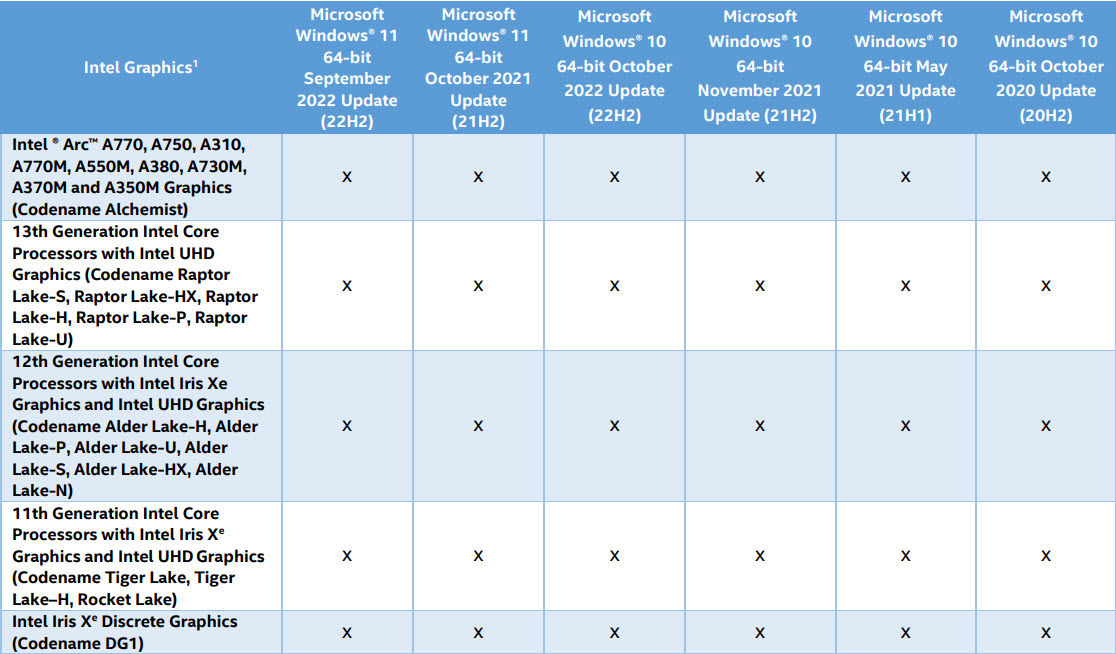
Intel Wireless Wi-Fi driver version 22.240.0 is a wireless adapter update that brings functional improvements and adds support for additional Intel wireless hardware. This guide explains what is new and how to download, install, and (if needed) roll back the driver on Windows 11 and Windows 10.
Intel Wi-Fi driver 22.240.0 for Windows 11 and Windows 10.
Key Takeaways
- Version 22.240.0 (July 2023) adds functional updates and new wireless hardware support.
- The 64-bit driver covers Windows 11 and Windows 10 (x64).
- 32-bit (x86) Windows 10 remains on the older 22.160.0 driver.
- Install via the Intel Driver & Support Assistant or manually through Device Manager.
What’s New
- Functional updates that improve wireless reliability and performance.
- Adds support for additional Intel Wi-Fi adapters.
- Recommended for users on supported Intel wireless hardware.
Note: On 32-bit Windows, the latest available Wi-Fi driver is 22.160.0 — version 22.240.0 is for 64-bit systems.
How to Download
1. Open Intel’s official Download Center or the Intel Driver & Support Assistant.
2. For 64-bit Windows 11/10, download Intel Wi-Fi driver v22.240.0.
3. For 32-bit Windows 10, download v22.160.0 instead.
4. Confirm the download completed before installing.
Warning: Download Intel wireless drivers only from Intel’s official site or the Driver & Support Assistant.
How to Install
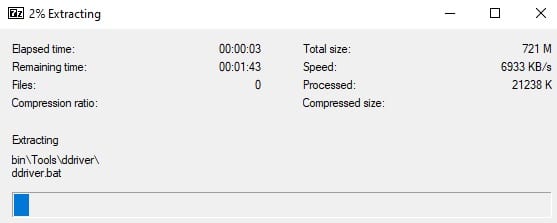
1. Run the downloaded installer and follow the prompts, accepting the licence terms.
2. Alternatively, open Device Manager, expand Network adapters, right-click your Intel Wireless adapter, and choose Update driver > Browse my computer to point to the extracted files.
3. Restart the PC to complete installation.
4. Verify the version in Device Manager > Network adapters > your adapter > Properties > Driver.
How to Roll Back the Driver
1. Open Device Manager and expand Network adapters.
2. Right-click your Intel Wireless adapter and choose Properties.
3. On the Driver tab, click Roll Back Driver if a previous version is available.
4. Restart the PC.
Troubleshooting
Problem: No Wi-Fi after updating.
Solution: Roll back the driver from Device Manager, then reinstall the correct package for your Windows architecture (x64 vs x86).
Problem: Installer reports unsupported hardware.
Solution: Your adapter is not covered by this release, or your OEM controls the driver. Check your laptop manufacturer’s support page.
Problem: Wireless is slow or drops.
Solution: Ensure you installed the matching version, update your router firmware, and check for interference; roll back if the new driver is worse for your setup.
Problem: Installation fails.
Solution: Run the installer as administrator and temporarily disable antivirus, then retry.
Conclusion
Intel Wi-Fi driver 22.240.0 keeps 64-bit Windows systems current with the latest wireless improvements. Download it from Intel’s official channels, install it, verify the version, and roll back easily if you hit any issues.
</w:pBdr><w:spacing w:before="220" w:after="40"/></w:pPr><w:r><w:rPr><w:b/><w:bCs/><w:color w:val="0B5394"/><w:sz w:val="21"/><w:szCs w:val="21"/><w:rFonts w:ascii="Calibri" w:cs="Calibri" w:eastAsia="Calibri" w:hAnsi="Calibri"/></w:rPr><w:t xml:space="preserve">About TechHub
This guide is part of the TechHub Knowledge Base. For more step-by-step IT guides and support, visit techhub.com.lk.