Overview
A fresh Windows installation sometimes ships without a working driver for your Ethernet or Wi-Fi adapter. That creates a frustrating loop: you need the internet to download the driver, but you need the driver to get online. Offline driver installer tools solve this by bundling a large library of hardware drivers that you can carry on a USB flash drive and install on the disconnected machine. This guide walks through four reliable options.
Key Takeaways
- Offline driver tools let you install network drivers on a PC that has no internet access.
- Download the tool on a working computer, copy it to a USB drive, then run it on the target PC.
- Always prefer your device or motherboard manufacturer’s official driver first when it is available.
- Watch for bundled extra software during installation and decline anything you did not intend to install.
Note: The most reliable driver is always the one published by your hardware manufacturer (Intel, Realtek, Dell, HP, Lenovo, etc.). Use these tools when you cannot reach those sites at all.
Method 1: DriverPack Solution
DriverPack Solution maintains one of the largest offline driver collections and offers a full offline network edition.
1. On a computer with internet access, visit the official DriverPack website and download the offline network installer.
2. Copy the downloaded package to a USB flash drive.
3. Plug the USB drive into the target PC and run the executable.
4. Switch to Expert Mode to review exactly which drivers will be installed rather than accepting the automatic selection.
5. Select only the network adapter driver, then click Install and reboot when prompted.
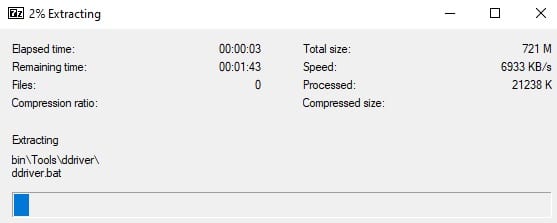
DriverPack extracts and prepares its driver library before installation.
Tip: Expert Mode prevents DriverPack from installing unwanted extra applications, so always use it.
Method 2: Driver Easy
Driver Easy scans your hardware and matches missing drivers. Its offline scan feature is designed exactly for a PC with no connection.
1. Install Driver Easy on a connected PC and choose the Offline Scan option.
2. Save the generated offline scan file to a USB drive and move it to a connected computer.
3. Load that scan file back into Driver Easy to download the matching network driver.
4. Copy the downloaded driver to the USB drive, return to the offline PC, and install it.
Method 3: 3DP Net
3DP Net is a small, focused tool that carries only network adapter drivers, making it lightweight and quick.
1. Download 3DP Net on a working PC and copy the single package to a USB drive.
2. Run it on the offline computer — it automatically detects your network card.
3. Expand the network card entry and click the driver version to install it.
4. Follow the installation wizard and restart the PC.
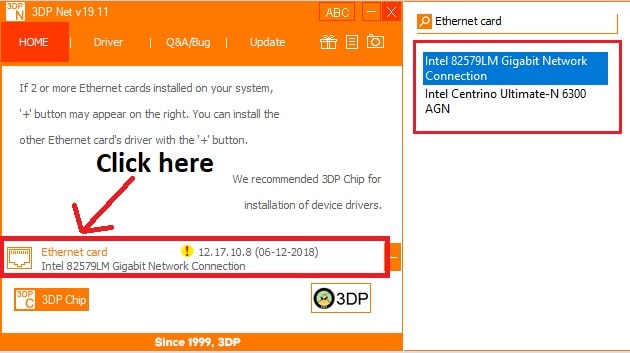
3DP Net lists the detected network adapter ready to install.
Method 4: Snappy Driver Installer
Snappy Driver Installer is a free, open-source tool that can download full driver packs in advance for completely offline use.
1. On a connected PC, download Snappy Driver Installer and let it fetch the network driver packs.
2. Copy the entire Snappy folder, including the downloaded packs, to a USB drive.
3. Run Snappy on the offline PC, review the suggested network driver, and select it.
4. Click Install and reboot to complete the process.
Warning: Download every one of these tools only from its official website. Installers repackaged on third-party sites often contain adware or malware.
Troubleshooting
Problem: The tool installs a driver but the network adapter still does not appear.
Solution: Open Device Manager, look under Network adapters and Other devices for an item with a yellow warning icon, then reinstall the matching driver and reboot.
Problem: Windows blocks the driver with an unsigned or incompatible warning.
Solution: Choose a driver version that matches your exact adapter model and Windows build; if needed, obtain the signed driver directly from the manufacturer.
Problem: The installer tries to add extra browser toolbars or unrelated apps.
Solution: Use the tool’s expert or custom mode and uncheck every optional component before continuing.
Problem: No driver is found for a very new adapter.
Solution: Identify the adapter’s hardware ID in Device Manager (Details tab) and download the correct driver from the chipset vendor such as Intel or Realtek.
Conclusion
Offline driver installers turn a stranded, disconnected PC back into a working machine. Keep one of these tools on a USB drive as part of your standard recovery kit, but always give preference to official manufacturer drivers once you are back online.
About TechHub
This guide is part of the TechHub Knowledge Base. For more step-by-step IT guides and support, visit techhub.com.lk.