Overview
Intel Wi-Fi and Bluetooth driver version 22.100.1 is a wireless driver update focused on connectivity reliability for Intel wireless adapters. This guide explains what the update addresses and how to download and install both the Wi-Fi and Bluetooth drivers on Windows 11 and Windows 10.
Intel Wi-Fi and Bluetooth driver 22.100.1 for Windows 11 and Windows 10.
Key Takeaways
- Version 22.100.1 mainly improves Wi-Fi and Bluetooth connectivity and reliability.
- There are separate downloads for the Wi-Fi driver and the Bluetooth driver.
- Choose the correct package for your Windows version (11 or 10).
- Install via the Intel Driver & Support Assistant or manually through Device Manager.
What This Update Addresses
- Improves connection stability for Intel wireless adapters.
- Resolves several Wi-Fi and Bluetooth connectivity issues.
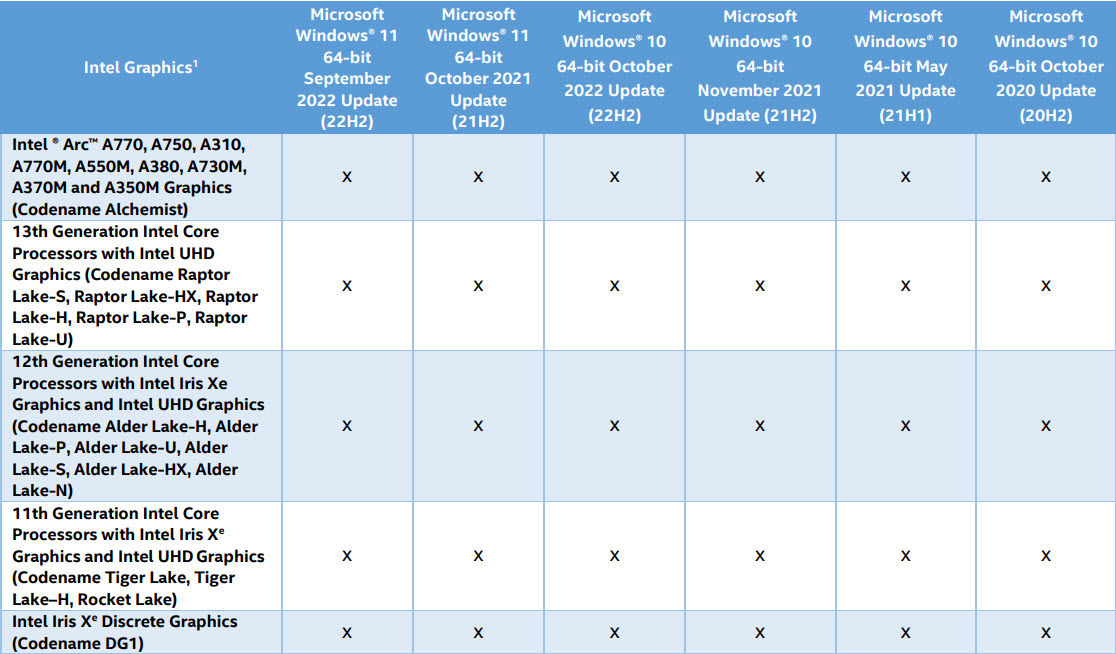
- Provides updated support for the listed Intel wireless hardware.
How to Download
1. Open Intel’s official Download Center or the Intel Driver & Support Assistant.
2. Download the Intel Wi-Fi driver v22.100.1 for your Windows version (11 or 10).
3. Download the matching Intel Wireless Bluetooth driver v22.100.1.
4. Confirm both downloads completed before installing.
Warning: Download Intel wireless drivers only from Intel’s official site or the Driver & Support Assistant.
How to Install the Drivers
1. Run the Wi-Fi driver installer first and follow the prompts, accepting the licence terms.
2. Run the Bluetooth driver installer next.
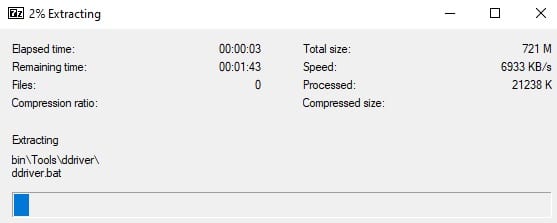
3. Alternatively, in Device Manager, expand Network adapters (Wi-Fi) or Bluetooth, right-click the Intel device, and choose Update driver > Browse my computer to point to the extracted files.
4. Restart the PC to complete the installation.
Tip: If your laptop maker ships a customised Intel wireless driver, prefer that version for the best device-specific compatibility.
Verify the Installation
1. Open Device Manager and expand Network adapters.
2. Double-click your Intel Wireless adapter and open the Driver tab.
3. Confirm the driver version reads 22.100.1.
4. Repeat for the Intel Wireless Bluetooth device under Bluetooth.
Troubleshooting
Problem: Wi-Fi stops working after the update.
Solution: Roll back via Device Manager > Network adapters > your adapter > Properties > Driver > Roll Back Driver, then reinstall the correct version.
Problem: The installer says no supported hardware found.
Solution: Your adapter is not an Intel wireless device, or your OEM controls the driver. Check your laptop manufacturer’s support page.
Problem: Bluetooth devices will not pair after updating.
Solution: Remove and re-pair the device, ensure the Bluetooth service is running, and confirm the Bluetooth driver installed correctly.
Problem: Installation fails.
Solution: Run the installer as administrator, disable antivirus temporarily, and ensure you chose the package for your exact Windows version.
Conclusion
Driver 22.100.1 helps keep Intel Wi-Fi and Bluetooth connections stable. Download both packages from Intel’s official channels, install the Wi-Fi and Bluetooth drivers, and verify the version in Device Manager.
</w:pBdr><w:spacing w:before="220" w:after="40"/></w:pPr><w:r><w:rPr><w:b/><w:bCs/><w:color w:val="0B5394"/><w:sz w:val="21"/><w:szCs w:val="21"/><w:rFonts w:ascii="Calibri" w:cs="Calibri" w:eastAsia="Calibri" w:hAnsi="Calibri"/></w:rPr><w:t xml:space="preserve">About TechHub
This guide is part of the TechHub Knowledge Base. For more step-by-step IT guides and support, visit techhub.com.lk.