Overview
Google Drive for desktop is Google’s official app for accessing your Drive files directly from Windows File Explorer. It replaced the older Backup and Sync and Drive File Stream clients, combining their features into one tool. This guide explains the differences, and shows how to download, install, configure, and uninstall the app.
Google Drive for desktop brings your cloud files into Windows File Explorer.
Key Takeaways
- Drive for desktop is the single, current Google client — it replaced Backup and Sync and Drive File Stream.
- You can stream files on demand (saving disk space) or mirror them locally for offline access.
- It supports multiple Google accounts at once.
- Download it only from Google’s official website.
Drive for Desktop vs File Stream vs Backup and Sync
- Drive for desktop — the current app that unifies streaming and syncing for personal and work accounts.
- Drive File Stream — the older business-focused client, now merged into Drive for desktop.
- Backup and Sync — the older consumer client, also replaced by Drive for desktop.
How to Download and Install
1. Open Google’s official Drive for desktop download page and click Download Drive for desktop.
2. Run the downloaded installer (GoogleDriveSetup.exe).
3. Leave the options for desktop and app shortcuts as you prefer, then click Install.
4. When prompted, click Sign in with browser and log in to your Google account.
5. Choose whether to Stream files (on demand) or Mirror files (keep a local copy), then finish setup.
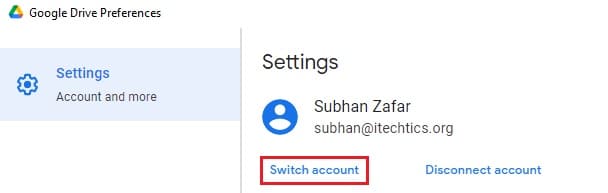
You can sign in to and switch between multiple Google accounts.
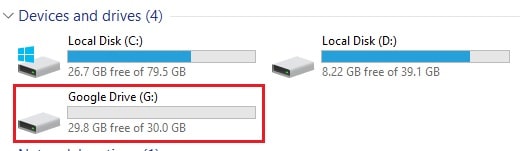
Drive for desktop appears as a dedicated drive in File Explorer.
Access Your Files
1. Open File Explorer and look for the Google Drive entry (a dedicated drive letter).
2. Browse your My Drive and shared drives just like local folders.
3. Right-click a file to choose Available offline if you are streaming and want a local copy.
4. Use the Drive icon in the system tray to switch accounts, pause syncing, or open preferences.
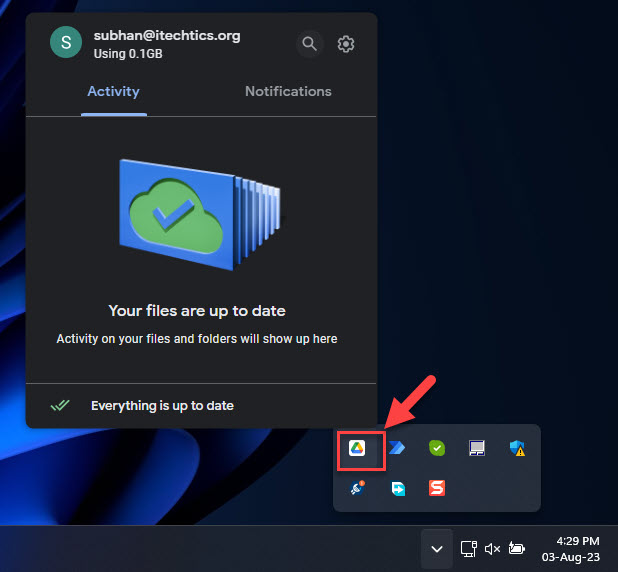
Open Drive for desktop from the Windows taskbar/system tray.
Install in Bulk (For Administrators)
1. Download the installer from Google’s official page.
2. Deploy it silently using command-line switches (for example GoogleDriveSetup.exe --silent --desktop_shortcut).
3. Push the installer through your management tool (Intune, Group Policy, or similar) to multiple PCs.
How to Uninstall
1. Quit Drive for desktop from the system tray (Settings > Quit).
2. Open Settings > Apps > Installed apps.
3. Find Google Drive and click Uninstall, then follow the prompts.
Troubleshooting
Problem: The Google Drive entry is missing from File Explorer.
Solution: Make sure Drive for desktop is running and signed in. Restart the app from the Start menu, or restart the PC.
Problem: Files are not syncing.
Solution: Open the Drive tray icon, check the sync status, and confirm you are online. Pause and resume syncing, or sign out and back in.
Problem: You are running low on disk space.
Solution: Switch from Mirror to Stream files in Preferences so files download only when opened.
Problem: Sign-in fails.
Solution: Allow the browser sign-in to complete, check that no firewall is blocking the app, and ensure your account is permitted to use Drive.
Conclusion
Google Drive for desktop is the simplest way to work with your Drive files from Windows. Install it from Google’s official site, choose streaming or mirroring to suit your disk space, and manage everything from the handy system-tray menu.
</w:pBdr><w:spacing w:before="220" w:after="40"/></w:pPr><w:r><w:rPr><w:b/><w:bCs/><w:color w:val="0B5394"/><w:sz w:val="21"/><w:szCs w:val="21"/><w:rFonts w:ascii="Calibri" w:cs="Calibri" w:eastAsia="Calibri" w:hAnsi="Calibri"/></w:rPr><w:t xml:space="preserve">About TechHub
This guide is part of the TechHub Knowledge Base. For more step-by-step IT guides and support, visit techhub.com.lk.