Overview
A Windows 11 ISO lets you perform a clean install, repair an existing system, or create bootable installation media. This guide shows the official ways to download Windows 11 from Microsoft, confirms the minimum system requirements, and walks through creating a bootable USB and installing the OS.
Download a genuine Windows 11 ISO directly from Microsoft.
Key Takeaways
- Always download Windows 11 from Microsoft’s official website to ensure a clean, genuine image.
- You can get the ISO directly, via the Media Creation Tool, or upgrade in place with the Installation Assistant.
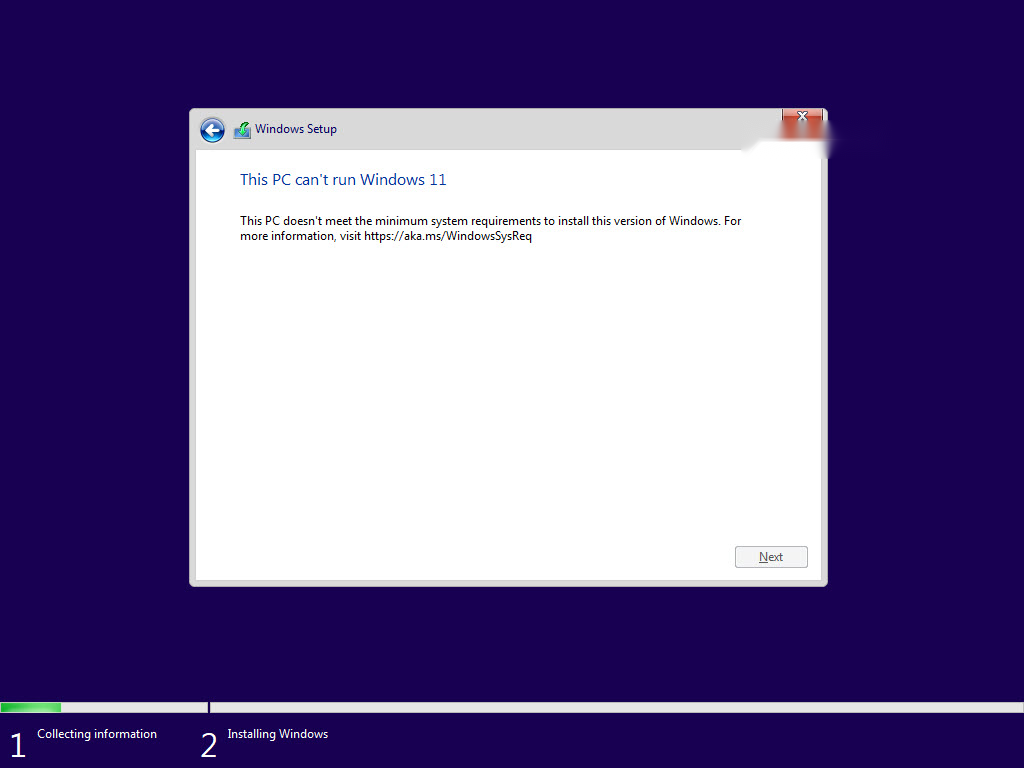
- Windows 11 requires TPM 2.0, Secure Boot, UEFI, and a supported processor.
- Create a bootable USB with the Media Creation Tool, Rufus, or Ventoy, then install.
Method 1 — Download the ISO Directly From Microsoft
1. Go to Microsoft’s official Windows 11 download page (microsoft.com/software-download/windows11).
2. Scroll to "Download Windows 11 Disk Image (ISO) for x64 devices".
3. Select Windows 11 (multi-edition ISO) and click Download.
4. Choose your product language and confirm, then click the 64-bit Download button to save the ISO.
Warning: Only download Windows 11 from microsoft.com. ISOs from third-party or "pre-activated" sources may be tampered with and unsafe.
Method 2 — Use the Media Creation Tool
The Media Creation Tool downloads Windows 11 and can write it straight to a USB drive or save it as an ISO.
1. On the same Microsoft download page, under "Create Windows 11 Installation Media", click Download Now.
2. Run the tool, accept the licence terms, and confirm the language and edition.
3. Choose USB flash drive to make bootable media directly, or ISO file to save an image.
4. Wait for the download and media creation to finish.
The Media Creation Tool downloads Windows 11 and builds installation media.
Method 3 — Upgrade an Existing PC
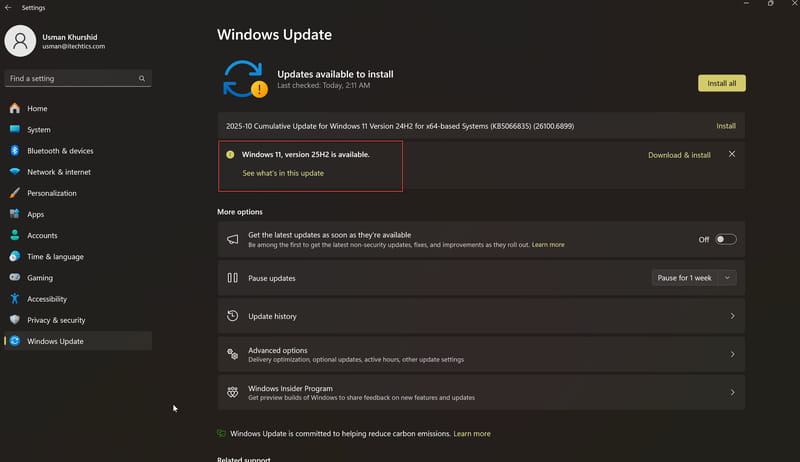
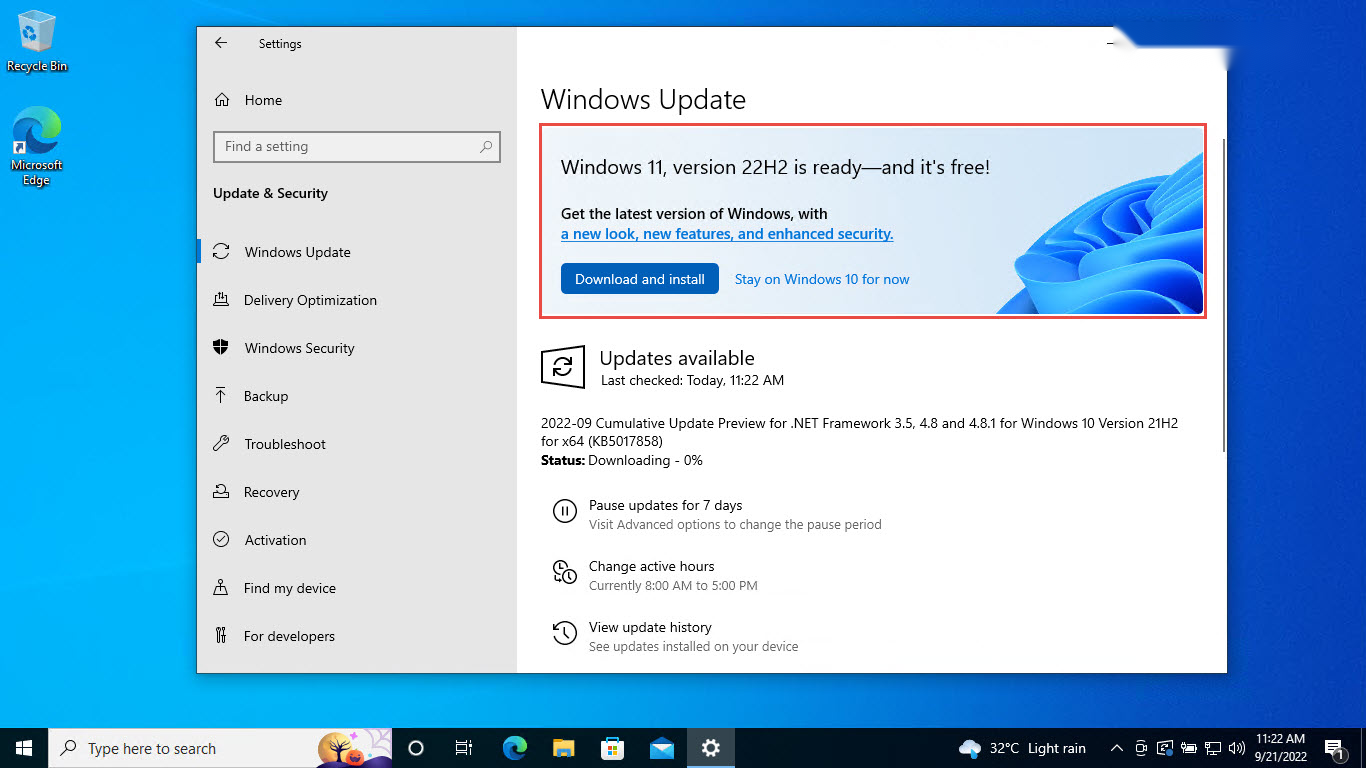
- Windows Update — on an eligible Windows 10 PC, open Settings > Windows Update; if offered, the Windows 11 upgrade appears there.
- Installation Assistant — download the Windows 11 Installation Assistant from Microsoft to upgrade a compatible PC immediately, keeping your files and apps.
Minimum System Requirements
- Processor: 1 GHz or faster with 2 or more cores on a supported 64-bit CPU.
- Memory: 4 GB RAM minimum.
- Storage: 64 GB or larger drive.
- Firmware: UEFI with Secure Boot capable.
- TPM: Trusted Platform Module (TPM) version 2.0.
- Graphics: DirectX 12 compatible with WDDM 2.0 driver.
Tip: Use Microsoft’s PC Health Check app to confirm your PC meets the Windows 11 requirements before upgrading.
Create a Bootable Windows 11 USB Drive
1. Insert a USB drive of at least 8 GB (its contents will be erased).
2. Use the Media Creation Tool to write directly, or open Rufus / a Ventoy drive and select the Windows 11 ISO.
3. In Rufus, choose GPT partition scheme and UEFI target for modern PCs, then click Start.
4. Wait for writing to complete, then safely eject the drive.
Install Windows 11 From the ISO
1. Boot the PC from the USB drive using the firmware boot menu (often F12, F10, or Esc).
2. Select your language and click Install now.
3. Enter a product key or choose "I don’t have a product key" to activate later, and accept the licence terms.
4. Choose Custom for a clean install, select the target partition, and continue.
5. Let setup copy files and restart, then complete the out-of-box experience.
Frequently Asked Questions
Problem: How do I purchase Windows 11?
Solution: Windows 11 licences are available from Microsoft and authorised retailers. An eligible Windows 10 PC can also upgrade to Windows 11 free of charge.
Problem: Can my PC upgrade to Windows 11?
Solution: Run Microsoft’s PC Health Check app. The PC must meet the TPM 2.0, Secure Boot, UEFI, and supported-CPU requirements.
Problem: Setup says my PC does not meet the requirements.
Solution: Enable TPM 2.0 and Secure Boot in your firmware (UEFI) settings if your hardware supports them, then retry. Unsupported CPUs are not officially eligible.
Problem: Can I keep using Windows 10?
Solution: Yes, but Windows 10 support ends on 14 October 2025, after which it stops receiving security updates. Plan to upgrade or enroll in Extended Security Updates.
Conclusion
Downloading Windows 11 is straightforward when you use Microsoft’s official tools. Confirm your PC meets the requirements, grab the ISO or Media Creation Tool, build a bootable USB, and you are ready to install or upgrade with confidence.
</w:pBdr><w:spacing w:before="220" w:after="40"/></w:pPr><w:r><w:rPr><w:b/><w:bCs/><w:color w:val="0B5394"/><w:sz w:val="21"/><w:szCs w:val="21"/><w:rFonts w:ascii="Calibri" w:cs="Calibri" w:eastAsia="Calibri" w:hAnsi="Calibri"/></w:rPr><w:t xml:space="preserve">About TechHub
This guide is part of the TechHub Knowledge Base. For more step-by-step IT guides and support, visit techhub.com.lk.