Overview
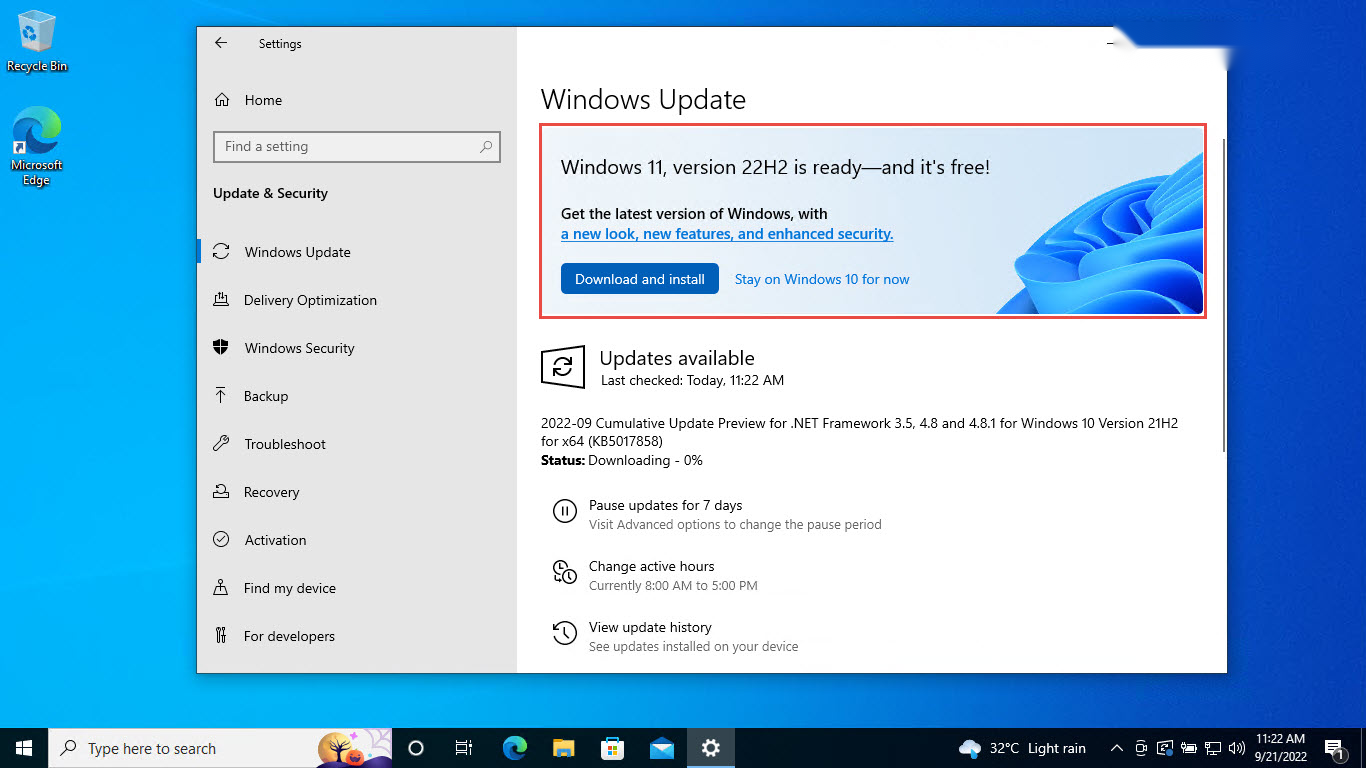
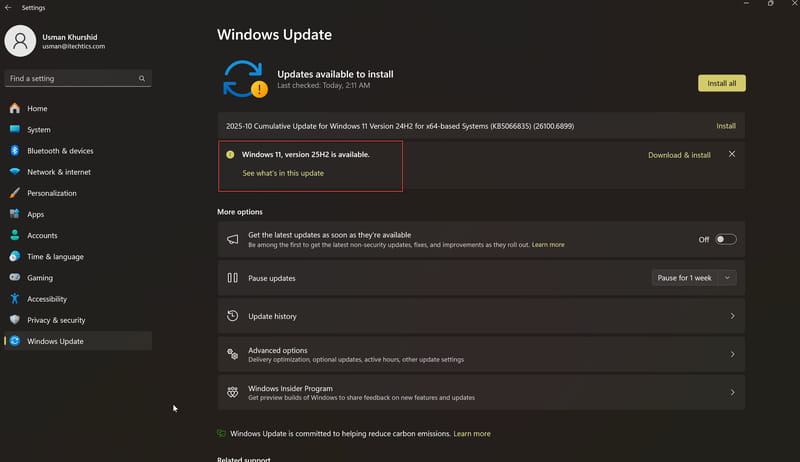
Windows 11 officially requires TPM 2.0 and Secure Boot. If your hardware lacks these but you still want to install Windows 11, two reliable methods bypass the checks: editing the Registry during setup, or removing the requirements when creating the installation USB with Rufus. This guide covers both.
You can bypass the TPM and Secure Boot checks to install Windows 11 on older hardware.
Warning: Microsoft does not recommend installing Windows 11 on unsupported hardware. Such PCs may not receive all updates and are not officially supported. Proceed at your own risk and back up your data first.
Key Takeaways
- Windows 11 requires TPM 2.0 and Secure Boot by default.
- You can bypass both with LabConfig registry keys during setup.
- Rufus can create install media that removes the requirements automatically.
- Unsupported installs work but are not guaranteed updates or support.
First, Check Your Hardware
1. Check TPM: press Windows key + R, type tpm.msc, and press Enter to see if TPM is present and its version.
2. Many PCs have TPM disabled in firmware — enable it in UEFI/BIOS (often labelled TPM, PTT, or fTPM) before bypassing.
3. Check Secure Boot: run msinfo32 and look at "Secure Boot State". Enable it in UEFI if available.
Note: If TPM or Secure Boot can be enabled in your UEFI firmware, do that instead of bypassing — it is the supported route.
Method 1 — Bypass via the Registry During Setup
1. Boot from the Windows 11 installation USB and proceed until the setup screen.
2. When you reach the requirement error (or at the first setup screen), press Shift + F10 to open Command Prompt.
3. Type regedit and press Enter.
4. Go to HKEY_LOCAL_MACHINE\SYSTEM\Setup and create a new key named LabConfig.
5. Inside LabConfig, create DWORD (32-bit) values: BypassTPMCheck = 1, BypassSecureBootCheck = 1 (add BypassRAMCheck = 1 if needed).
6. Close the editor and Command Prompt, then continue the installation.
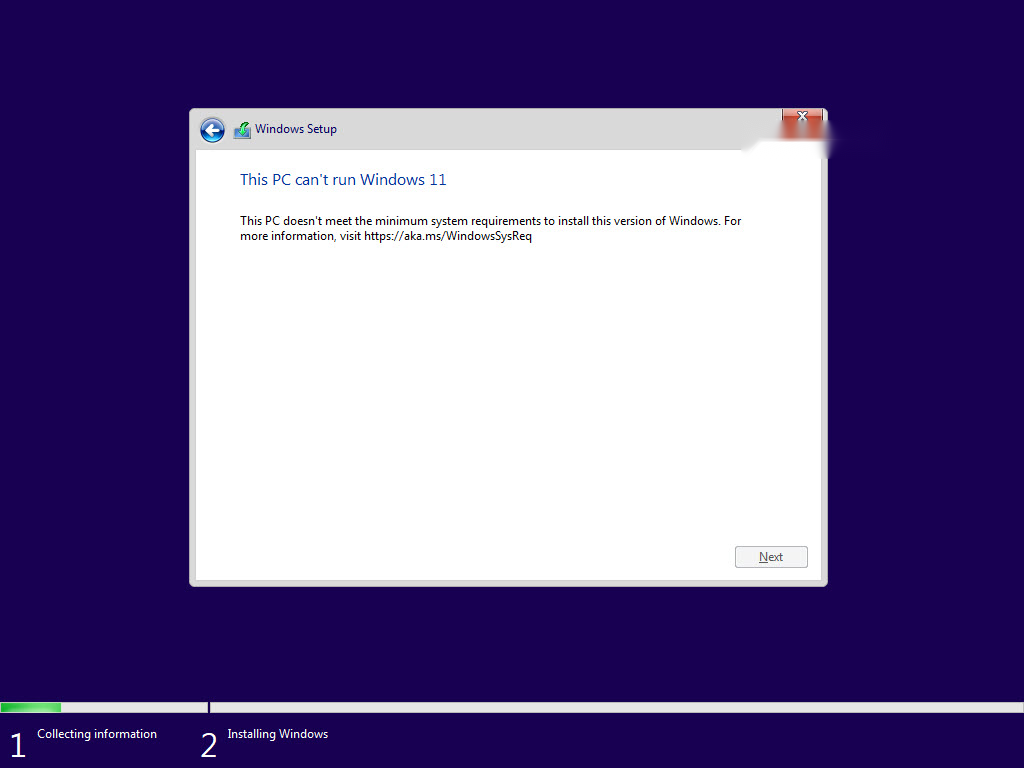
Without the bypass, Windows 11 setup fails the requirement check.
Method 2 — Bypass With Rufus
1. Download Rufus (official) and a Windows 11 ISO from Microsoft.
2. Open Rufus, select your USB drive and the Windows 11 ISO.
3. Click Start; in the options dialog, tick "Remove requirement for 4GB+ RAM, Secure Boot and TPM 2.0".
4. Let Rufus create the media, then boot from it to install without the checks.
Tip: The Rufus method is the easiest because it removes the requirements automatically when building the USB — no registry editing during setup.
Troubleshooting
Problem: Setup still says the PC does not meet requirements.
Solution: Confirm the LabConfig keys are spelled exactly and set to 1, or recreate the USB with Rufus’s bypass option enabled.
Problem: You would rather not bypass.
Solution: Enable TPM (PTT/fTPM) and Secure Boot in your UEFI firmware — many systems support them but ship with them disabled.
Problem: Updates fail after installing.
Solution: Unsupported devices may not get every update. Keep backups and consider staying on a supported OS for critical machines.
Problem: Shift + F10 does nothing.
Solution: Try it at the language-selection or "Install now" screen, and ensure no key-filtering software is active.
Conclusion
You can install Windows 11 on older hardware by bypassing the TPM and Secure Boot checks via the Registry or Rufus. Enable the features in firmware if you can; otherwise use these methods knowingly, with backups, since unsupported installs are not officially guaranteed updates.
</w:pBdr><w:spacing w:before="220" w:after="40"/></w:pPr><w:r><w:rPr><w:b/><w:bCs/><w:color w:val="0B5394"/><w:sz w:val="21"/><w:szCs w:val="21"/><w:rFonts w:ascii="Calibri" w:cs="Calibri" w:eastAsia="Calibri" w:hAnsi="Calibri"/></w:rPr><w:t xml:space="preserve">About TechHub
This guide is part of the TechHub Knowledge Base. For more step-by-step IT guides and support, visit techhub.com.lk.