How to Download and Install BlueStacks (Android Emulator)
Run Android apps and games on Windows or Mac with the official BlueStacks emulator.
Overview
BlueStacks is a popular Android emulator that lets you run mobile apps and games on a PC or Mac. This guide covers downloading the official installer, setup, and system requirements.
Downloading BlueStacks.
Note: Download BlueStacks only from the official bluestacks.com website to avoid fake or bundled installers.
Key Takeaways
- BlueStacks runs Android apps/games on Windows and Mac.
- Download the official installer from bluestacks.com.
- Enable virtualization in BIOS for best performance.
- Sign in with a Google account to access the Play Store.
System Requirements
- Windows 10/11 or macOS (check the current version’s requirements).
- A modern multi-core CPU with virtualization (VT-x/AMD-V).
- At least 8 GB RAM recommended for smooth gaming.
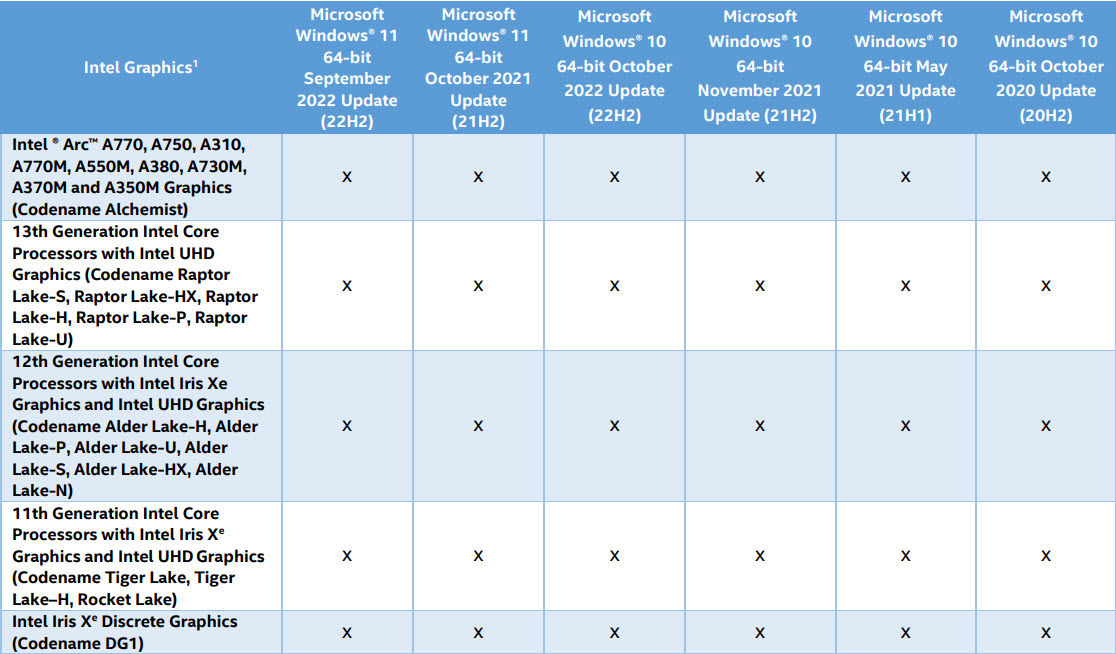
- Up-to-date graphics drivers.
Download and Install
1. Go to the official BlueStacks website and download the installer.
2. Run it and follow the setup wizard.
3. Allow it to download the emulator components (or use the offline installer).
4. Launch BlueStacks after installation.
Installing BlueStacks.
First-Time Setup
1. Open BlueStacks and sign in with your Google account.
2. Open the Play Store inside BlueStacks and install apps/games.
3. Enable virtualization in BIOS if BlueStacks warns performance is limited.
4. Adjust performance settings (CPU/RAM) in BlueStacks settings.
Troubleshooting
Problem: BlueStacks is slow/laggy.
Solution: Enable virtualization (VT-x/AMD-V) in BIOS, update GPU drivers, and allocate more CPU/RAM in settings.
Problem: Won’t install or start.
Solution: Run the installer as administrator, disable conflicting hypervisors if needed, and update Windows.
Problem: Play Store won’t load.
Solution: Sign in with a valid Google account and check your internet connection.
Problem: Conflicts with Hyper-V.
Solution: Recent BlueStacks supports Hyper-V; ensure you have the compatible version, or adjust the engine settings.
Conclusion
BlueStacks brings Android apps and games to your PC or Mac. Download it from the official site, enable virtualization for smooth performance, sign in with Google, and install apps from the Play Store inside the emulator.