Overview
Windows 11 version 24H2 is the 2024 annual feature update, built on an updated platform and introducing improvements across performance, AI features, and hardware support. This guide shows how to download the official 24H2 ISO from Microsoft, verify the download, and install it via in-place upgrade or a clean install.
Download the official Windows 11 24H2 ISO from Microsoft.
Key Takeaways
- Download the 24H2 ISO directly from Microsoft’s official Windows 11 download page.
- You can upgrade in place by mounting the ISO and running setup, or do a clean install from bootable media.
- 24H2 keeps the standard Windows 11 hardware requirements (TPM 2.0, Secure Boot, UEFI).
- Always verify the downloaded ISO before creating installation media.
Method 1 — Download the ISO From Microsoft
1. Go to Microsoft’s official Windows 11 download page (microsoft.com/software-download/windows11).
2. Under "Download Windows 11 Disk Image (ISO) for x64 devices", select Windows 11 (multi-edition ISO).
3. Click Download, choose your product language, and confirm.
4. Click the 64-bit Download button to save the 24H2 ISO.
Warning: Download Windows 11 only from microsoft.com. Avoid third-party or "pre-activated" ISOs, which may be unsafe.
Method 2 — Media Creation Tool and Installation Assistant
- Media Creation Tool — download it from the same page to write 24H2 directly to a USB drive or save an ISO.
- Installation Assistant — use it to upgrade a compatible PC in place while keeping your files and apps.
Verify Your Downloaded ISO
1. Note the SHA-256 hash published by Microsoft (or your trusted reference) for the ISO.
2. Open PowerShell and run: Get-FileHash "C:\path\to\Win11_24H2.iso" -Algorithm SHA256
3. Compare the output with the reference hash; they must match exactly before you use the file.
Upgrade via Windows Update
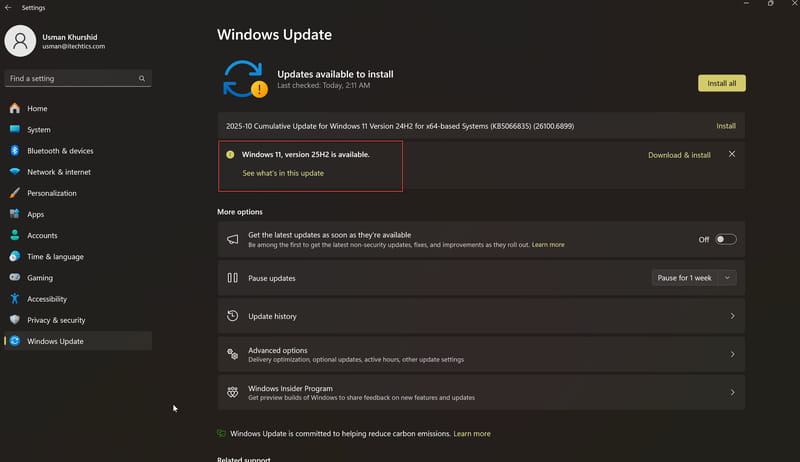
1. Open Settings > Windows Update.
2. Enable "Get the latest updates as soon as they’re available" to receive 24H2 sooner.
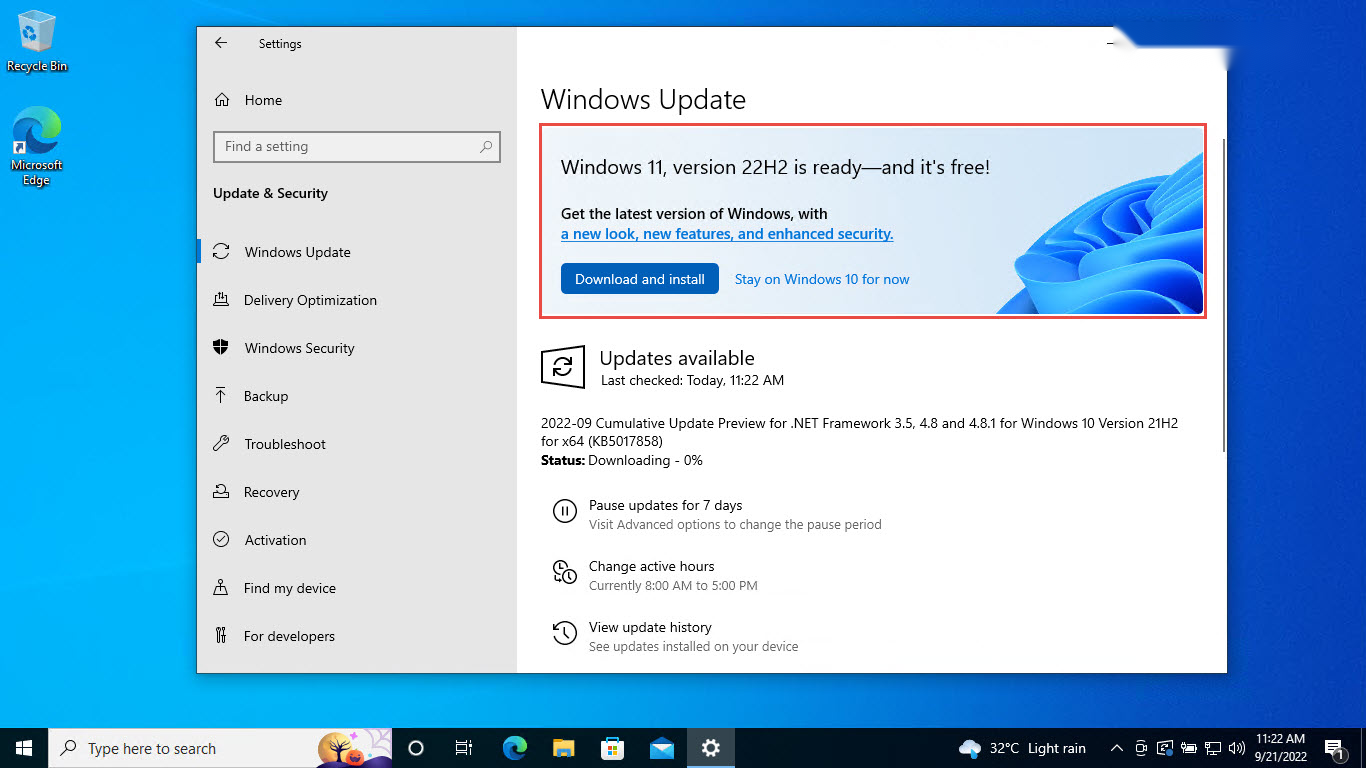
3. Click Check for updates; if eligible, the 24H2 feature update is offered.
4. Click Download and install, then restart when prompted.
Install From the ISO
- In-place upgrade — double-click the ISO to mount it in File Explorer, then run setup.exe to upgrade while keeping files and apps.
- Clean install — create a bootable USB with the Media Creation Tool, Rufus, or Ventoy, boot from it, and choose Custom.
System Requirements
- Processor: 1 GHz or faster with 2+ cores on a supported 64-bit CPU.
- Memory: 4 GB RAM minimum.
- Storage: 64 GB or larger.
- Firmware: UEFI with Secure Boot, plus TPM 2.0.
- Graphics: DirectX 12 compatible with a WDDM 2.0 driver.
Tip: Run Microsoft’s PC Health Check app first to confirm your PC supports Windows 11 24H2.
Troubleshooting
Problem: 24H2 is not offered in Windows Update.
Solution: Ensure your PC meets the requirements and is fully updated, then enable "Get the latest updates as soon as they’re available", or use the ISO/Installation Assistant.
Problem: The ISO hash does not match.
Solution: The download is incomplete or corrupt — download it again from Microsoft and re-verify before use.
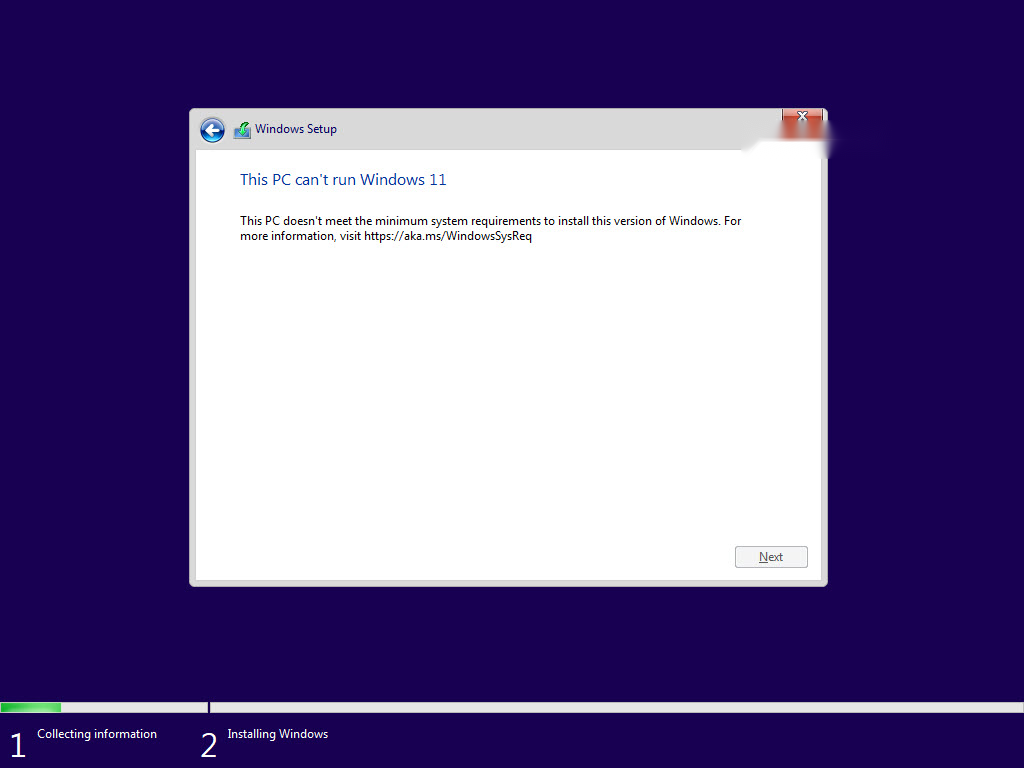
Problem: Setup reports the PC is not compatible.
Solution: Enable TPM 2.0 and Secure Boot in UEFI firmware where supported, then re-run PC Health Check.
Problem: In-place upgrade fails.
Solution: Mount the ISO and run setup.exe from within Windows, free up disk space, and temporarily disable third-party antivirus during the upgrade.
Conclusion
The official Microsoft ISO is the safest way to get Windows 11 24H2. Download it, verify the hash, and choose an in-place upgrade or clean install to bring your PC up to the 2024 Update.
</w:pBdr><w:spacing w:before="220" w:after="40"/></w:pPr><w:r><w:rPr><w:b/><w:bCs/><w:color w:val="0B5394"/><w:sz w:val="21"/><w:szCs w:val="21"/><w:rFonts w:ascii="Calibri" w:cs="Calibri" w:eastAsia="Calibri" w:hAnsi="Calibri"/></w:rPr><w:t xml:space="preserve">About TechHub
This guide is part of the TechHub Knowledge Base. For more step-by-step IT guides and support, visit techhub.com.lk.