Overview
Windows 11 "N" and "KN" editions ship without built-in media technologies for regulatory reasons. The free Media Feature Pack adds Windows Media Player, codecs, and related features. This guide shows how to install, extend, and remove it.
Check your Windows edition before installing.
Key Takeaways
- N/KN editions lack Windows Media Player and certain codecs.
- The Media Feature Pack restores these via Optional Features.
- You can also install it through PowerShell.
- It is only needed on N/KN editions, not standard Windows 11.
Check Your Edition First
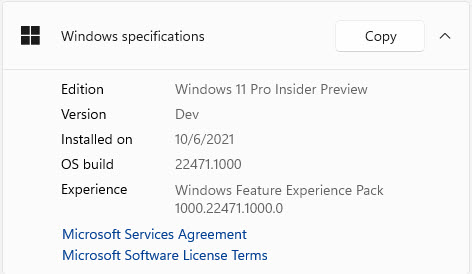
1. Press Windows + R, type winver, and press Enter.
2. If the edition ends in "N" or "KN", you need the Media Feature Pack.
3. Standard editions already include media features — no action needed.
Install via Optional Features
1. Open Settings > Apps > Optional features.
2. Click "View features" next to "Add an optional feature".
3. Search for "Media Feature Pack".
4. Select it and click Install, then restart if prompted.
Install via PowerShell
1. Right-click Start and choose Terminal (Admin) or PowerShell (Admin).
2. Run: Add-WindowsCapability -Online -Name "Media.MediaFeaturePack~~~~0.0.1.0"
3. Wait for it to complete and restart the PC.
Note: Download media features only through Windows’ own Optional Features or PowerShell — never from third-party "codec pack" sites, which often bundle unwanted software.
Add Extra Codecs
1. Open the Microsoft Store.
2. Search for official codec extensions (e.g., HEVC, AV1, Web Media) as needed.
3. Install the ones required by your media files.
Uninstall the Media Feature Pack
1. Open Settings > Apps > Optional features.
2. Find Media Feature Pack in the installed list.
3. Select it and click Uninstall, then restart.
Troubleshooting
Problem: Media Feature Pack isn’t listed.
Solution: Ensure you’re on an N/KN edition and connected to the internet; it won’t appear on standard editions.
Problem: Installation fails.
Solution: Run Windows Update first, then retry; the PowerShell capability method can succeed where the GUI fails.
Problem: Apps still can’t play media.
Solution: Install the specific codec extension (HEVC, AV1, etc.) from the Microsoft Store.
Problem: Can I install it on standard Windows 11?
Solution: No — it targets N/KN editions; standard editions already include these features.
Conclusion
The Media Feature Pack restores the media capabilities missing from Windows 11 N/KN editions. Install it from Optional Features or PowerShell, add any codec extensions you need from the Store, and your media apps will work as expected.
</w:pBdr><w:spacing w:before="220" w:after="40"/></w:pPr><w:r><w:rPr><w:b/><w:bCs/><w:color w:val="0B5394"/><w:sz w:val="21"/><w:szCs w:val="21"/><w:rFonts w:ascii="Calibri" w:cs="Calibri" w:eastAsia="Calibri" w:hAnsi="Calibri"/></w:rPr><w:t xml:space="preserve">About TechHub
This guide is part of the TechHub Knowledge Base. For more step-by-step IT guides and support, visit techhub.com.lk.