Overview
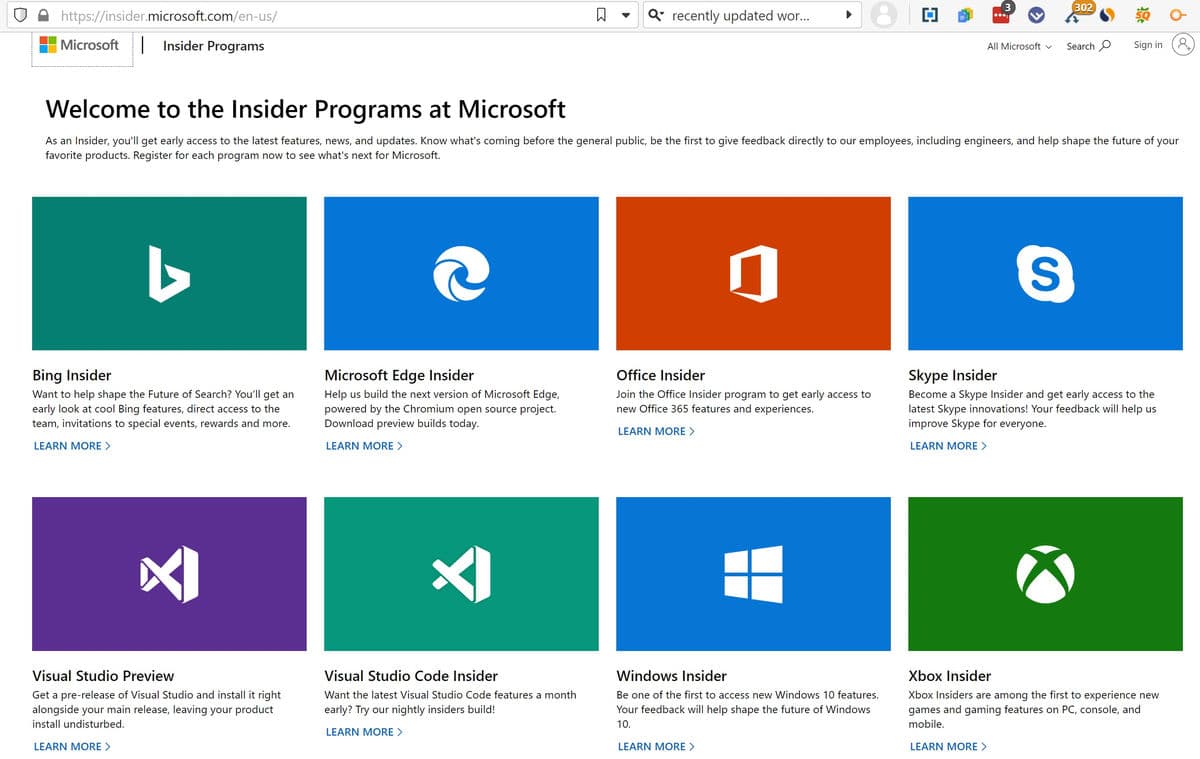
Microsoft Insider programs let enthusiasts test new features, fixes, and improvements before general release. There are separate programs for Windows, Office, Edge, and OneDrive, each with different channels. This guide explains them and how to join or leave.
Insider programs offer early access to new Microsoft features.
Key Takeaways
- Insider builds are pre-release — expect bugs; do not use on critical machines.
- Windows has Canary, Dev, Beta, and Release Preview channels (least stable to most stable).
- Office, Edge, and OneDrive have their own Insider/preview tracks.
- You can leave a program any time, though Windows may need a clean install to fully exit some channels.
Types of Insider Programs
- Windows Insider — preview builds of Windows (consumer, business, and server).
- Office Insider — early Office app features.
- Edge Insider — Canary, Dev, and Beta builds of Microsoft Edge.
- OneDrive Insider — preview OneDrive features.
Windows Insider Channels
- Canary — earliest, most experimental builds (most unstable).
- Dev — early features still in development.
- Beta — more reliable, recommended for most Insiders.
- Release Preview — near-final builds, the most stable.
Warning: Insider builds can be unstable and may not be reversible without a clean install. Use a spare or virtual machine, and back up your data first.
How to Join the Windows Insider Program
1. Open Settings > Windows Update > Windows Insider Program.
2. Click Get started and link your Microsoft account.
3. Choose a channel (Beta is recommended for most users).
4. Confirm and restart; Insider builds then arrive through Windows Update.
How to Join Other Insider Programs
- Office Insider — in an Office app, go to File > Account > Office Insider and opt in.
- Edge Insider — download Canary/Dev/Beta from microsoftedgeinsider.com and install alongside stable Edge.
- OneDrive Insider — enable it in OneDrive Settings > About > Get Insider preview features.
How to Leave a Program
1. Windows: Settings > Windows Update > Windows Insider Program > turn off "Get preview builds" (Release Preview can stop after the next stable release; earlier channels may need a clean install).
2. Office: opt out under File > Account > Office Insider.
3. Edge: simply uninstall the Insider channel build.
Troubleshooting
Problem: I cannot leave the Dev/Canary channel.
Solution: Those channels often require a clean Windows install to return to stable; move to Release Preview first if you can wait for the next stable build.
Problem: An Insider build is buggy.
Solution: That is expected. Report issues via the Feedback Hub, and switch to a more stable channel (Beta/Release Preview).
Problem: I cannot enroll.
Solution: Sign in with a Microsoft account, ensure diagnostic data is set as required, and update Windows first.
Problem: I want stability.
Solution: Use Release Preview, or do not join Insider programs on your main device — test on a spare or VM.
Conclusion
Insider programs give early access to Windows, Office, Edge, and OneDrive features. Pick the channel that matches your risk tolerance — Beta or Release Preview for most — and only run pre-release builds on non-critical machines.
</w:pBdr><w:spacing w:before="220" w:after="40"/></w:pPr><w:r><w:rPr><w:b/><w:bCs/><w:color w:val="0B5394"/><w:sz w:val="21"/><w:szCs w:val="21"/><w:rFonts w:ascii="Calibri" w:cs="Calibri" w:eastAsia="Calibri" w:hAnsi="Calibri"/></w:rPr><w:t xml:space="preserve">About TechHub
This guide is part of the TechHub Knowledge Base. For more step-by-step IT guides and support, visit techhub.com.lk.