Windows එකේ CPU Usage එක Limit කරන්නේ කොහොමද
Affinity සහ power settings පාවිච්චි කරලා process එකක CPU එක cap කරන්න, background load එකත් අඩු කරන්න.
Overview
Runaway process එකකට CPU එක සම්පූර්ණයෙන් අල්ලගන්න පුළුවන්, ඒකෙන් හැම දෙයක්ම slow වෙනවා. මේ guide එකෙන් පෙන්නනවා CPU usage එක limit කරන්නේ කොහොමද කියලා — process affinity set කරලා, maximum processor state එක cap කරලා, සහ background load එක අඩු කරලා.
Windows එකේ CPU usage එක limit කිරීම.
Key Takeaways
- Affinity එකෙන් process එකක් CPU cores අඩු ගාණකට limit කරනවා.
- Max processor state එකෙන් සම්පූර්ණ CPU speed එක cap කරනවා.
- Background apps end කරාම CPU එක free වෙනවා.
- Priority tweaks වලින් important app එකට CPU time ලැබෙන්න උදව් වෙනවා.
Method 1: Process එකක් Cores අඩු ගාණකට Limit කිරීම (Affinity)
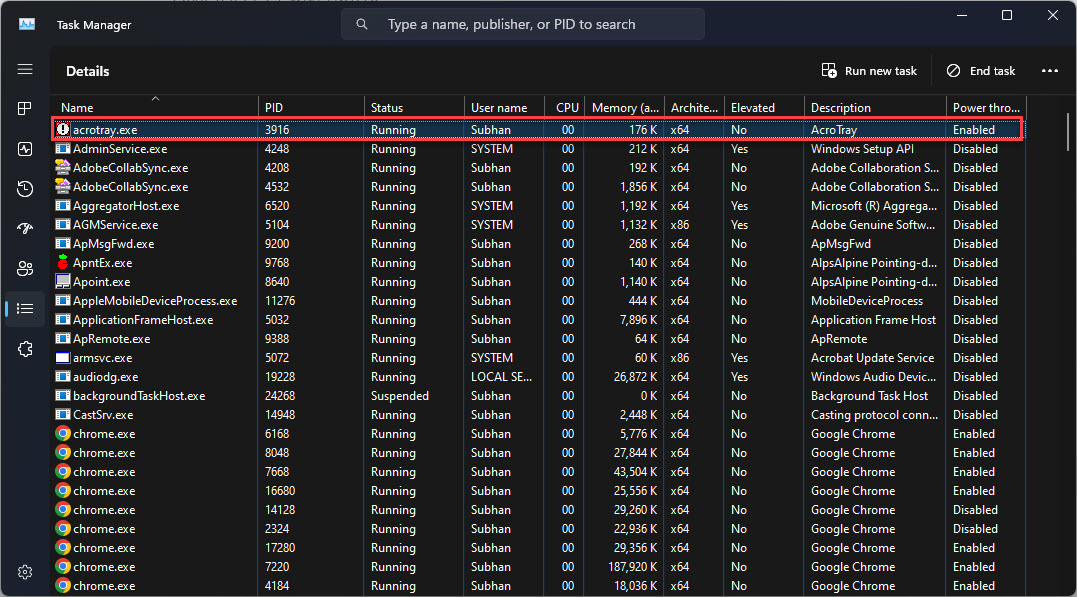
1. Task Manager > Details tab එක open කරන්න.
2. Process එක right-click කරලා > "Set affinity".
3. CPU cores කිහිපයක් untick කරලා ඒක restrict කරන්න.
4. මේකෙන් ඒකට use කරන්න පුළුවන් total CPU එක cap වෙනවා.
Method 2: සම්පූර්ණ CPU Speed එක Cap කිරීම (Power Options)
1. Control Panel > Power Options > Change plan settings > Change advanced power settings එක open කරන්න.
2. Processor power management > "Maximum processor state" එක expand කරන්න.
3. ඒක අඩු කරන්න (උදා: 80% කට) CPU speed/heat එක cap කරන්න.
4. Apply කරන්න — thermals/fan noise අඩු කරන්න මේක ප්රයෝජනවත්.
Method 3: Priority එක Adjust කිරීම
1. Task Manager > Details එකේ, process එකක් right-click කරලා > "Set priority".
2. Background process එකක් "Below normal" කරලා අඩු කරන්න, නැත්නම් ඔයාට ඕන app එක raise කරන්න.
3. Priority changes කියන්නේ per session එකයි.
Method 4: Background Load එක අඩු කිරීම
1. Task Manager එකේ non-essential apps/processes end කරන්න.
2. ඕන නැති startup apps disable කරන්න (Task Manager > Startup).
3. Settings > Apps එකේ background apps off කරන්න.
4. පැහැදිලි හේතුවක් නැතුව CPU එක high නම් malware scan කරන්න.
Troubleshooting
Problem: Relaunch කරාම affinity reset වෙනවා.
Solution: Affinity කියන්නේ per session; ඒක persistent කරන්න launcher එකක් (start /affinity) හෝ third-party tool එකක් පාවිච්චි කරන්න.
Problem: CPU එක තාම maxed වෙලා.
Solution: Process එක identify කරන්න (Task Manager/Resource Monitor); ඒක update/repair කරන්න, නැත්නම් malware scan කරන්න.
Problem: Max state අඩු කරාම performance එකට හානි වුණා.
Solution: Full speed ඕන වෙලාවට "Maximum processor state" එක ආපහු 100% දිහාවට raise කරන්න.
Problem: System process එකක් CPU පාවිච්චි කරනවා.
Solution: ඒ specific service එක investigate කරන්න; SFC/DISM run කරලා drivers update කරන්න.
Conclusion
CPU usage එක limit කරන්න, affinity එකෙන් process එකක් restrict කරන්න, Power Options එකේ maximum processor state එක cap කරන්න, සහ priorities අඩු කරලා නැත්නම් background apps close කරන්න. හේතුවක් නැතුව usage එක high නම්, culprit process එක identify කරලා ඒක update කරන්න නැත්නම් malware scan කරන්න.