Overview
A metered connection tells Windows to limit background data use to help you stay within a data cap. By default, Windows pauses most updates on metered networks — but this can also delay important Microsoft Defender security intelligence updates that protect you from new threats. This guide shows several ways to allow Defender security updates to download over a metered connection while keeping other large updates restricted.
Key Takeaways
- Metered connections restrict background downloads to save data.
- Security intelligence (definition) updates are small but critical for protection.
- You can allow only security updates over metered connections without lifting all download limits.
- The setting can be applied through PowerShell, Group Policy, Task Scheduler, or the Registry.
Note: Security intelligence updates are typically only a few megabytes each, so allowing them over a metered connection has minimal impact on your data usage.
Method 1: Using PowerShell
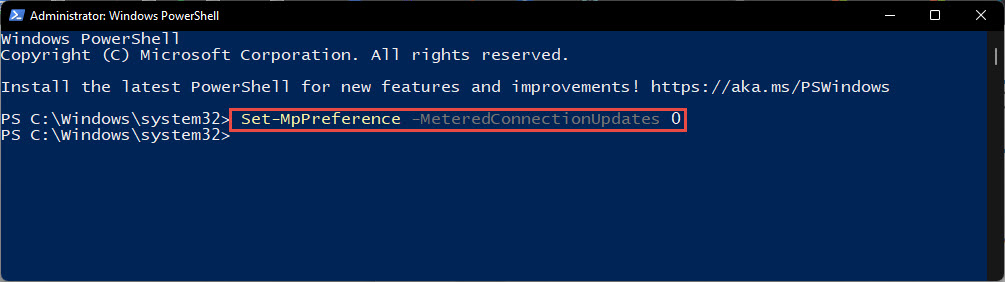
The simplest method is a single Microsoft Defender PowerShell command.
1. Click Start, type "PowerShell", right-click Windows PowerShell, and choose Run as administrator.
2. Approve the UAC prompt.
3. Type the command: Set-MpPreference -MeteredConnectionUpdates $true
4. Press Enter. Defender will now download security intelligence updates even on metered networks.
5. To reverse it later, run the same command with $false instead of $true.
Enabling metered-connection updates with PowerShell.
Method 2: From Group Policy
On Windows Pro, Enterprise, and Education editions you can use the Group Policy Editor.
1. Press Windows + R, type gpedit.msc, and press Enter.
2. Go to Computer Configuration > Administrative Templates > Windows Components > Microsoft Defender Antivirus > Signature Updates.
3. Double-click "Allow definition updates from Microsoft Update on metered connections".
4. Select Enabled, then click Apply and OK.
5. Close the editor and run gpupdate /force in an elevated command prompt to apply immediately.
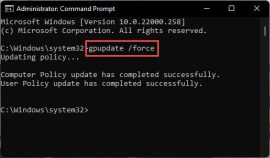
Enabling the metered-connection update policy.
Method 3: From the Registry
If your edition lacks Group Policy, you can apply the same setting in the Registry Editor.
Warning: Editing the registry incorrectly can cause system problems. Back up the registry (File > Export) before making changes.
1. Press Windows + R, type regedit, and press Enter. Approve the UAC prompt.
2. Navigate to HKEY_LOCAL_MACHINE\SOFTWARE\Policies\Microsoft\Windows Defender\Signature Updates. Create the keys if they do not exist.
3. Right-click in the right pane and create a new DWORD (32-bit) value named MeteredConnectionUpdates.
4. Set its value data to 1 to enable updates over metered connections.
5. Close the Registry Editor and restart the computer.
Method 4: Schedule Regular Updates
As an alternative, you can create a Task Scheduler task that runs the Defender update command on a schedule, ensuring definitions stay current regardless of connection type.
1. Open Task Scheduler and choose Create Basic Task.
2. Name the task and set a daily trigger.
3. For the action, choose Start a program and point it to "%ProgramFiles%\Windows Defender\MpCmdRun.exe" with the argument -SignatureUpdate.
4. Finish the wizard. The task keeps Defender definitions updated on your schedule.
Troubleshooting
Problem: The PowerShell command returns an access error.
Solution: Make sure PowerShell is running as administrator. Right-click it and choose Run as administrator before entering the command.
Problem: The Group Policy path does not exist.
Solution: You may be on Windows Home, which lacks the Group Policy Editor. Use the PowerShell or Registry method instead.
Problem: Updates still do not download on a metered network.
Solution: Confirm the setting applied, check that the network is connected, and manually run a Defender update from Windows Security > Virus & threat protection > Check for updates.
Problem: I want to stop updates over metered connections again.
Solution: Run Set-MpPreference -MeteredConnectionUpdates $false, disable the Group Policy, or set the registry value back to 0.
Conclusion
Allowing Microsoft Defender security intelligence updates over metered connections is a smart balance — it keeps your antivirus protection current while still limiting large, non-essential downloads. Choose PowerShell for a quick change, Group Policy or the Registry for a persistent policy, or Task Scheduler to automate updates entirely.
About TechHub
This guide is part of the TechHub Knowledge Base. For more step-by-step IT guides and support, visit techhub.com.lk.