Overview
Windows File Explorer shows file sizes but not folder sizes in its column view. This guide covers several ways to reveal folder sizes — from hovering and Properties to Command Prompt, PowerShell, and free disk-usage tools.
Viewing folder sizes in Windows.
Key Takeaways
- Hover or open Properties for a quick single-folder size.
- Command Prompt and PowerShell can total folder sizes.
- Free tools (TreeSize, WinDirStat) visualise disk usage.
- Explorer doesn’t show a folder-size column natively.
Method 1: Hover in File Explorer
1. Open File Explorer and browse to the folder’s parent.
2. Hover the mouse pointer over a folder.
3. A tooltip shows the folder’s total size.
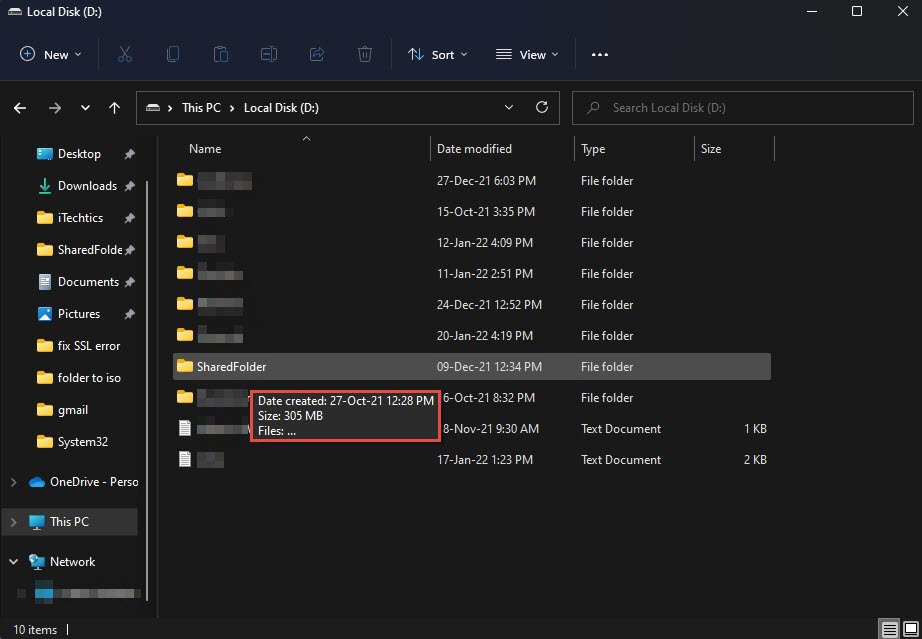
View a folder’s size by hovering.
Method 2: Folder Properties
1. Right-click the folder and choose Properties.
2. Read the "Size" and "Size on disk" values on the General tab.
3. This works for multiple selected folders too.
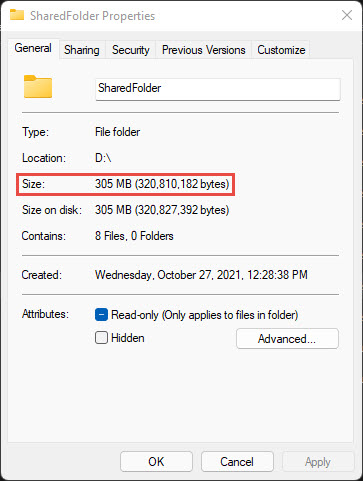
Folder size shown in Properties.
Method 3: Command Prompt
1. Open Command Prompt and navigate to the parent folder.
2. Run: dir /s "FolderName" to total the folder’s contents.
3. Read the "File(s)" byte total at the bottom.
Method 4: PowerShell
1. Open PowerShell in the target location.
2. Run: "{0:N2} MB" -f ((Get-ChildItem -Recurse | Measure-Object Length -Sum).Sum/1MB)
3. PowerShell returns the folder’s total size in megabytes.
Method 5: Free Utilities
Note: Download disk-usage tools only from their official sites: TreeSize (jam-software.com), WinDirStat (windirstat.net).
- TreeSize Free: a sortable tree of folder sizes.
- WinDirStat: a colourful treemap of disk usage.
- GetFolderSize / Disktective: lightweight portable scanners.
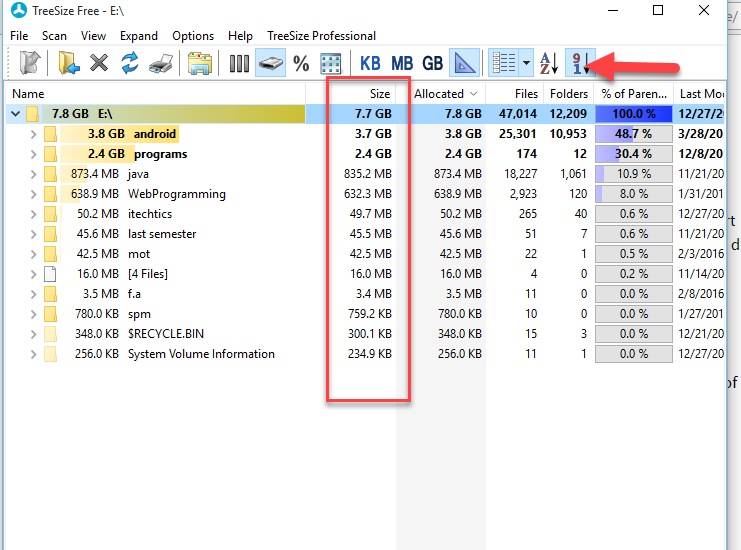
TreeSize showing folder sizes.
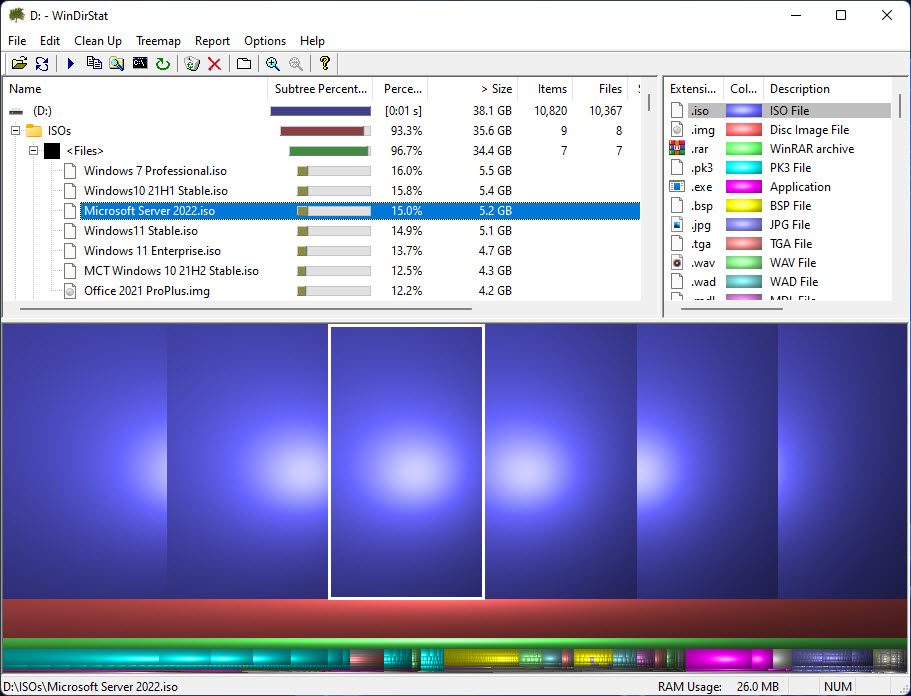
WinDirStat’s disk-usage treemap.
Troubleshooting
Problem: Properties size differs from "size on disk".
Solution: "Size on disk" reflects cluster allocation and compression; the plain "Size" is the actual content total.
Problem: Explorer won’t show a size column for folders.
Solution: It can’t natively — use hover, Properties, or a tool like TreeSize for column-style sizes.
Problem: Scan is very slow.
Solution: Large drives take time; run the tool as administrator so it can read all folders.
Problem: Access denied on some folders.
Solution: Run the command or tool as administrator to include protected system folders.
Conclusion
For a quick check, hover or open a folder’s Properties; for a full picture of disk usage, PowerShell or a free tool like TreeSize or WinDirStat makes it easy to find what’s eating your storage.
</w:pBdr><w:spacing w:before="220" w:after="40"/></w:pPr><w:r><w:rPr><w:b/><w:bCs/><w:color w:val="0B5394"/><w:sz w:val="21"/><w:szCs w:val="21"/><w:rFonts w:ascii="Calibri" w:cs="Calibri" w:eastAsia="Calibri" w:hAnsi="Calibri"/></w:rPr><w:t xml:space="preserve">About TechHub
This guide is part of the TechHub Knowledge Base. For more step-by-step IT guides and support, visit techhub.com.lk.