Overview
Windows File Explorer එකෙන් file sizes පෙන්නනවා ඒත් column view එකේ folder sizes නෑ. මේ guide එකෙන් folder sizes reveal කරන ක්රම කිහිපයක් cover කරනවා — hover කරලා Properties බලන එකේ ඉඳලා Command Prompt, PowerShell, සහ free disk-usage tools දක්වා.
Windows එකේ folder sizes බලනවා.
Key Takeaways
- Single folder size එකකට ඉක්මනට hover කරන්න හෝ Properties open කරන්න.
- Command Prompt සහ PowerShell folder sizes total කරන්න පුළුවන්.
- Free tools (TreeSize, WinDirStat) disk usage visualise කරනවා.
- Explorer folder-size column එකක් natively පෙන්නන්නේ නෑ.
Method 1: File Explorer එකේ Hover කරන්න
1. File Explorer open කරලා folder එකේ parent එකට browse කරන්න.
2. Folder එකක් උඩ mouse pointer එක hover කරන්න.
3. Tooltip එකකින් folder එකේ total size එක පෙන්නනවා.
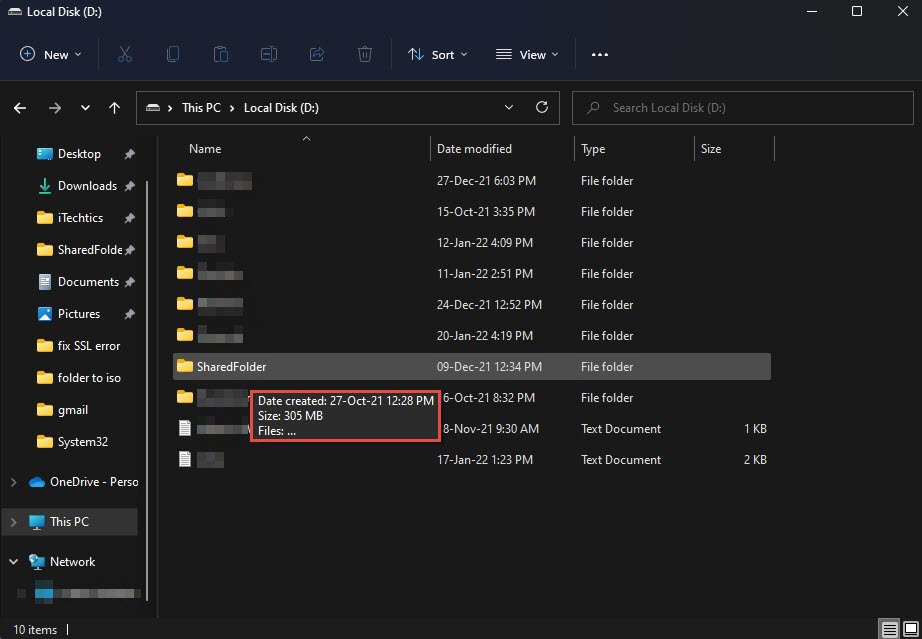
Hover කරලා folder එකක size එක බලන්න.
Method 2: Folder Properties
1. Folder එක right-click කරලා Properties තෝරන්න.
2. General tab එකේ "Size" සහ "Size on disk" values කියවන්න.
3. මේක select කරපු folders කිහිපයකටත් වැඩ කරනවා.
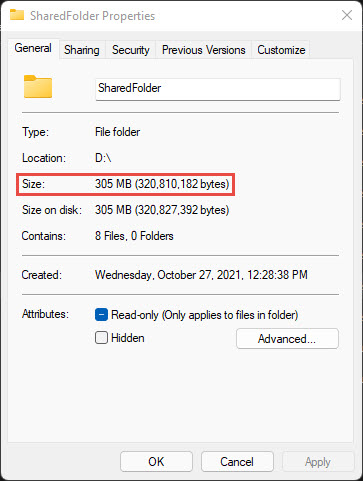
Properties එකේ folder size එක පෙන්නනවා.
Method 3: Command Prompt
1. Command Prompt open කරලා parent folder එකට navigate කරන්න.
2. Run: dir /s "FolderName" එකෙන් folder එකේ contents total කරන්න.
3. පහළ "File(s)" byte total එක කියවන්න.
Method 4: PowerShell
1. Target location එකේ PowerShell open කරන්න.
2. Run: "{0:N2} MB" -f ((Get-ChildItem -Recurse | Measure-Object Length -Sum).Sum/1MB)
3. PowerShell එකෙන් folder එකේ total size එක megabytes වලින් return කරනවා.
Method 5: Free Utilities
Note: Disk-usage tools download කරන්නේ ඒවායේ official sites එකෙන් විතරයි: TreeSize (jam-software.com), WinDirStat (windirstat.net).
- TreeSize Free: folder sizes වල sortable tree එකක්.
- WinDirStat: disk usage වල colourful treemap එකක්.
- GetFolderSize / Disktective: lightweight portable scanners.
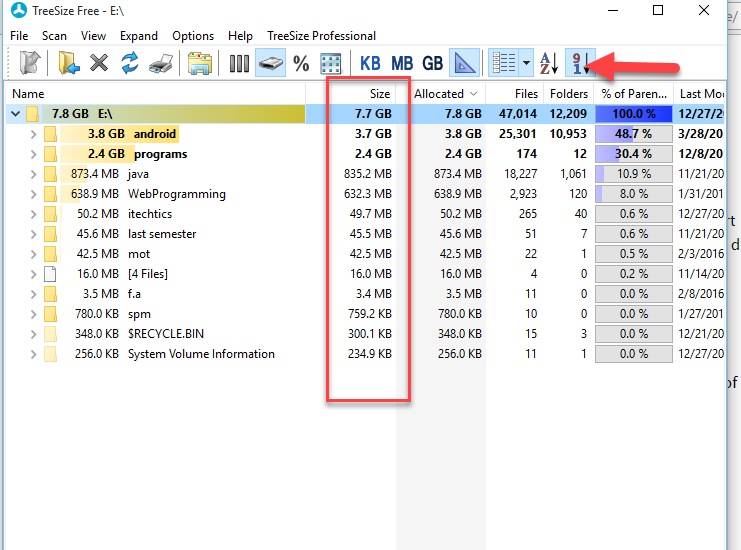
TreeSize එකෙන් folder sizes පෙන්නනවා.
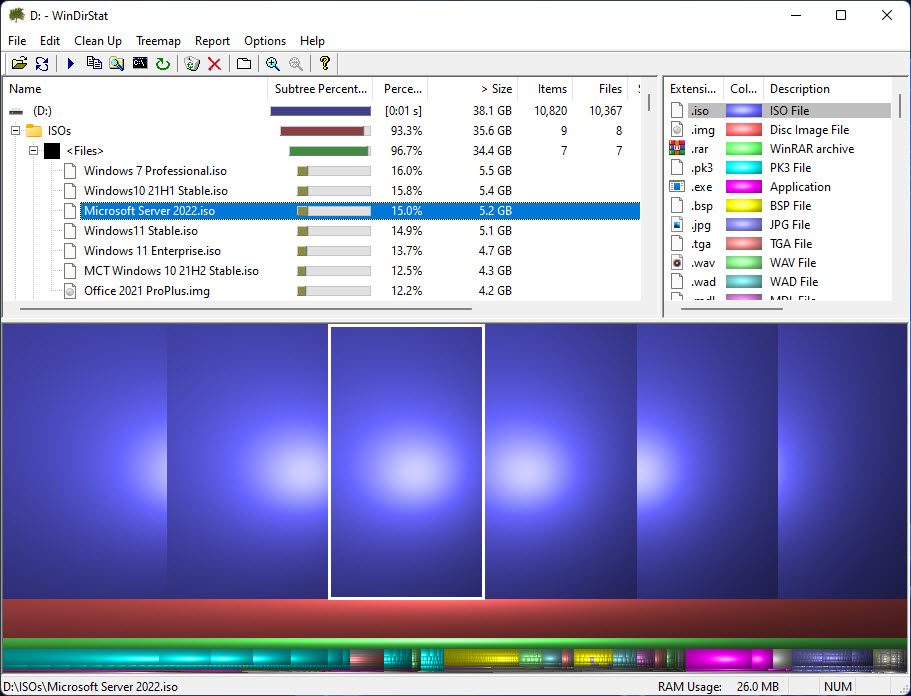
WinDirStat's disk-usage treemap.
Troubleshooting
Problem: Properties size එක "size on disk" එකට වඩා වෙනස්.
Solution: "Size on disk" එකෙන් cluster allocation සහ compression reflect කරනවා; plain "Size" එක actual content total එක.
Problem: Explorer folders වලට size column එකක් පෙන්නන්නේ නෑ.
Solution: ඒක natively බෑ — column-style sizes වලට hover, Properties, හෝ TreeSize වගේ tool එකක් පාවිච්චි කරන්න.
Problem: Scan ගොඩක් slow.
Solution: Large drives වෙලා ගන්නවා; folders ඔක්කොම read කරන්න tool එක administrator විදිහට run කරන්න.
Problem: සමහර folders වල access denied.
Solution: Protected system folders ඇතුළත් කරන්න command එක හෝ tool එක administrator විදිහට run කරන්න.
Conclusion
Quick check එකකට folder එකක Properties hover/open කරන්න; disk usage වල full picture එකකට PowerShell හෝ TreeSize/WinDirStat වගේ free tool එකකින් ඔබේ storage කන්නේ මොකද කියලා ලේසියෙන් හොයාගන්න පුළුවන්.
About TechHub
මේ guide එක TechHub Knowledge Base එකේ කොටසක්. තව step-by-step IT guides සහ support වලට techhub.com.lk එකට යන්න.