Windows 11 සහ 10 වල Hidden සහ Protected Files සහ Folders පෙන්නන්නේ කොහොමද
File Explorer, Control Panel, සහ command line එකෙන් hidden items සහ protected system files reveal කරන්න.
Overview
Windows වල default විදිහට සමහර files hide කරලා තියෙනවා — සාමාන්ය "hidden" items සහ "protected operating system" files. මේ guide එකෙන් ඒ දෙකම safe විදිහට reveal කරන්නේ කොහොමද කියලා, ඒ එක්කම command-line methods සහ malware-hidden files ගැන note එකකුත් පෙන්නනවා.
Windows වල hidden files සහ folders පෙන්නීම.
Warning: Protected operating system files hide කරලා තියෙන්නේ අහම්බෙන් වෙන වෙනස්කම් වළක්වන්නයි. අවශ්ය නම් ඒවා බලන්න, ඒත් ඒවා මොනවද කියලා හරියටම දන්නෙ නැත්නම් system files delete කරන්නවත් modify කරන්නවත් එපා.
Key Takeaways
- "Hidden" items සහ "protected system" files කියන්නේ වෙන වෙනම settings.
- File Explorer එකේ View menu එකෙන් hidden items ඉක්මනට toggle කරන්න පුළුවන්.
- Folder Options එකෙන් protected system files reveal කරනවා.
- malware එකෙන් hide කරපු files, attrib එකෙන් un-hide කරන්න පුළුවන්.
Show Hidden Items in File Explorer
1. File Explorer එක open කරන්න.
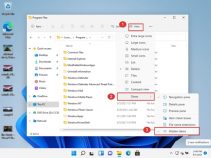
2. Windows 11: View > Show > Hidden items click කරන්න.
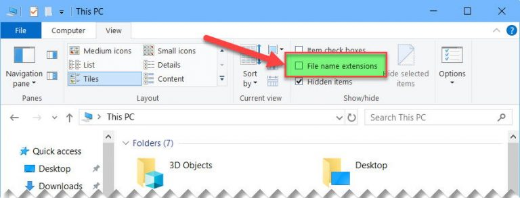
3. Windows 10: View tab එක open කරලා "Hidden items" tick කරන්න.
4. දැන් hidden files/folders පෙනෙනවා (ටිකක් fade වෙලා).
Show Protected System Files
1. Folder/Explorer Options open කරන්න (View > Options, නැත්නම් control folders run කරන්න).
2. View tab එකේ, "Hide protected operating system files (Recommended)" untick කරන්න.
3. warning එක confirm කරලා Apply click කරන්න.
4. දැන් protected system files, hidden items එක්කම පෙනෙනවා.
Command-Line Methods
1. Command Prompt: dir /a එකෙන් hidden/system ඇතුළු හැම item එකක්ම list කරනවා.
2. File එකක් un-hide කරන්න: attrib -h -s "C:\path\file"
3. PowerShell: Get-ChildItem -Force එකෙන් hidden items පෙන්නනවා.
Files Hidden by Malware
1. virus එකකින් files hidden+system කරලා තියෙනවා නම්, drive/folder එකේ Command Prompt open කරන්න.
2. මේක run කරන්න: attrib -h -s -r /s /d *.*
3. මේකෙන් hidden/system/read-only attributes recursively clear කරනවා; ඊට පස්සේ drive එක Windows Security එකෙන් scan කරන්න.
Troubleshooting
Problem: Files තාම පෙනෙන්නේ නෑ.
Solution: ඒවා "protected system" files වෙන්න පුළුවන් — Folder Options එකේ "Hide protected operating system files" untick කරන්න.
Problem: සමහර folders වල "Access is denied".
Solution: ඒක බලන්න/ඇතුළු වෙන්න ඔයාට administrator rights හෝ folder එකේ ownership එක ඕන වෙන්න පුළුවන්.
Problem: Attributes clear වෙන්නේ නෑ.
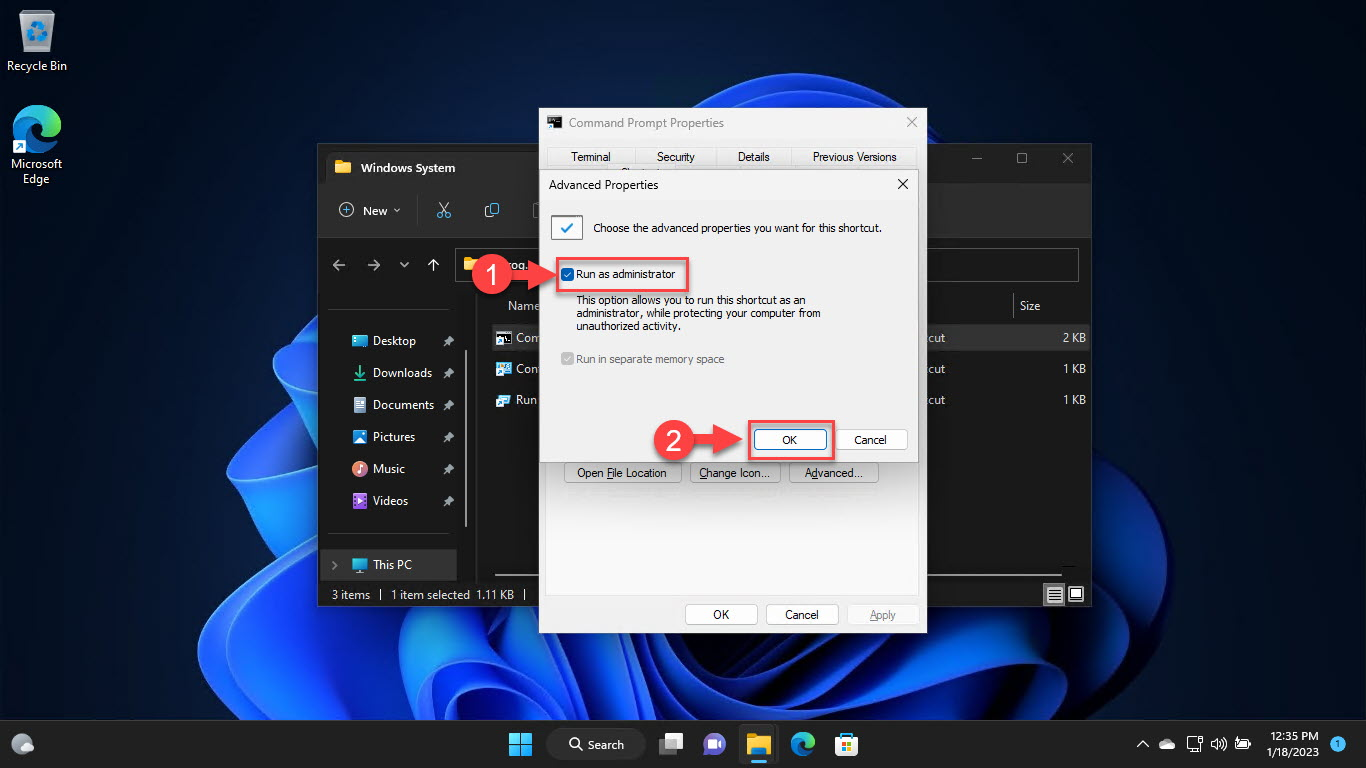
Solution: Command Prompt එක administrator විදිහට run කරලා, files use වෙන්නේ නෑ කියලා තහවුරු කරගන්න.
Problem: reboot එකකට පස්සේ hidden files ආපහු එනවා.
Solution: Malware එකෙන් ඒවා ආපහු hide කරන්න පුළුවන් — full antivirus scan එකක් run කරලා attributes ආපහු clear කරන්න.
Conclusion
Hidden items reveal කරන එක File Explorer එකේ ඉක්මන් toggle එකක්, ඒත් protected system files වලට Folder Options එකේ ඒ option එක untick කරන්න ඕන. Malware-hidden files වලට attrib පාවිච්චි කරන්න — protected system files precautious විදිහට හසුරුවන්න, delete කරනවා වෙනුවට බලනවා විතරයි.
About TechHub
මේ guide එක TechHub Knowledge Base එකේ කොටසක්. තව step-by-step IT guides සහ support වලට techhub.com.lk එකට යන්න.