5 Ways to Show or Hide File Extensions in Windows
Reveal file extensions for safety and clarity via File Explorer, the Registry, and more.
Overview
Windows hides common file extensions by default, which can mask disguised files (e.g., "invoice.pdf.exe"). This guide shows five ways to show or hide extensions — and why showing them is safer.
Showing or hiding file extensions in Windows.
Note: Showing file extensions helps you spot disguised malicious files (like an .exe pretending to be a .pdf). Keeping them visible is the safer choice.
Key Takeaways
- Extensions are hidden by default.
- File Explorer’s View menu toggles them quickly.
- Folder Options and the Registry also control it.
- Showing extensions improves security awareness.
Method 1: File Explorer (Quickest)
1. Open File Explorer.
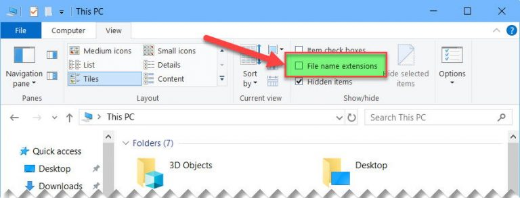
2. Windows 11: View > Show > File name extensions.
3. Windows 10: View tab > tick "File name extensions".
4. Extensions now appear on all files.
Method 2: Folder Options
1. Open Folder/Explorer Options (run control folders).
2. On the View tab, untick "Hide extensions for known file types".
3. Click Apply, then OK.
Method 3: Registry
Warning: Editing the Registry incorrectly can cause problems. Back up the Registry first.
1. Go to HKEY_CURRENT_USER\Software\Microsoft\Windows\CurrentVersion\Explorer\Advanced.
2. Set the DWORD "HideFileExt" to 0 to show extensions (1 to hide).
3. Restart Explorer to apply.
Method 4: Command Line
1. Show extensions: reg add "HKCU\Software\Microsoft\Windows\CurrentVersion\Explorer\Advanced" /v HideFileExt /t REG_DWORD /d 0 /f
2. Restart Explorer: taskkill /f /im explorer.exe & start explorer.exe
Method 5: Group Policy
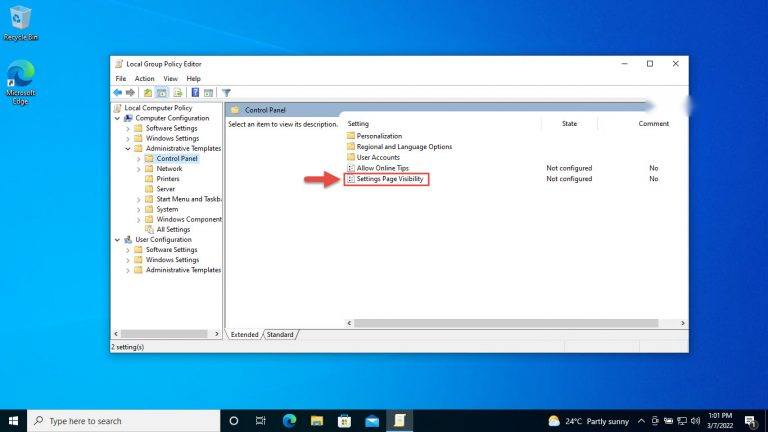
1. Run gpedit.msc (Pro).
2. Browse to User Configuration > Administrative Templates > Windows Components > File Explorer.
3. Configure the relevant Explorer policy, then gpupdate /force.
Troubleshooting
Problem: Extensions still hidden.
Solution: Restart Explorer or sign out/in after changing HideFileExt/Folder Options.
Problem: Setting reverts.
Solution: A policy may enforce it — check gpedit or the HideFileExt value.
Problem: Some files show, others don’t.
Solution: "Hide extensions for known file types" only hides registered types; unregistered ones always show their extension.
Problem: Want it hidden again.
Solution: Set HideFileExt to 1 or re-tick "Hide extensions for known file types".
Conclusion
The fastest toggle is File Explorer’s "File name extensions" checkbox; Folder Options and the HideFileExt Registry value do the same. Showing extensions is recommended — it helps you catch files disguised with a fake extension.