Overview
Domain-joined PC එකක් සාමාන්යයෙන් domain controller (DC) එකක් automatically තෝරගන්නවා. සමහරවිට specific DC එකක් පාවිච්චි කරන්න ඕන වෙනවා — troubleshooting, latency, හෝ maintenance වලට. මේ guide එකෙන් current DC එක හොයලා ඒක temporarily හෝ permanently switch කරන ආකාරය පෙන්නනවා.
PC එකක් specific domain controller එකකට direct කරන්න පුළුවන්.
Key Takeaways
- Windows site එකයි availability එකයි මත DC එකක් automatically select කරනවා.
- Current DC එක බලන්න echo %LOGONSERVER% හෝ nltest.
- Command එකකින් වෙන DC එකක් temporarily force කරන්න පුළුවන්.
- Registry value එකකින් DC එකක් වඩා persistently pin කරන්න පුළුවන් (පරිස්සමින්).
Current Domain Controller එක හොයන්න
1. Command Prompt open කරන්න.
2. ඔබව authenticate කරපු DC එක බලන්න: echo %LOGONSERVER%
3. නැත්නම් detailed DC info වලට: nltest /dsgetdc:yourdomain.com
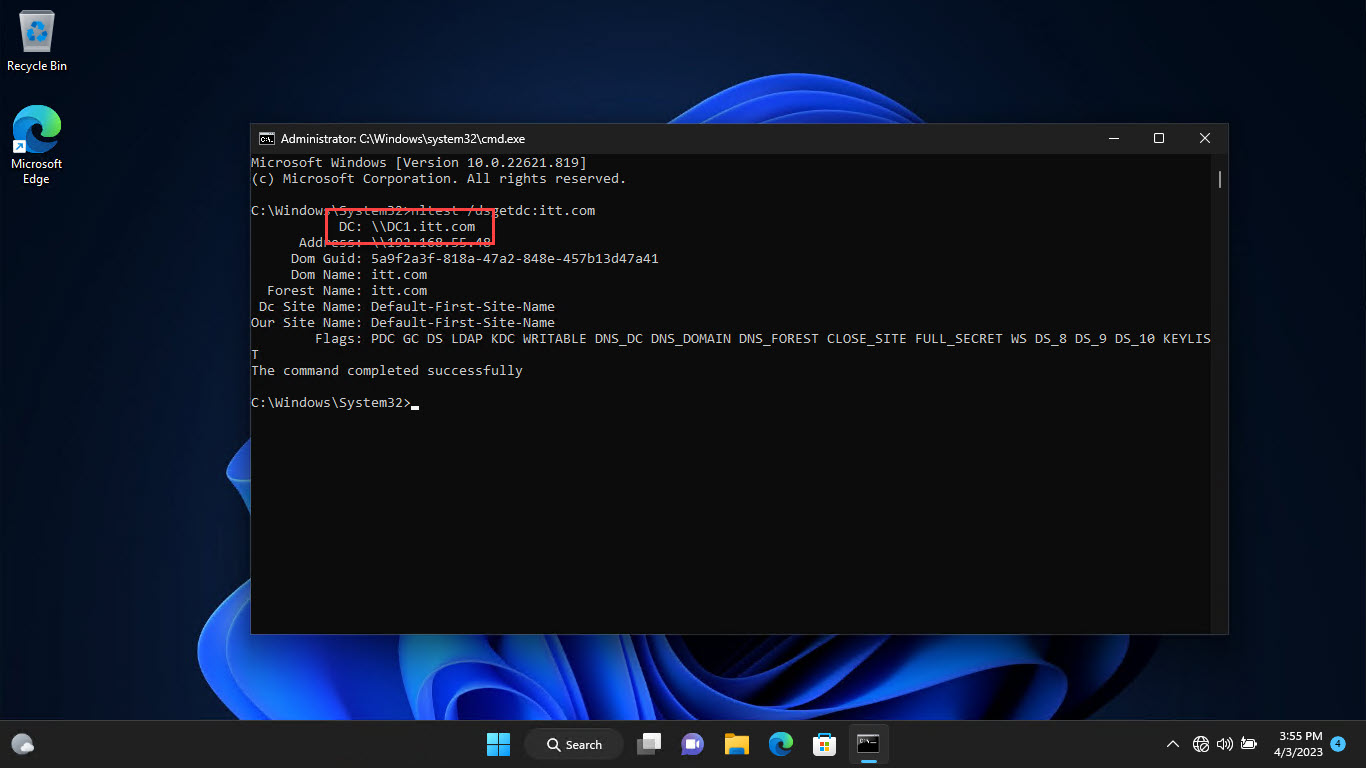
Current domain controller name එක හොයන්න.
DC එක Temporarily Switch කරන්න (Command Prompt)
1. Command Prompt එක administrator විදිහට open කරන්න.
2. Specific DC එකකට secure channel එක reset කරන්න: nltest /sc_reset:yourdomain.com\DC-NAME
3. nltest /sc_query:yourdomain.com එකෙන් verify කරන්න.
4. මේක ඊළඟ automatic re-selection එක වෙනකම් පවතිනවා.
DC එක Permanently Switch කරන්න (Registry)
Warning: DC එකක් pin කරන එකෙන් ඒ DC එක offline වුණොත් problems ඇති කරන්න පුළුවන්. Registry එක backup කරලා, ගොඩක් cases වල site-based selection prefer කරන්න.
1. regedit open කරලා HKEY_LOCAL_MACHINE\SYSTEM\CurrentControlSet\Services\Netlogon\Parameters වලට යන්න.
2. SiteName string value එකක් හදන්න (හෝ ඔබේ environment එකට appropriate DC-targeting value එක පාවිච්චි කරන්න).
3. PC එක desired site/DC දිහාට direct කරන්න set කරන්න.
4. Netlogon service එක හෝ PC එක restart කරන්න.
Troubleshooting
Problem: PC එක පරණ DC එකට revert වෙනවා.
Solution: Automatic selection කාලයත් එක්ක re-run වෙනවා; registry/site approach එක වඩා durable, ඒත් target DC එක available පවතිනවා කියලා බලන්න.
Problem: nltest recognized නෑ.
Solution: RSAT install කරලා (AD tools වල nltest තියෙනවා), Command Prompt එක administrator විදිහට run කරන්න.
Problem: Authentication slow.
Solution: PC එක නිවැරදි AD site එකේ කියලා confirm කරන්න, එතකොට ළඟ DC එකක් select කරනවා; AD Sites and Services එකේ site/subnet definitions fix කරන්න.
Problem: Pinned DC එක offline වුණා.
Solution: Pin එක remove කරලා automatic selection එකට available DC එකක් තෝරන්න දෙන්න, නැත්නම් වෙන online DC එකකට point කරන්න.
Conclusion
Temporary change එකකට nltest එකෙන් හෝ lasting එකකට registry/site settings වලින් PC එකක් specific domain controller එකකට steer කරන්න පුළුවන්. ගොඩක් cases වල, AD site definitions fix කරන එක better long-term fix එක — එතකොට PCs ළඟම healthy DC එක automatically තෝරනවා.
About TechHub
මේ guide එක TechHub Knowledge Base එකේ කොටසක්. තව step-by-step IT guides සහ support වලට techhub.com.lk එකට යන්න.