3 Ways to Undo Sending an Email in Outlook
Delay outgoing mail, schedule sends, or recall a message you already sent.
Overview
Sent an email too soon? Outlook can delay all outgoing mail (giving you a window to stop it), schedule specific sends, and even recall messages within an Exchange organization. This guide covers all three.
Undo sending an email in Outlook.
Key Takeaways
- A delay rule holds outgoing mail for a few minutes.
- You can schedule individual emails to send later.
- Recall works only within the same Exchange organization.
- New Outlook/Outlook.com offer a short "Undo send" window.
Method 1: Delay All Outgoing Mail (Rule)
1. In classic Outlook, go to File > Manage Rules & Alerts > New Rule.
2. Choose "Apply rule on messages I send".
3. Set condition (or none for all), then "defer delivery by a number of minutes".
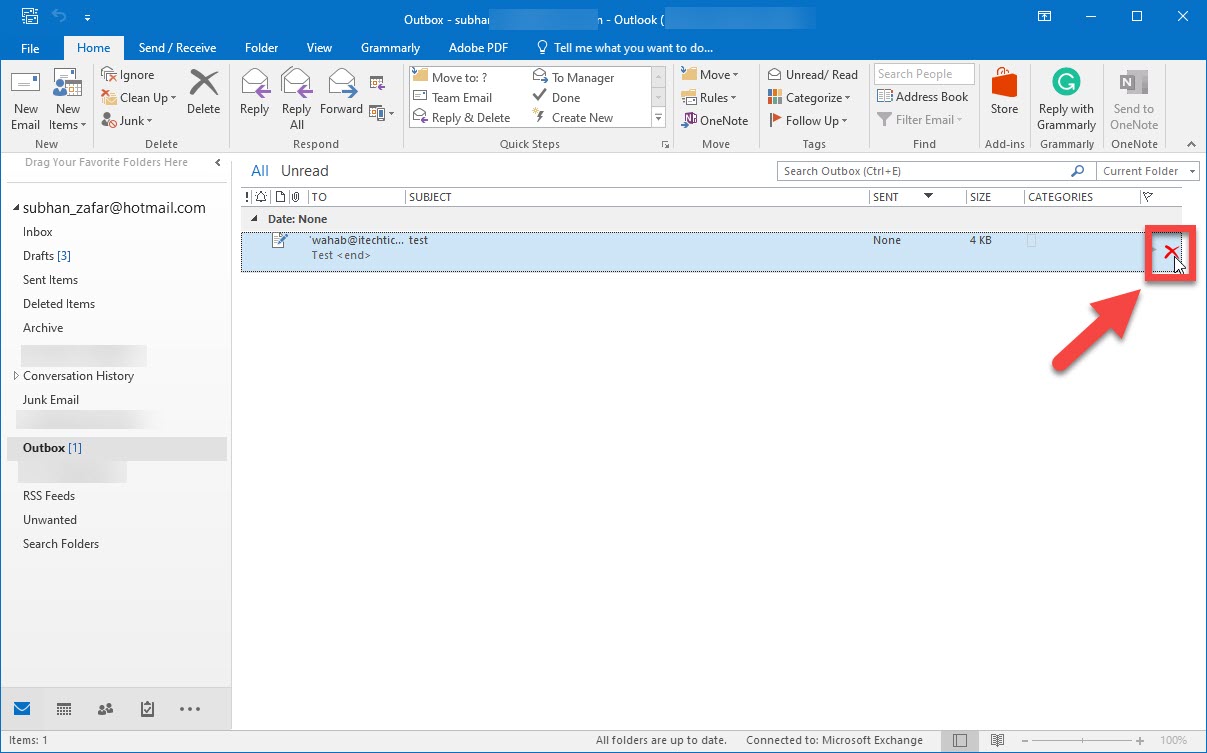
4. Set the delay (e.g., 2 minutes) and finish; mail waits in Outbox where you can edit/delete it.
Method 2: Schedule a Specific Email
1. Compose the email.
2. Click Options > Delay Delivery (or More options > Schedule send in new Outlook).
3. Set the date/time to send.
4. It stays in the Outbox until then — delete it there to cancel.
Method 3: Recall a Sent Email (Exchange)
1. Open the sent message from the Sent Items folder.
2. Go to Message > Actions > Recall This Message (classic Outlook).
3. Choose to delete unread copies or replace the message.
4. Recall only works if both parties are on the same Exchange server and the mail is unread.
New Outlook / Outlook.com Undo Send
1. In Settings > Mail > Compose and reply, set an "Undo send" period (up to ~10 seconds).
2. After sending, click "Undo" in the banner within that window.
3. This is the quickest safety net for typos.
Troubleshooting
Problem: Recall didn’t work.
Solution: Recall only works within one Exchange org and if the message is still unread — it fails for external recipients.
Problem: Delay rule not applying.
Solution: Ensure the rule is enabled and Outlook stays open (classic Outlook processes the Outbox while running).
Problem: No "Delay Delivery" option.
Solution: In new Outlook use "Schedule send"; the classic delay rule is for the desktop client.
Problem: Missed the undo window.
Solution: Increase the Undo send period in settings for more reaction time.
Conclusion
For a reliable safety net, add a delay rule (or set an Undo send period) so mail waits before leaving. Use Schedule/Delay Delivery for specific timing, and reserve Recall for unread messages within your own Exchange organization.