Performance Monitor පාවිච්චි කරලා Windows 11/10 Performance Test එකක් Run කරන්නේ කොහොමද
Built-in Performance Monitor tool එකෙන් ඔයාගේ PC එකේ health එක benchmark කරලා diagnose කරන්න.
Overview
Performance Monitor (perfmon) කියන්නේ system performance මනින්නයි diagnostic reports generate කරන්නයි Windows එකේ තියෙන built-in tool එකයි. මේ guide එකෙන් performance/health report එකක් run කරලා live counters read කරන විදිය පෙන්නනවා.
Performance Monitor එකෙන් Windows performance test එකක් run කිරීම.
Key Takeaways
- Performance Monitor (perfmon) එක Windows එකේ built-in.
- System Diagnostics report එකෙන් health/performance summary එකක් දෙනවා.
- Data Collector Sets වලින් කාලයත් එක්ක metrics record කරනවා.
- Live counters වලින් real-time CPU, disk, memory, සහ network use එක පෙන්නනවා.
Generate a System Diagnostics Report
1. Windows + R press කරලා, perfmon /report type කරලා, Enter press කරන්න.
2. Data collect කරනකොට තත්පර 60ක් විතර wait කරන්න.
3. Report එකේ summary, warnings, සහ resource breakdown (CPU, memory, disk, network) කියවන්න.
Use Performance Monitor Counters
1. perfmon run කරලා Monitoring Tools > Performance Monitor open කරන්න.
2. Counters add කරන්න green + click කරන්න (උදා: Processor, Memory, PhysicalDisk).
3. Bottlenecks හොයාගන්න live graph එක බලන්න.
4. කියවන්න පහසු වෙන්න graph type එක (line/report) වෙනස් කරන්න.
Create a Data Collector Set
1. perfmon එකේ, Data Collector Sets > User Defined expand කරන්න.
2. Right-click > New > Data Collector Set කරලා log කරන්න counters තෝරන්න.
3. Schedule/duration එකක් set කරලා ඒක start කරන්න.
4. Trends analyze කරන්න පස්සේ logged report එක review කරන්න.
Other Quick Checks
- ඉක්මන් live overview එකකට Task Manager > Performance.
- Per-process resource use විස්තර වලට Resource Monitor (resmon).
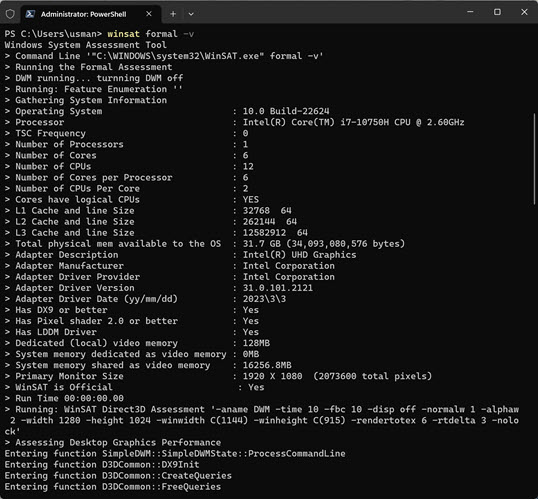
- Formal assessment score එකකට WinSAT (winsat formal).
Troubleshooting
Problem: perfmon /report errors පෙන්නනවා.
Solution: ඒක administrator විදිහට run කරන්න; සමහර data collectors වලට elevation ඕන.
Problem: Report එක හිස්.
Solution: Window එක close නොකර පූර්ණ තත්පර 60ම run වෙන්න දෙන්න.
Problem: Counters නෑ.
Solution: Counters rebuild කරන්න: elevated prompt එකක lodctr /R run කරන්න.
Problem: එක score එකක් ඕන.
Solution: winsat formal run කරලා, ඊට පස්සේ WinSAT report එකේ හෝ Get-CimInstance Win32_WinSAT එකේ results check කරන්න.
Conclusion
Health සහ performance summary එකක් ගන්න ඉක්මන්ම විදිය Performance Monitor එකේ System Diagnostics report එකයි (perfmon /report), අනිත් අතට live counters සහ Data Collector Sets වලින් කාලයත් එක්ක bottlenecks වලට dig කරන්න පුළුවන් — ඔක්කොම Windows එකේ built-in, extra tools ඕන නෑ.