Overview
Wireless Display (Miracast) lets Windows project its screen to a compatible TV, monitor, or PC — and lets other devices cast to your PC. This guide shows how to install the feature, enable it, and cast in both directions.
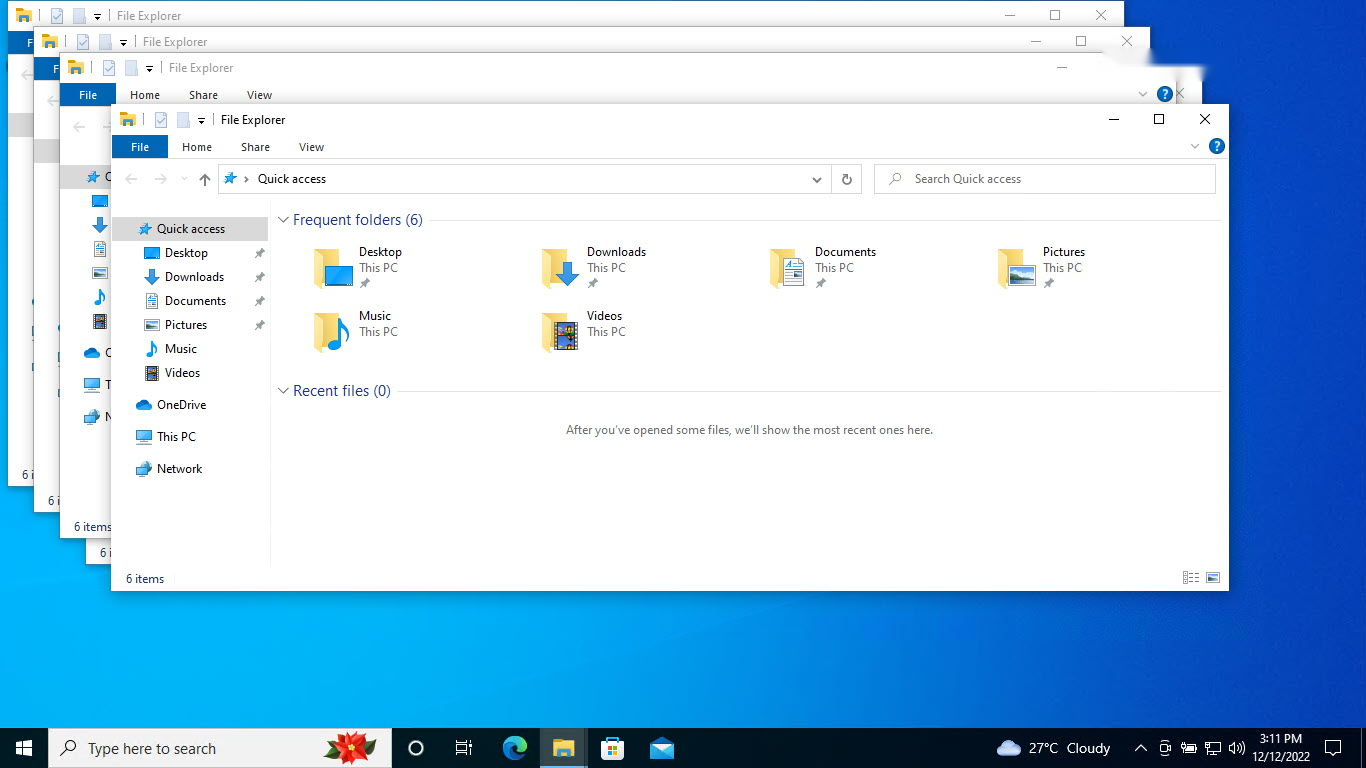
Wireless Display screen projection.
Key Takeaways
- Wireless Display uses Miracast over Wi-Fi Direct.
- Install it as an optional feature to receive projections.
- Press Windows + K to cast to a display.
- Both devices must support Miracast.
Install the Wireless Display Feature
1. Open Settings > Apps > Optional features > Add an optional feature.
2. Search for "Wireless Display" and install it.
3. This lets your PC receive projections from other devices.
Cast Your Screen to Another Device
1. Ensure the target display/PC supports Miracast and is discoverable.
2. Press Windows + K (or open Cast from Quick Settings).
3. Select the device from the list.
4. Choose duplicate, extend, or second-screen-only mode as needed.
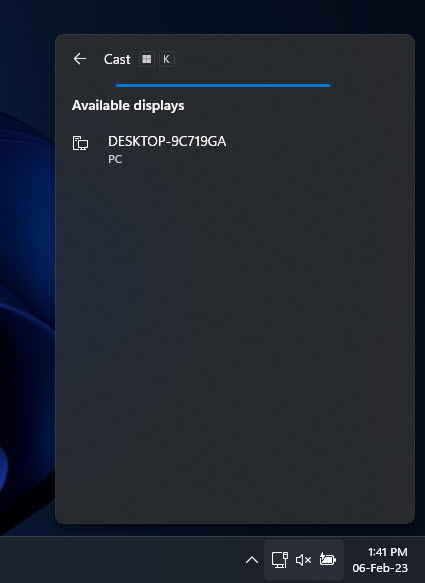
Project or cast to another device.
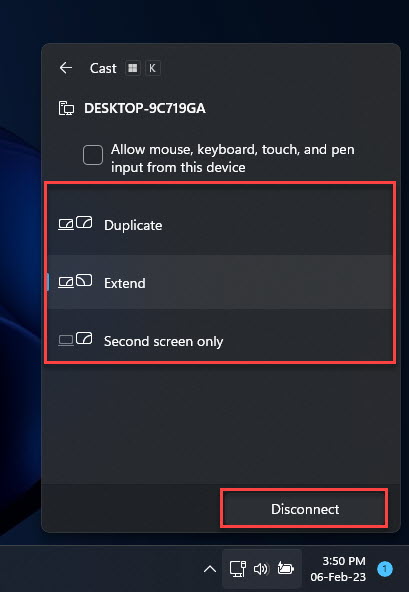
Choose to duplicate, extend, or mirror.
Let Other Devices Project to Your PC
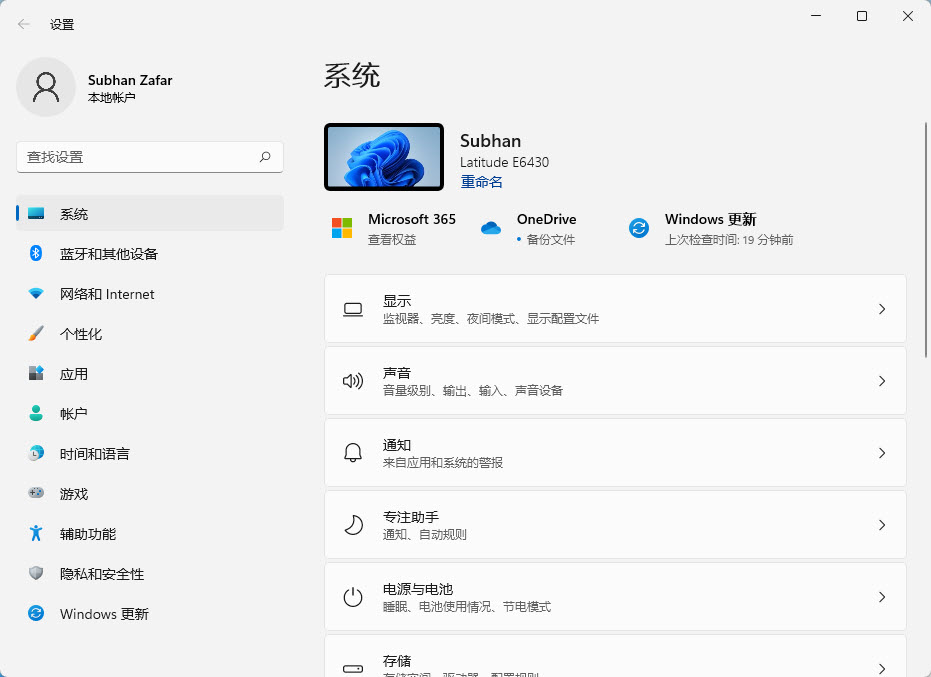
1. Open Settings > System > Projecting to this PC.
2. Set "Available everywhere on secure networks" (or as preferred).
3. Configure the pairing PIN and when permission is required.
4. On the other device, cast and select your PC.
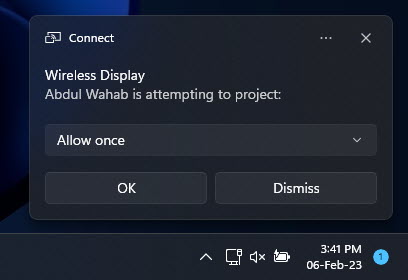
Allow projecting to this PC.
Disable or Uninstall
1. To stop receiving: set "Projecting to this PC" options to Always off.
2. To remove the feature: Settings > Apps > Optional features > Wireless Display > Uninstall.
Troubleshooting
Problem: No devices found when casting.
Solution: Confirm both devices support Miracast, are on Wi-Fi, and have Bluetooth/Wi-Fi Direct enabled.
Problem: "Projecting to this PC" options greyed out.
Solution: Your Wi-Fi adapter/GPU may not support Miracast, or the Wireless Display feature isn’t installed.
Problem: Connection keeps dropping.
Solution: Reduce distance/interference, update Wi-Fi and GPU drivers, and use 5 GHz where possible.
Problem: Laggy or low-quality projection.
Solution: Close bandwidth-heavy apps and ensure a strong signal; wired alternatives (HDMI) give the best quality.
Conclusion
Wireless Display makes it easy to mirror or extend your screen without cables. Install the feature to receive casts, press Windows + K to project, and configure "Projecting to this PC" to let other devices cast to you — all over Miracast.
</w:pBdr><w:spacing w:before="220" w:after="40"/></w:pPr><w:r><w:rPr><w:b/><w:bCs/><w:color w:val="0B5394"/><w:sz w:val="21"/><w:szCs w:val="21"/><w:rFonts w:ascii="Calibri" w:cs="Calibri" w:eastAsia="Calibri" w:hAnsi="Calibri"/></w:rPr><w:t xml:space="preserve">About TechHub
This guide is part of the TechHub Knowledge Base. For more step-by-step IT guides and support, visit techhub.com.lk.