Overview
Event Viewer records detailed logs of system, application, and security events, making it a first stop when diagnosing problems. Administrators often need to inspect these logs on another machine without physically visiting it. Event Viewer supports connecting to a remote computer directly, letting you review its logs from your own desk. This guide explains how.
Key Takeaways
- Event Viewer can connect to and read logs from a remote computer on the same network.
- The remote PC must have the appropriate firewall rules enabled and you need administrative credentials on it.
- Both computers should be reachable by name or IP address.
- This method is read-focused: you view the remote machine’s events as if you were sitting at it.
Open Event Viewer
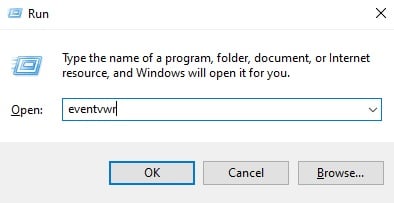
1. Press Windows + R to open the Run dialog.
2. Type eventvwr.msc and press Enter.
3. Event Viewer opens showing the local computer’s logs by default.
Launching Event Viewer with the eventvwr command.
Connect to a Remote Computer
1. In Event Viewer, right-click the top node labeled Event Viewer (Local) in the left pane.
2. Choose Connect to Another Computer from the context menu.
3. Select Another computer and enter the remote machine’s name or IP address.
4. If needed, tick Connect as another user and supply administrator credentials for that PC.
5. Click OK to load the remote computer’s logs into the console.
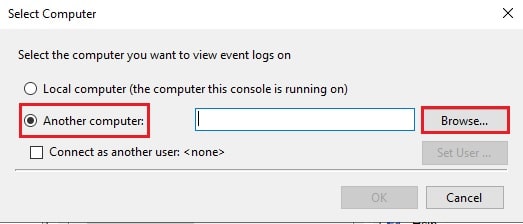
Entering the remote computer name in the Connect dialog.
Note: To allow the connection, the remote PC must have the Remote Event Log Management rules enabled in Windows Defender Firewall.
Enable the Firewall Rule on the Remote PC
1. On the remote computer, open Windows Defender Firewall with Advanced Security.
2. Select Inbound Rules and locate the Remote Event Log Management group.
3. Enable those rules so incoming Event Viewer connections are permitted.
4. Confirm both computers are on the same network and can ping each other.
Warning: Only enable remote log access on trusted, managed networks. Opening these firewall rules on an untrusted network increases your exposure, so keep them limited to internal use.
Troubleshooting
Problem: Event Viewer reports that the RPC server is unavailable.
Solution: Enable the Remote Event Log Management inbound firewall rules on the remote PC and verify the Remote Procedure Call service is running.
Problem: Access is denied when connecting.
Solution: Use the Connect as another user option and supply an account that has administrator rights on the remote machine.
Problem: The remote computer cannot be found by name.
Solution: Confirm name resolution works, or connect using the machine’s IP address instead of its hostname.
Problem: Logs load very slowly over the connection.
Solution: Filter to the specific log and time range you need rather than loading entire large logs across the network.
Conclusion
Remote Event Viewer access saves time when supporting multiple machines. Once the firewall rules are in place and you have the right credentials, reviewing another computer’s logs is as simple as connecting from your own console.
About TechHub
This guide is part of the TechHub Knowledge Base. For more step-by-step IT guides and support, visit techhub.com.lk.