Overview
Office language accessory packs let you use the interface, help, and proofing tools in additional languages. This is useful for multilingual users and teams. This guide explains how to add them from the official source.
Key Takeaways
- Language packs add display, help, and proofing languages to Office.
- You install them from Office’s own language options.
- Proofing tools add spell-check and grammar for a language.
- Packs match your Office version and architecture.
Install a Language Pack
1. Open any Office app and go to File > Options > Language.
2. Under Office display language or authoring languages, click Add a language.
3. Select the language and choose to install the pack.
4. Follow the prompt to download it from Microsoft, then restart Office.
Adding a language in Office language options.
Set Display and Proofing
1. Set your preferred display language and move it to the top of the list.
2. Add proofing (spell-check) for each authoring language you use.
3. Restart all Office apps to apply the changes.
4. Confirm the ribbon and proofing now use the new language.
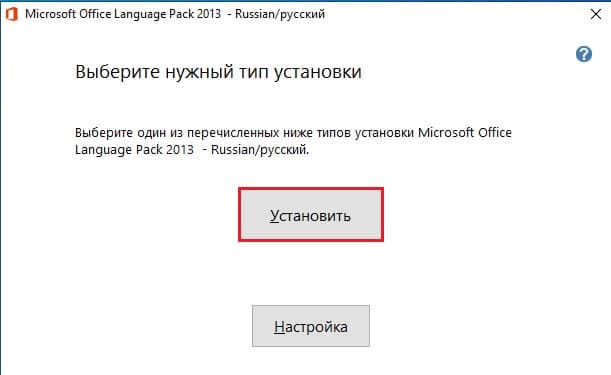
Choosing display and proofing languages in Office.
Note: Install language packs from within Office or Microsoft’s official site to ensure they match your exact Office version.
Troubleshooting
Problem: The display language does not change.
Solution: Move it to the top of the display language list and restart all Office apps.
Problem: Spell-check is missing for a language.
Solution: Add proofing tools for that language under the authoring languages section.
Problem: The pack will not install.
Solution: Confirm your Office version and that you selected the matching accessory pack.
Problem: Only some apps changed language.
Solution: Fully close and reopen every Office app so the change applies across the suite.
Conclusion
Office language packs make the whole suite work in your preferred language, complete with proofing tools. Add them from Office’s language options and restart to apply.
About TechHub
This guide is part of the TechHub Knowledge Base. For more step-by-step IT guides and support, visit techhub.com.lk.