Overview
Windows lets you influence how hard your processor works through power plans and processor power-management settings. Raising the minimum processor state can boost responsiveness, while lowering the maximum state reduces heat, fan noise, and power draw. This guide shows how to adjust these settings safely to match your needs.
Key Takeaways
- Power plans control how aggressively your CPU ramps up and down.
- The High performance plan keeps the CPU at higher speeds; Power saver reduces them.
- Minimum and maximum processor state percentages give fine-grained control.
- Lowering the maximum processor state is an effective way to cut heat and fan noise.
Choose a Power Plan
1. Press Windows + R, type powercfg.cpl, and press Enter.
2. Select High performance for maximum speed or Power saver to reduce CPU output.
3. Click Change plan settings next to your chosen plan to fine-tune it.
Selecting a power plan in the Power Options window.
Adjust Processor State
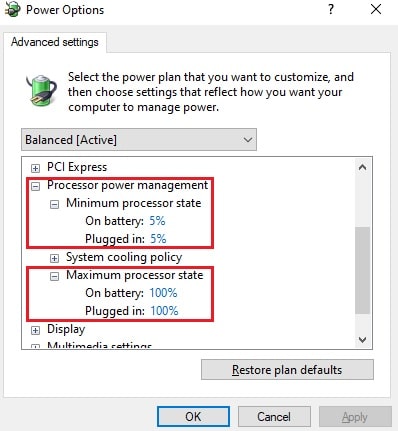
1. In the plan settings, click Change advanced power settings.
2. Expand Processor power management.
3. Set Minimum processor state higher (for example 50%) to keep the CPU more active, or lower it to save power.
4. Set Maximum processor state lower (for example 80%) to cap speed, reduce heat, and quiet the fans.
5. Click Apply and OK.
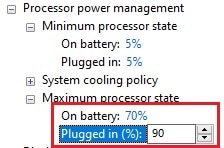
Adjusting the minimum and maximum processor state percentages.
Tip: Capping the maximum processor state around 80–90% often eliminates fan noise on laptops with only a small performance loss.
Warning: Avoid third-party overclocking tools unless you understand the thermal risks. Pushing a CPU beyond its rated limits can cause overheating, instability, and long-term damage.
Troubleshooting
Problem: Advanced processor settings are not visible.
Solution: Run powercfg -attributes SUB_PROCESSOR ATTRIB_HIDE from an elevated prompt to unhide the processor state options, then reopen the settings.
Problem: The CPU still runs hot after lowering the maximum state.
Solution: Clean dust from the cooling system, reapply thermal paste if appropriate, and confirm the setting applied to the active plan.
Problem: Performance feels sluggish after switching to Power saver.
Solution: Switch to Balanced or High performance, or raise the minimum processor state for a more responsive feel.
Problem: Settings reset after a Windows update.
Solution: Reapply your custom plan; major updates can restore default power plans.
Conclusion
Power plans and processor state settings let you tune your CPU without any extra software. Dial performance up when you need speed and down when you want a cooler, quieter, longer-lasting machine.
About TechHub
This guide is part of the TechHub Knowledge Base. For more step-by-step IT guides and support, visit techhub.com.lk.