Overview
Windows එකෙන් power plans සහ processor power-management settings හරහා ඔබේ processor එක කොච්චර වෙහෙසෙනවද කියන එකට බලපෑම් කරන්න ඉඩ දෙනවා. Minimum processor state එක raise කරන එකෙන් responsiveness එක boost කරන්න පුළුවන්, maximum state එක lower කරන එකෙන් heat, fan noise, සහ power draw අඩු වෙනවා. මේ guide එකෙන් ඔබේ අවශ්යතාවලට ගැළපෙන්න මේ settings ආරක්ෂිතව adjust කරන්නේ කොහොමද කියලා පෙන්නනවා.
Key Takeaways
- Power plans වලින් ඔබේ CPU එක කොච්චර aggressive විදිහට ramp up සහ down වෙනවද කියන එක control කරනවා.
- High performance plan එකෙන් CPU එක වේගවත් speeds වල තියාගන්නවා; Power saver එකෙන් ඒවා අඩු කරනවා.
- Minimum සහ maximum processor state percentages වලින් fine-grained control එකක් දෙනවා.
- Maximum processor state එක lower කරන එක heat සහ fan noise අඩු කරන්න effective ක්රමයක්.
Choose a Power Plan
1. Windows + R press කරලා, powercfg.cpl type කරලා, Enter press කරන්න.
2. Maximum speed එකට High performance තෝරන්න, නැත්නම් CPU output එක අඩු කරන්න Power saver තෝරන්න.
3. ඔබ තෝරගත්ත plan එක fine-tune කරන්න ඒ ළඟ තියෙන Change plan settings click කරන්න.
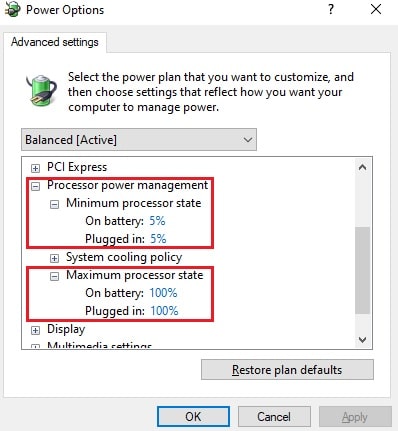
Power Options window එකේ power plan එකක් තේරීම.
Adjust Processor State
1. Plan settings වල, Change advanced power settings click කරන්න.
2. Processor power management expand කරන්න.
3. CPU එක වඩා active විදිහට තියාගන්න Minimum processor state එක වැඩියෙන් set කරන්න (උදාහරණයක් විදිහට 50%), නැත්නම් power save කරන්න ඒක අඩු කරන්න.
4. Speed එක cap කරන්න, heat අඩු කරන්න, fans නිශ්ශබ්ද කරන්න Maximum processor state එක අඩුවෙන් set කරන්න (උදාහරණයක් විදිහට 80%).
5. Apply සහ OK click කරන්න.
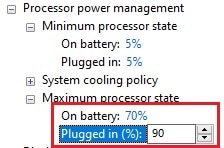
Minimum සහ maximum processor state percentages adjust කිරීම.
Tip: Maximum processor state එක 80–90% ආසන්නයේ cap කරන එකෙන් performance එකේ පොඩි loss එකක් එක්ක laptops වල fan noise එක නිතරම ඉවත් වෙනවා.
Warning: Thermal risks තේරෙනවා නම් මිසක් third-party overclocking tools වලින් වළකින්න. CPU එකක් එහෙ rated limits වලට එහාට තල්ලු කරන එකෙන් overheating, instability, සහ දිගුකාලීන damage ඇති වෙන්න පුළුවන්.
Troubleshooting
Problem: Advanced processor settings පේන්නේ නෑ.
Solution: Processor state options unhide කරන්න elevated prompt එකකින් powercfg -attributes SUB_PROCESSOR ATTRIB_HIDE run කරලා, ඊට පස්සේ settings ආයෙත් open කරන්න.
Problem: Maximum state එක lower කරාට පස්සෙත් CPU එක තාම හොට් වෙනවා.
Solution: Cooling system එකෙන් dust clean කරන්න, සුදුසු නම් thermal paste ආයෙත් apply කරන්න, setting එක active plan එකට apply උනාද කියලා තහවුරු කරගන්න.
Problem: Power saver එකට switch කරාට පස්සේ performance එක සෙමින් වගේ දැනෙනවා.
Solution: Balanced නැත්නම් High performance එකට switch කරන්න, නැත්නම් වඩා responsive feel එකකට minimum processor state එක raise කරන්න.
Problem: Windows update එකකට පස්සේ settings reset වෙනවා.
Solution: ඔබේ custom plan එක ආයෙත් apply කරන්න; major updates වලින් default power plans restore කරන්න පුළුවන්.
Conclusion
Power plans සහ processor state settings වලින් අමතර software එකක් නැතුව ඔබේ CPU එක tune කරන්න පුළුවන්. Speed ඕන වෙලාවට performance එක up කරන්න, cooler, නිශ්ශබ්ද, දිගු කල් තියෙන machine එකක් ඕන වෙලාවට down කරන්න.
About TechHub
මේ guide එක TechHub Knowledge Base එකේ කොටසක්. තව step-by-step IT guides සහ support වලට techhub.com.lk එකට යන්න.