Overview
By default, the Windows Firewall blocks incoming ICMP echo requests, which means your computer will not reply when another device pings it. Allowing ping is useful for network troubleshooting, monitoring server availability, and confirming that a host is reachable. This guide shows how to allow ping through the firewall using the graphical interface, the command line, and Group Policy.
Key Takeaways
- Ping uses the ICMP protocol; Windows blocks it by default for security.
- Allowing ping requires creating an inbound firewall rule for ICMPv4.
- You can enable it via Windows Defender Firewall, a single netsh/PowerShell command, or Group Policy for many machines.
- Only enable ping on trusted networks where reachability testing is needed.
Note: Ping (ICMP echo) helps diagnose connectivity, but leaving it open on untrusted or internet-facing networks can reveal that a host exists. Enable it where you need it and consider restricting it to trusted networks.
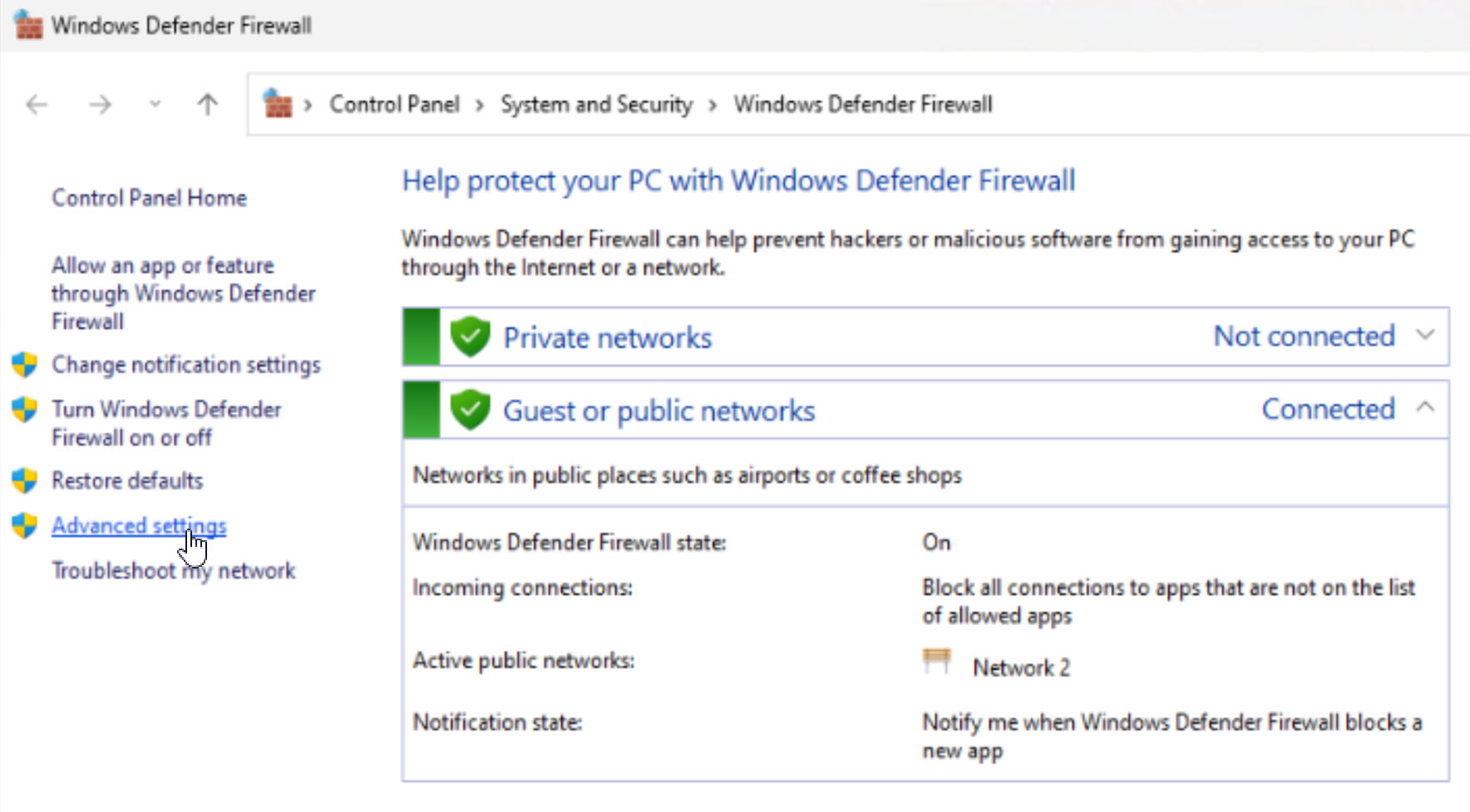
Method 1: Windows Defender Firewall with Advanced Security
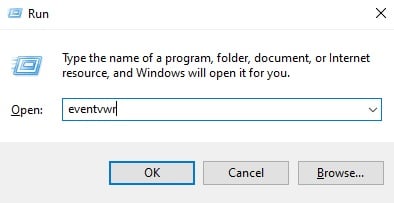
1. Press Windows + R, type wf.msc, and press Enter to open Windows Defender Firewall with Advanced Security.
2. Select Inbound Rules in the left pane, then click New Rule in the right pane.
3. Choose Custom and click Next, then leave All programs selected and click Next.
4. For Protocol type, choose ICMPv4, then click Customize and select Echo Request. Click OK and Next.
5. Set the scope if needed, choose Allow the connection, and click Next.
6. Select the network profiles (Domain, Private, Public) where the rule applies, click Next, name the rule such as "Allow Ping", and click Finish.
Creating a new inbound rule in the firewall.
Method 2: Using the Command Line
A single elevated command creates the same rule quickly.
1. Click Start, type "cmd", right-click Command Prompt, and choose Run as administrator.
2. To allow ping, run: netsh advfirewall firewall add rule name="Allow Ping" protocol=icmpv4:8,any dir=in action=allow
3. Press Enter. The firewall now responds to ping requests.
4. To remove it later, run: netsh advfirewall firewall delete rule name="Allow Ping"
Tip: In PowerShell you can achieve the same result with: New-NetFirewallRule -DisplayName "Allow Ping" -Protocol ICMPv4 -IcmpType 8 -Direction Inbound -Action Allow.
Method 3: Using Group Policy
To enable ping across multiple domain computers, configure the firewall rule through Group Policy.
1. Open the Group Policy Management Console and edit the policy applied to the target computers.
2. Go to Computer Configuration > Policies > Windows Settings > Security Settings > Windows Defender Firewall with Advanced Security > Inbound Rules.
3. Right-click Inbound Rules and choose New Rule, then follow the same Custom / ICMPv4 / Echo Request steps as Method 1.
4. Allow the connection, choose the profiles, and finish. Run gpupdate /force on clients to apply.
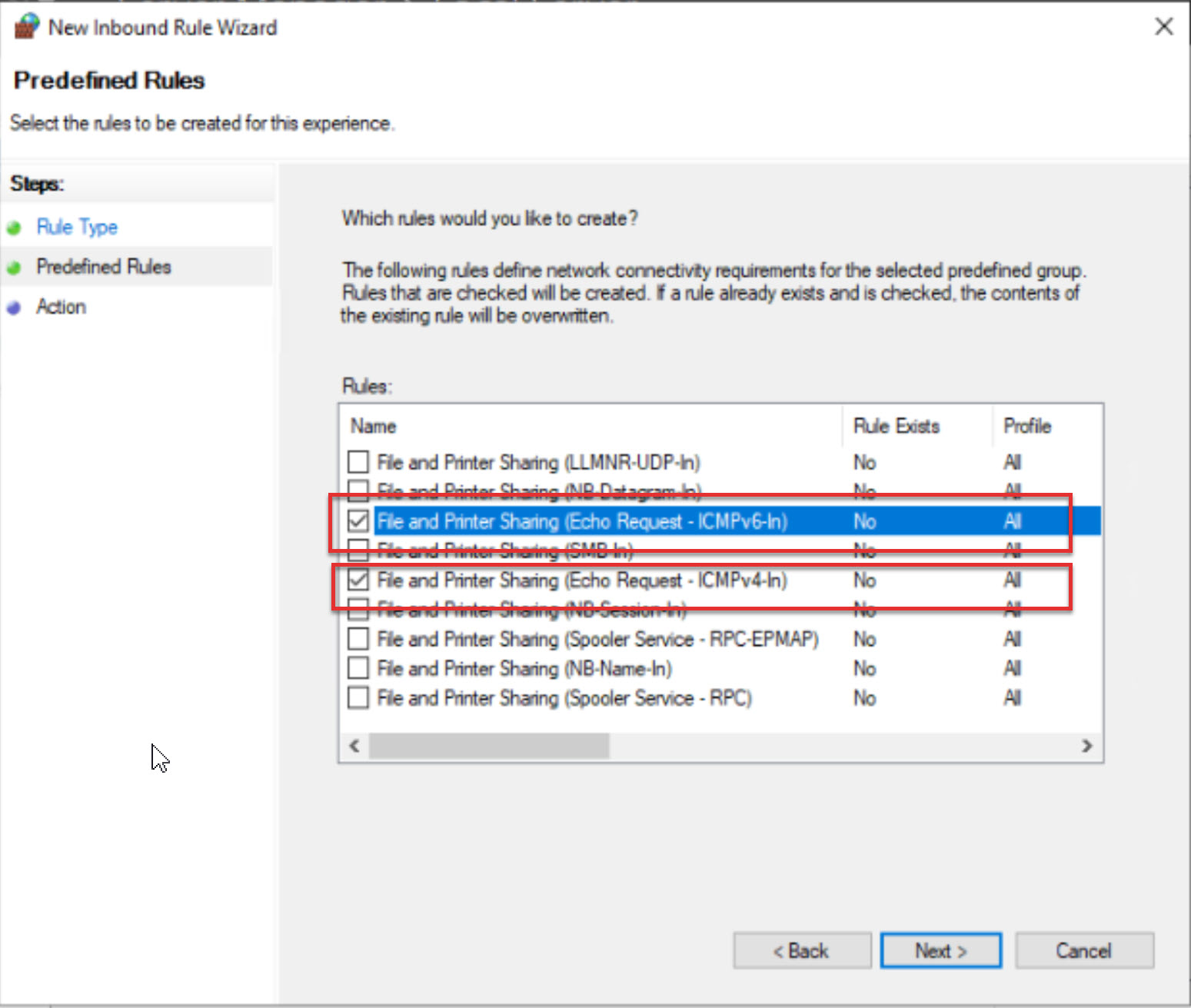
Enabling ICMP rules through Group Policy.
Verify Ping Works
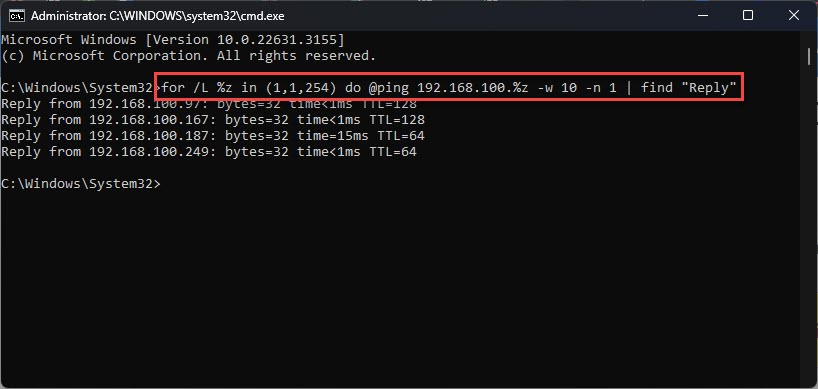
From another computer on the same network, open a command prompt and run ping followed by the target IP address. A series of replies confirms the rule is working.
Troubleshooting
Problem: The host still does not respond to ping.
Solution: Confirm the inbound rule is enabled and set to Allow, and that it applies to the active network profile (Domain, Private, or Public).
Problem: Ping works locally but not from another subnet.
Solution: Check the rule scope and any intermediate router or hardware firewall that may block ICMP between subnets.
Problem: The netsh command reports a syntax error.
Solution: Ensure you are running the command in an elevated prompt and that the quotation marks and icmpv4:8,any syntax are typed exactly.
Problem: I want to block ping again.
Solution: Delete the inbound rule you created, or disable it in Windows Defender Firewall with Advanced Security.
Conclusion
Allowing ping through the Windows Firewall makes your PC or server visible to reachability tests, which is invaluable for troubleshooting and monitoring. Use the graphical firewall for a guided setup, the command line for speed, or Group Policy to deploy the rule across many machines — and disable it again when it is no longer needed.
About TechHub
This guide is part of the TechHub Knowledge Base. For more step-by-step IT guides and support, visit techhub.com.lk.