Overview
Default විදිහට Windows Firewall එකෙන් incoming ICMP echo requests block කරනවා, ඒ කියන්නේ වෙන device එකක් ඔයාගේ computer එකට ping කරද්දී ඒක reply කරන්නේ නෑ. ping allow කරන එක network troubleshooting වලට, server availability monitor කරන්න, සහ host එකක් reachable ද කියලා confirm කරන්න වැදගත්. මේ guide එකෙන් graphical interface එකෙන්, command line එකෙන්, සහ Group Policy එකෙන් firewall එක හරහා ping allow කරන විදිහ පෙන්නනවා.
Key Takeaways
- Ping පාවිච්චි කරන්නේ ICMP protocol එක; Windows default විදිහට මේක security නිසා block කරනවා.
- Ping allow කරන්න ICMPv4 සඳහා inbound firewall rule එකක් හදන්න ඕනේ.
- ඔයාට මේක enable කරන්න පුළුවන් Windows Defender Firewall එකෙන්, එක netsh/PowerShell command එකකින්, හෝ machines ගොඩක් සඳහා Group Policy එකෙන්.
- reachability testing අවශ්ය trusted networks වල විතරක් ping enable කරන්න.
Note: Ping (ICMP echo) එකෙන් connectivity diagnose කරන්න උදව් වුණත්, untrusted හෝ internet-facing networks වල මේක open තියෙන එකෙන් host එකක් තියෙනවා කියලා reveal වෙන්න පුළුවන්. ඕනේ තැන enable කරලා trusted networks වලට restrict කරන එක ගැන හිතන්න.
Method 1: Windows Defender Firewall with Advanced Security
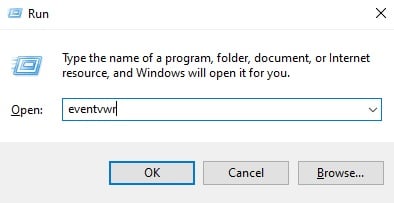
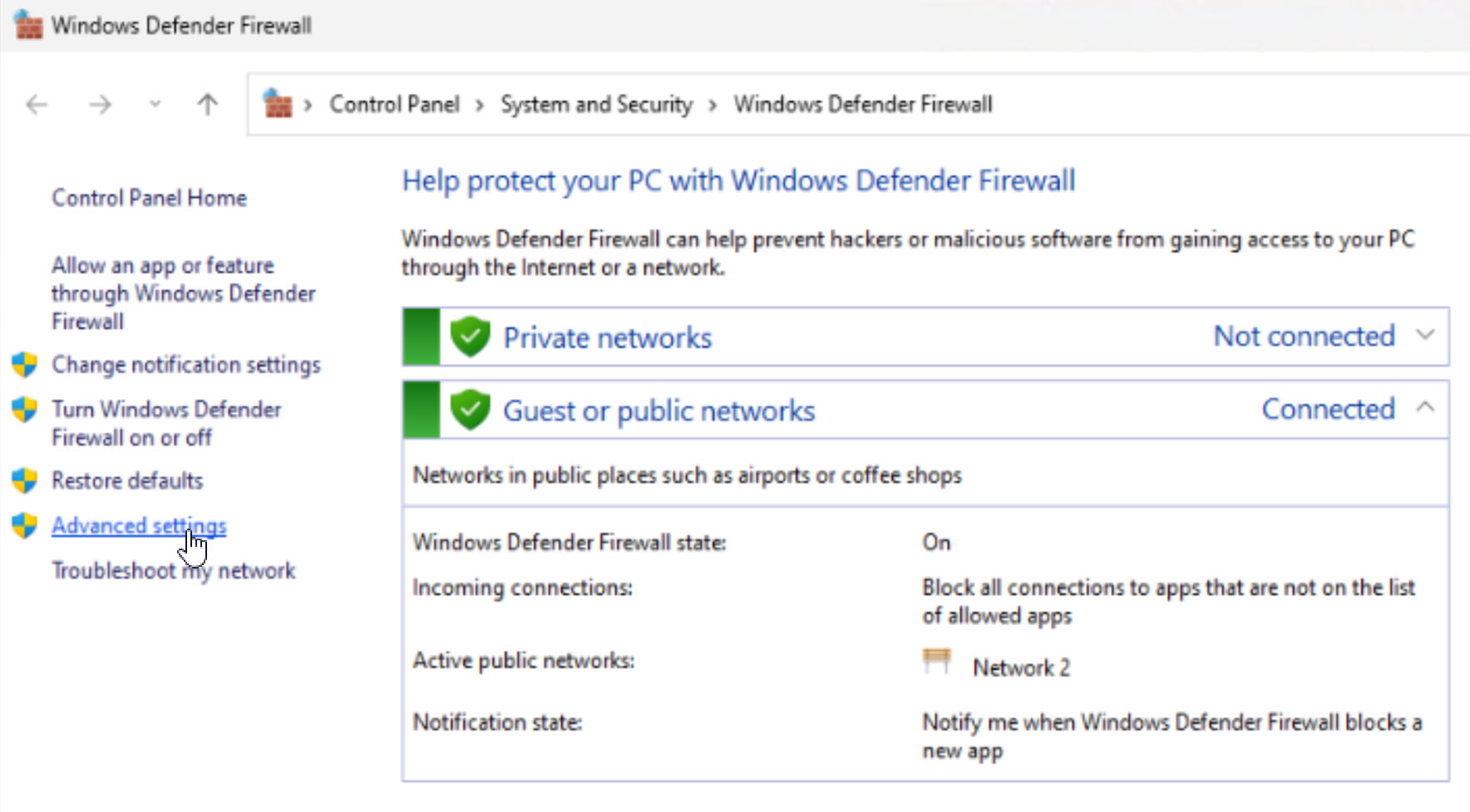
1. Windows + R press කරලා, wf.msc type කරලා, Enter press කරලා Windows Defender Firewall with Advanced Security open කරන්න.
2. වම් pane එකේ Inbound Rules තෝරලා, දකුණු pane එකේ New Rule click කරන්න.
3. Custom තෝරලා Next click කරලා, ඊට පස්සේ All programs තෝරගෙනම තියලා Next click කරන්න.
4. Protocol type එකට ICMPv4 තෝරලා, ඊට පස්සේ Customize click කරලා Echo Request තෝරන්න. OK සහ Next click කරන්න.
5. ඕනේ නම් scope එක set කරලා, Allow the connection තෝරලා, Next click කරන්න.
6. rule එක apply වෙන network profiles (Domain, Private, Public) තෝරලා, Next click කරලා, rule එකට "Allow Ping" වගේ නමක් දාලා, Finish click කරන්න.
firewall එකේ අලුත් inbound rule එකක් හැදීම.
Method 2: Using the Command Line
එක elevated command එකකින් ඉක්මනට ම එම rule එකම හදනවා.
1. Start click කරලා, "cmd" type කරලා, Command Prompt right-click කරලා, Run as administrator තෝරන්න.
2. ping allow කරන්න මේක run කරන්න: netsh advfirewall firewall add rule name="Allow Ping" protocol=icmpv4:8,any dir=in action=allow
3. Enter press කරන්න. දැන් firewall එක ping requests වලට respond කරනවා.
4. පස්සේ මේක අයින් කරන්න, මේක run කරන්න: netsh advfirewall firewall delete rule name="Allow Ping"
Tip: PowerShell එකේදී ඔයාට එම result එකම ලබාගන්න පුළුවන් මේකෙන්: New-NetFirewallRule -DisplayName "Allow Ping" -Protocol ICMPv4 -IcmpType 8 -Direction Inbound -Action Allow.
Method 3: Using Group Policy
domain computers ගණනාවක් හරහා ping enable කරන්න, Group Policy එකෙන් firewall rule එක configure කරන්න.
1. Group Policy Management Console එක open කරලා target computers වලට apply වෙන policy එක edit කරන්න.
2. Computer Configuration > Policies > Windows Settings > Security Settings > Windows Defender Firewall with Advanced Security > Inbound Rules වලට යන්න.
3. Inbound Rules right-click කරලා New Rule තෝරලා, ඊට පස්සේ Method 1 එකේ වගේම Custom / ICMPv4 / Echo Request steps follow කරන්න.
4. Allow the connection තෝරලා, profiles තෝරලා, finish කරන්න. apply කරන්න clients වල gpupdate /force run කරන්න.
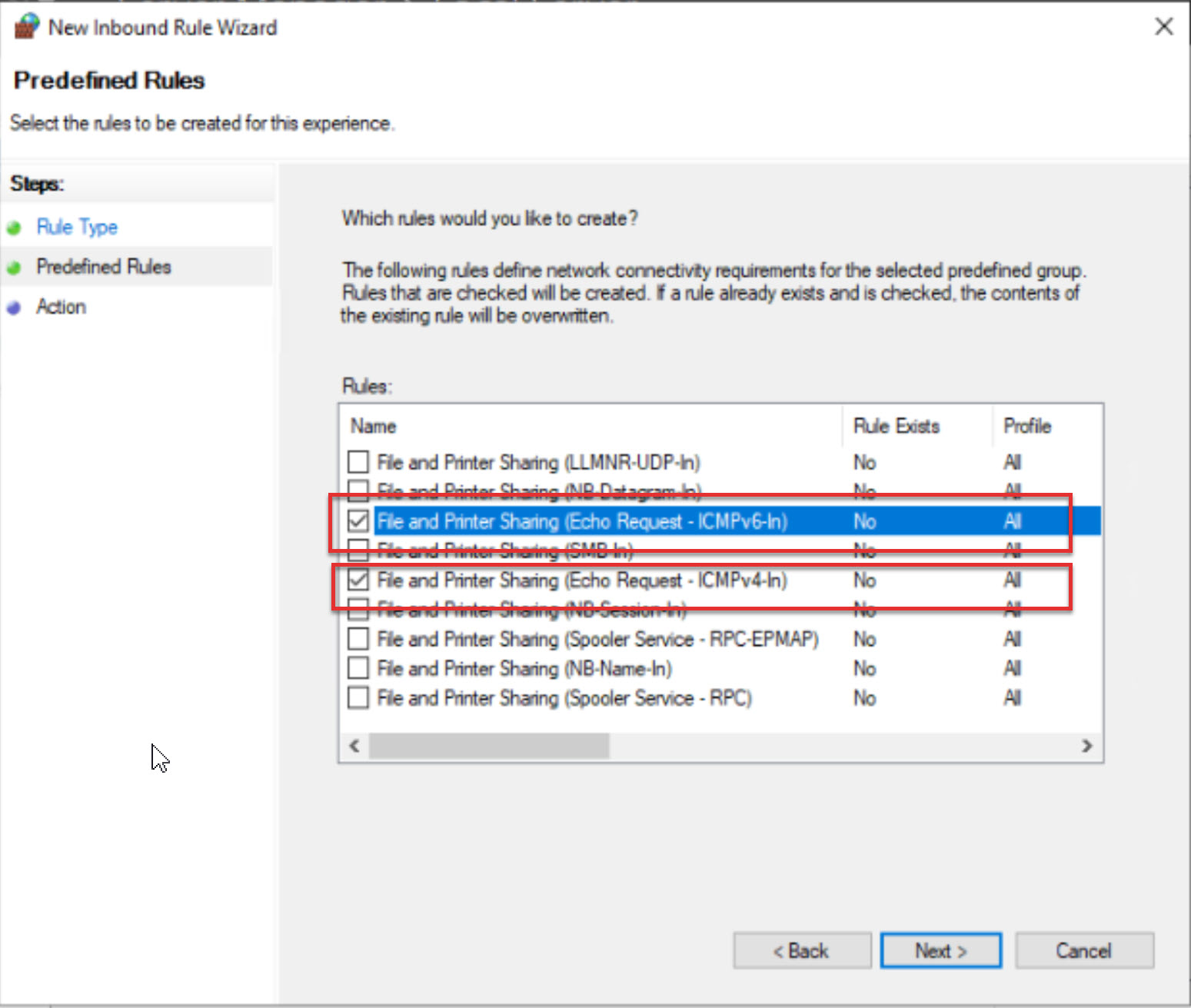
Group Policy එකෙන් ICMP rules enable කිරීම.
Verify Ping Works
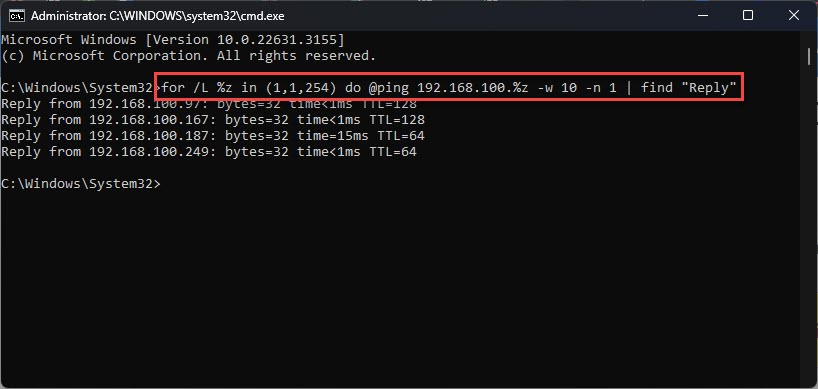
එම network එකේම වෙන computer එකකින්, command prompt එකක් open කරලා ping කියලා ඊට පස්සේ target IP address එක දාලා run කරන්න. replies series එකක් එනවා නම් rule එක වැඩ කරනවා කියලා confirm වෙනවා.
Troubleshooting
Problem: host එක තවම ping වලට respond කරන්නේ නෑ.
Solution: inbound rule එක enable කරලා Allow කරලා තියෙනවද කියලා, සහ ඒක active network profile එකට (Domain, Private, හෝ Public) apply වෙනවද කියලා confirm කරන්න.
Problem: Ping locally වැඩ කරනවා, හැබැයි වෙන subnet එකකින් නෑ.
Solution: rule scope එක සහ subnets අතර ICMP block කරන්න පුළුවන් intermediate router හෝ hardware firewall එකක් check කරන්න.
Problem: netsh command එකෙන් syntax error එකක් report කරනවා.
Solution: ඔයා command එක elevated prompt එකක run කරනවද කියලා, සහ quotation marks සහ icmpv4:8,any syntax එක හරියටම type කරලා තියෙනවද කියලා බලාගන්න.
Problem: මට ආයෙත් ping block කරන්න ඕනේ.
Solution: ඔයා හදපු inbound rule එක delete කරන්න, හෝ Windows Defender Firewall with Advanced Security එකේ ඒක disable කරන්න.
Conclusion
Windows Firewall එක හරහා ping allow කරන එකෙන් ඔයාගේ PC හෝ server එක reachability tests වලට visible වෙනවා, ඒක troubleshooting සහ monitoring වලට ඉතා වටිනවා. guided setup එකකට graphical firewall එක, speed එකට command line එක, හෝ machines ගොඩකට rule එක deploy කරන්න Group Policy එක පාවිච්චි කරන්න — ඕනේ නැති වුණාම ආයෙත් disable කරන්නත් අමතක කරන්න එපා.
About TechHub
මේ guide එක TechHub Knowledge Base එකේ කොටසක්. තව step-by-step IT guides සහ support වලට techhub.com.lk එකට යන්න.