Overview
When Windows fails to start and Startup Repair cannot fix it, the bootrec tool can repair the boot sector and rebuild the Boot Configuration Data (BCD). This guide shows how to reach the recovery environment and use bootrec to get Windows booting again.
Bootrec repairs the boot sector and rebuilds boot configuration.
Key Takeaways
- bootrec runs from the Windows Recovery Environment (WinRE) Command Prompt.
- Try Startup Repair first; use bootrec if it fails.
- The four commands: /fixmbr, /fixboot, /scanos, /rebuildbcd.
- You may need Windows installation media to reach the recovery Command Prompt.
Common Boot Problems
- A corrupted Master Boot Record (MBR) or boot sector.
- A damaged or missing BCD store.
- "Bootmgr is missing" or an operating system not found error.
- Boot files lost after a failed update or disk change.
Step 1 — Try Startup Repair First
1. Boot to recovery (interrupt startup three times, or boot from Windows installation media).
2. Go to Troubleshoot > Advanced options > Startup Repair.
3. If it fixes the issue, you are done; otherwise continue with bootrec.
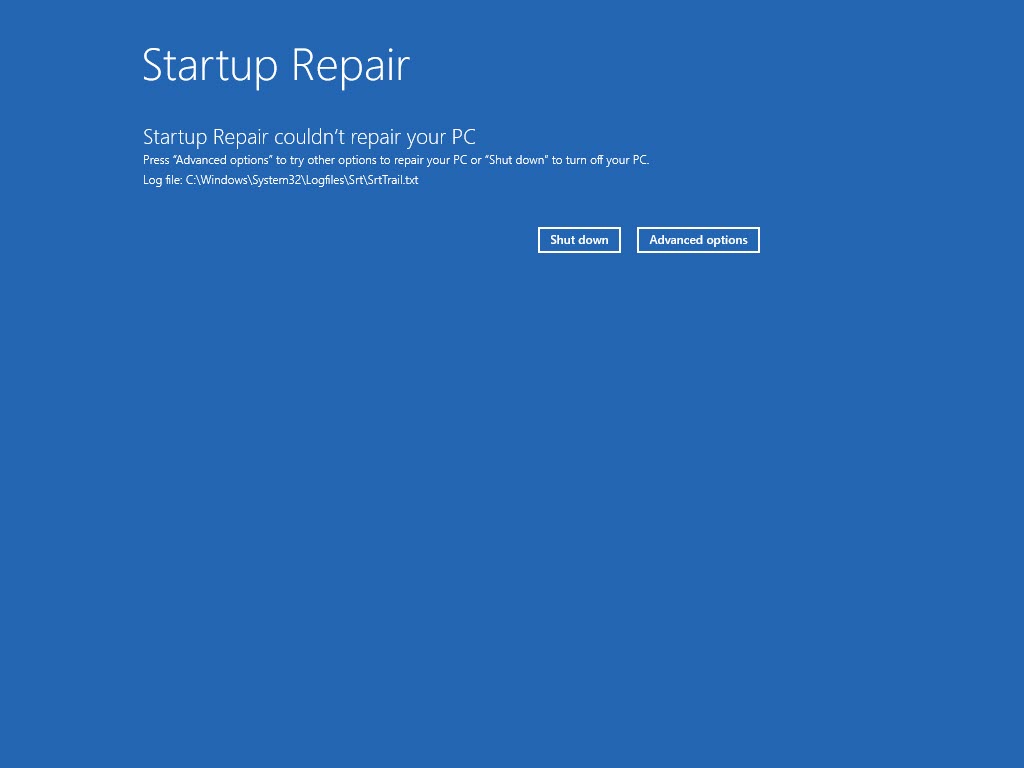
Startup Repair could not fix the PC — time to use bootrec.
Step 2 — Open Command Prompt in Recovery
1. In the recovery environment, choose Troubleshoot > Advanced options > Command Prompt.
2. (Or boot from installation media and choose "Repair your computer" > Command Prompt.)
Step 3 — Run the Bootrec Commands
1. Run: bootrec /fixmbr (repairs the Master Boot Record).
2. Run: bootrec /fixboot (writes a new boot sector). If you get "Access is denied", run bootsect /nt60 sys first, or repair the EFI partition.
3. Run: bootrec /scanos (scans for Windows installations).
4. Run: bootrec /rebuildbcd (rebuilds the BCD and adds found installations).
5. Type exit and restart the PC.
Note: On UEFI/GPT systems, you may also need to repair the EFI System Partition (using bcdboot C:\Windows /s <EFI letter> /f UEFI) if bootrec alone does not fix it.
Troubleshooting
Problem: "Access is denied" for bootrec /fixboot.
Solution: Common on UEFI systems. Repair the EFI partition with bcdboot, or run bootsect /nt60 sys, then retry.
Problem: bootrec /rebuildbcd finds no installations.
Solution: Run bootrec /scanos first; if still none, the BCD path or partition may be wrong — rebuild it with bcdboot pointing to your Windows folder.
Problem: Still will not boot.
Solution: Check the boot order in BIOS/UEFI and that the correct disk is set to boot; verify the disk is healthy (chkdsk).
Problem: You have no recovery option.
Solution: Create Windows installation media on another PC, boot from it, and choose Repair your computer > Command Prompt.
Conclusion
When Windows will not start, bootrec is a powerful repair tool. Try Startup Repair first, then run /fixmbr, /fixboot, /scanos, and /rebuildbcd from the recovery Command Prompt to rebuild the boot configuration and get back into Windows.
</w:pBdr><w:spacing w:before="220" w:after="40"/></w:pPr><w:r><w:rPr><w:b/><w:bCs/><w:color w:val="0B5394"/><w:sz w:val="21"/><w:szCs w:val="21"/><w:rFonts w:ascii="Calibri" w:cs="Calibri" w:eastAsia="Calibri" w:hAnsi="Calibri"/></w:rPr><w:t xml:space="preserve">About TechHub
This guide is part of the TechHub Knowledge Base. For more step-by-step IT guides and support, visit techhub.com.lk.