Overview
එකම browser එකේ Google accounts එකකට වඩා වැඩි ගණනකට sign in වුණාම, ඔයා මුලින්ම log in වුණු account එක automatically default එක වෙනවා. එතකොට හැම Google service එකක්ම — Gmail, Drive, YouTube, Photos — ඒ account එකෙන් මුලින්ම open වෙනවා. Google එකෙන් සෘජු "make default" button එකක් නොදෙන නිසා, default එක වෙනස් කරන්න කියන්නේ accounts ඔක්කොම sign out කරලා ඔයාට මුලින්ම ඕන account එකෙන් ආයෙත් sign in වෙන එකයි. මේ guide එකෙන් desktop සහ mobile දෙකේම process එක පියවරෙන් පියවර කියලා දෙනවා.
Key Takeaways
- default Google account එක කියන්නේ දැන් තියෙන session එකේදී මුලින්ම sign in වුණු account එක විතරයි.
- ඒක වෙනස් කරන්න, Google accounts ඔක්කොම sign out කරලා අනිත් ඒවා add කරන්න කලින් ඔයාට කැමති account එකෙන් sign in වෙන්න.
- default එක browser session එකට බැඳිලා තියෙන නිසා, browsers හෝ devices වෙනස් වෙනකොට default එකත් වෙනස් වෙන්න පුළුවන්.
- ඔයාගේ Google account එක (email, Drive, YouTube) කියන්නේ, browser එකේම bookmarks සහ settings sync කරන Chrome profile එකෙන් වෙනස් දෙයක්.
How to Change the Default Google Account on Desktop
1. ඔයාගේ browser එක open කරලා google.com එකට හෝ Gmail වගේ ඕනෑම Google service එකකට යන්න.
2. accounts menu එක විහිදුවන්න top-right corner එකේ ඔයාගේ profile picture එක click කරන්න.
3. "Sign out" හෝ "Sign out of all accounts" තෝරන්න. මේකෙන් දැන් තියෙන default එක clear වෙනවා.
4. ආයෙත් sign in වෙලා ඔයාට default කරගන්න ඕන account එකේ credentials දාන්න — මේක ඔයා add කරන පළවෙනි account එක වෙන්න ඕන.
5. sign in වුණාට පස්සේ, ආයෙත් profile picture එක click කරලා ඉතුරු accounts වලට sign in වෙන්න "Add another account" තෝරන්න.
6. දැන් ඔයා මුලින්ම sign in වුණු account එක මේ browser එකේ Google services ඔක්කොම වෙනුවෙන් default එකයි.
අලුත් default එකක් තෝරන්න කලින් Google accounts ඔක්කොම sign out කරමින්.
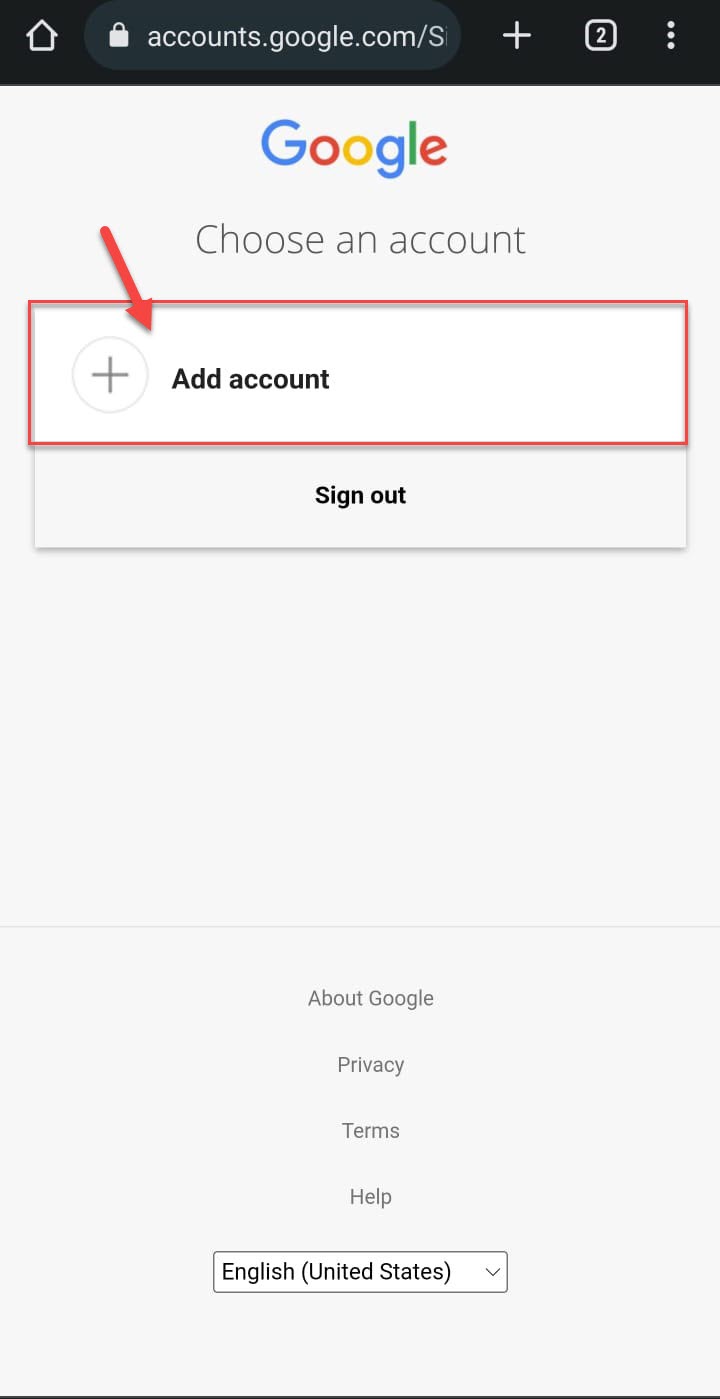
කැමති default එක මුලින්ම sign in වුණාට පස්සේ ඔයාගේ අනිත් accounts add කරමින්.
Tip: ඔයා නිතරම personal සහ work accounts අතර juggle කරනවා නම්, ඒ වෙනුවට වෙනම Chrome profiles පාවිච්චි කරන එක ගැන හිතන්න. හැම profile එකක්ම තමන්ගේම default account, bookmarks, සහ history තියාගන්නවා, ඒකෙන් sign-out dance එක සම්පූර්ණයෙන්ම මගහරිනවා.
How to Change the Default Google Account on Android and iOS
mobile එකේදී, Google app එකයි Gmail app එකයි account list එක share කරනවා, ඒත් default එක desktop එකට සමානවම හැසිරෙනවා.
1. Gmail හෝ Google app එක open කරලා top-right corner එකේ ඔයාගේ profile picture එක tap කරන්න.
2. "Manage accounts on this device" (Android) හෝ "Manage accounts" (iOS) tap කරන්න.
3. accounts remove හෝ sign out කරන්න, නැත්නම් මුලින්ම load වෙන්නේ මොන account එකද කියලා reorder කරන්න account switcher එක පාවිච්චි කරන්න.
4. Android එකේ, switcher එකේ උඩම listed වෙන account එක primary account එක විදිහට වැඩ කරනවා; ඒක default කරගන්න මුලින්ම ඔයාට කැමති account එකෙන් sign in වෙන්න.
5. දැන් ඔයා තෝරපු account එකෙන් open වෙනවද කියලා තහවුරු කරගන්න Google service එක ආයෙත් open කරන්න.
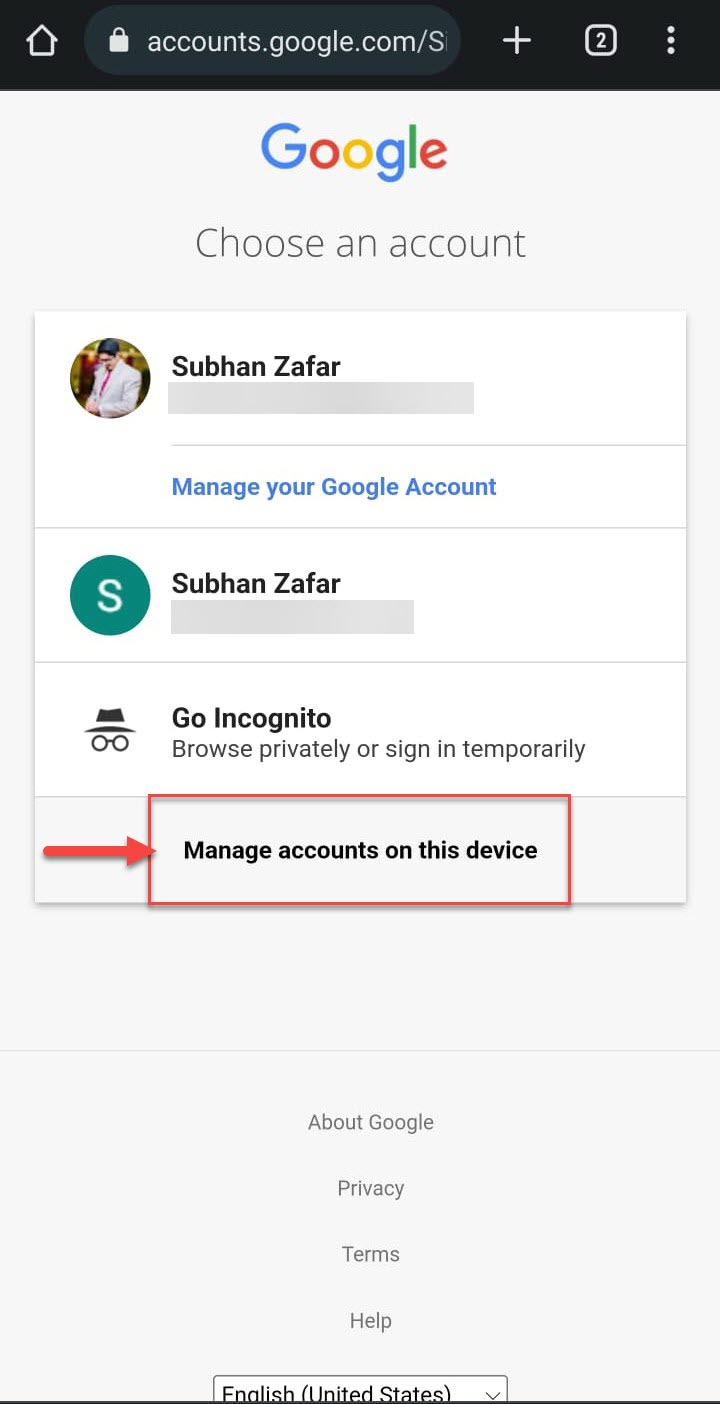
mobile device එකක Google accounts manage කරමින්.
Note: Android එකේ default Google account එක ඔයා device එක මුලින් setup කරද්දී add කරපු account එකට හොඳටම බැඳිලා තියෙනවා. ඒ account එක remove කරොත් backups සහ app data වලට බලපාන්න පුළුවන්, ඒ නිසා පරිස්සමෙන් switch කරන්න.
Google Account vs Chrome Account
මේ දෙක පහසුවෙන් confuse වෙන්න පුළුවන්. ඔයාගේ Google account එක කියන්නේ Gmail, Drive, සහ YouTube වගේ Google services හරහා ඔයාගේ identity එකයි. Chrome (profile) account එකකින් browser එකටම ඔයාව sign in කරලා devices හරහා bookmarks, passwords, history, සහ settings sync කරනවා. Chrome එක ඒම account එකට sign in නොකර services වලට Google account එකකින් browse කරන්නත් පුළුවන්, අනිත් අතටත් එහෙමයි.
Troubleshooting
Problem: Google එක නැවත නැවත පරණ default account එකට හැරෙනවා.
Solution: ඔයා ආයෙත් පරණ account එක මුලින්ම sign in කරලා ඇති. accounts ඔක්කොම සම්පූර්ණයෙන් sign out කරලා, tab එක close කරලා, ඊට පස්සේ අනිත් ඒවා add කරන්න කලින් කැමති account එක විතරක් sign in වෙන්න.
Problem: එක account එකක් sign out කරාම ඔක්කොම sign out වෙනවා.
Solution: මේක බලාපොරොත්තු වෙන දෙයක් — Google එක security එකට accounts ඔක්කොම එකට sign out කරනවා. ඔයාට ඕන default එකෙන් පටන් ගෙන ආයෙත් sign in වෙන්න.
Problem: එක browser එකක default එක හරි, තව එකක වැරදියි.
Solution: default එක per-browser session එකක්. හැම browser එකකම sign-out සහ sign-in අනුපිළිවෙළ ආයෙත් කරන්න, නැත්නම් dedicated Chrome profiles පාවිච්චි කරන්න.
Problem: mobile එකේ "Add another account" option එක පේන්නේ නෑ.
Solution: Gmail හෝ Google app එක latest version එකට update කරන්න, ඊට පස්සේ ඔයාගේ profile picture එකෙන් account switcher එක open කරලා "Add another account" තෝරන්න.
Conclusion
Google එකෙන් account එකක් default විදිහට සෘජුවම flag කරන්න දෙන්නේ නෑ, ඒත් rule එක සරලයි: මුලින්ම sign in වුණු account එක default එක වෙනවා. ඔක්කොම sign out කරලා, ඔයාට මුලින්ම ඕන account එකෙන් sign in වෙලා, ඊට පස්සේ ඉතුරු ඒවා add කරන්න. permanent fix එකකට, වෙනම Chrome profiles වලින් හැම account එකක්ම තමන්ගේම default එක්ක isolated ව තියාගන්නවා.
About TechHub
මේ guide එක TechHub Knowledge Base එකේ කොටසක්. තව step-by-step IT guides සහ support වලට techhub.com.lk එකට යන්න.