Overview
Every Windows file and folder has three timestamps — Date Created, Date Modified, and Date Accessed. You can change them with PowerShell or tools like Attribute Changer and NirCmd. This guide shows how, and what each timestamp means.
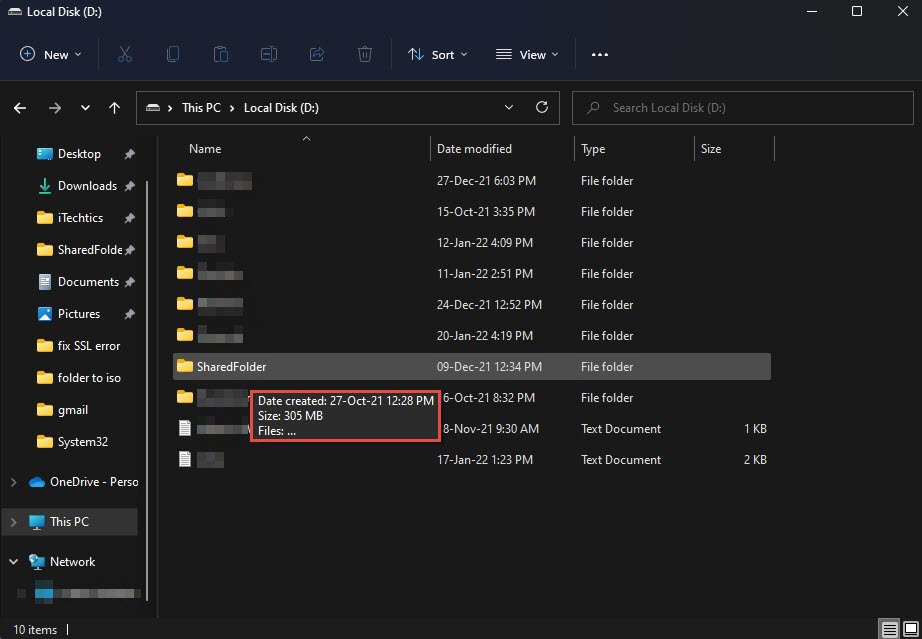
Files and folders have created, modified, and accessed timestamps.
Key Takeaways
- Three timestamps exist: CreationTime, LastWriteTime (modified), and LastAccessTime.
- PowerShell can set all three with a few lines.
- Attribute Changer and NirCmd offer graphical/command-line alternatives.
- Changing timestamps is useful for organizing, testing, and restoring metadata.
The Three Timestamps
- Date Created — when the file was first created on this volume.
- Date Modified (LastWriteTime) — when its contents last changed.
- Date Accessed — when it was last opened/read (Windows may not always update this).
Method 1 — Change Timestamps With PowerShell
1. Open PowerShell.
2. Set the modified date: (Get-Item "C:\path\file.txt").LastWriteTime = "2024-01-15 10:30:00"
3. Set the created date: (Get-Item "C:\path\file.txt").CreationTime = "2024-01-15 10:30:00"
4. Set the accessed date: (Get-Item "C:\path\file.txt").LastAccessTime = "2024-01-15 10:30:00"
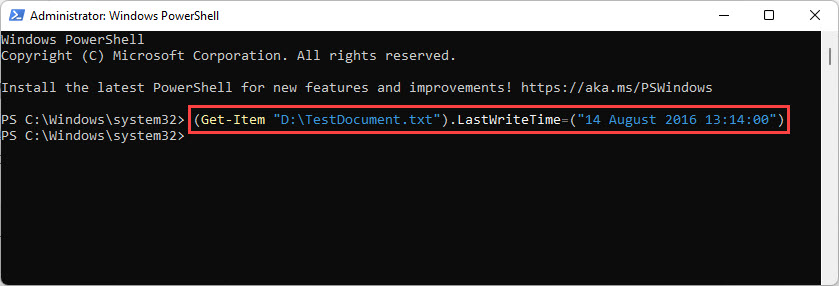
PowerShell can set each timestamp attribute.
Tip: To change all three at once, repeat for a folder with Get-ChildItem piped through ForEach-Object.
Change All Three for Many Files
1. Open PowerShell in the target folder.
2. Run: Get-ChildItem -Recurse | ForEach-Object { $_.CreationTime = $_.LastWriteTime = $_.LastAccessTime = "2024-01-15 10:30:00" }
3. This sets all three timestamps for every file and folder.
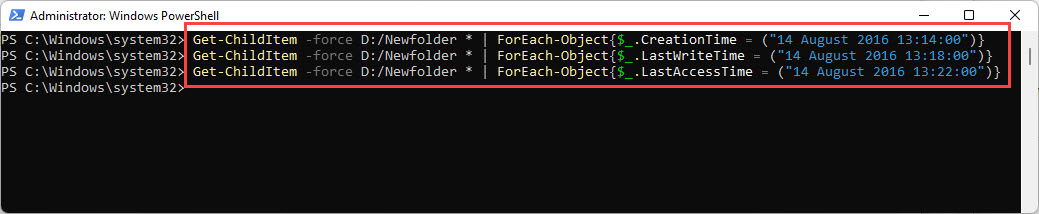
A PowerShell command to change all three timestamps.
Method 2 — Attribute Changer
1. Download and install Attribute Changer (official).
2. Right-click a file or folder and choose Change Attributes.
3. Tick the timestamps you want to change, set the new date/time, and apply.
Method 3 — NirCmd
1. Download NirCmd from NirSoft (official).
2. Run: nircmd.exe setfiletime "C:\path\file.txt" "15-01-2024 10:30:00" "15-01-2024 10:30:00"
3. The two times set the created and modified timestamps.
Troubleshooting
Problem: Date Accessed does not change.
Solution: Windows often disables last-access updates for performance. The PowerShell LastAccessTime assignment still works, but the system may not auto-update it.
Problem: "Access denied" setting a timestamp.
Solution: Run PowerShell as administrator and ensure you have permission to modify the file.
Problem: Date format errors in PowerShell.
Solution: Use an unambiguous format like "2024-01-15 10:30:00", or a [datetime] value.
Problem: You need to change many files.
Solution: Use the Get-ChildItem -Recurse loop, or Attribute Changer for a graphical bulk change.
Conclusion
PowerShell makes changing file timestamps quick — set CreationTime, LastWriteTime, and LastAccessTime directly. For bulk or graphical edits, Attribute Changer and NirCmd are handy alternatives.
</w:pBdr><w:spacing w:before="220" w:after="40"/></w:pPr><w:r><w:rPr><w:b/><w:bCs/><w:color w:val="0B5394"/><w:sz w:val="21"/><w:szCs w:val="21"/><w:rFonts w:ascii="Calibri" w:cs="Calibri" w:eastAsia="Calibri" w:hAnsi="Calibri"/></w:rPr><w:t xml:space="preserve">About TechHub
This guide is part of the TechHub Knowledge Base. For more step-by-step IT guides and support, visit techhub.com.lk.