Overview
When an app cannot connect, Windows Defender Firewall is a frequent cause. You can check its logs and rules to confirm whether a specific port is being blocked, then create a rule to allow it. This guide explains how.
Key Takeaways
- The firewall can block inbound or outbound traffic on specific ports.
- Enabling firewall logging records which connections are dropped.
- Existing inbound and outbound rules show what is allowed or blocked.
- You open a port by adding an allow rule for it.
Enable Firewall Logging
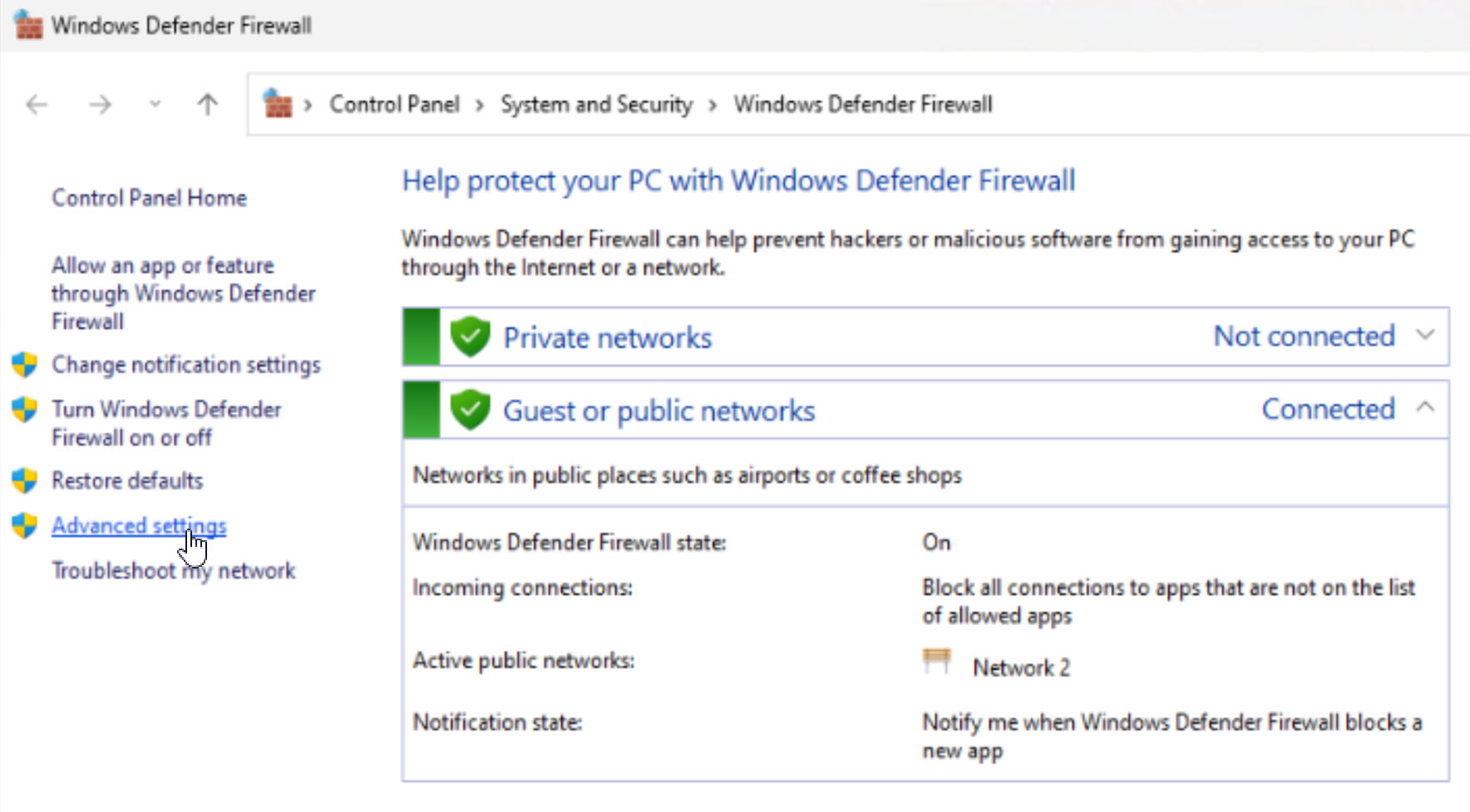
1. Open Windows Defender Firewall with Advanced Security.
2. Right-click Windows Defender Firewall Properties.
3. On the relevant profile tab, click Customize under Logging.
4. Set Log dropped packets to Yes and note the log file path.
5. Reproduce the connection, then open the log to see if the port was dropped.
Check Rules and Open a Port
1. In the same console, review Inbound Rules and Outbound Rules for the port.
2. To allow it, click New Rule, choose Port, and enter the port number.
3. Select Allow the connection and pick the applicable profiles.
4. Name the rule and finish; test the connection again.
Warning: Only open ports you genuinely need, and limit rules to specific programs or address ranges where possible. Broadly opening ports increases your attack surface.
Troubleshooting
Problem: The log does not show the dropped packets.
Solution: Confirm logging is enabled on the active profile and that you are viewing the correct pfirewall.log file.
Problem: The port is still blocked after adding a rule.
Solution: Check for a conflicting block rule that takes precedence, and ensure the rule applies to the correct profile.
Problem: The connection fails even with the firewall off.
Solution: The block is elsewhere — check the router, a third-party security suite, or the destination server.
Problem: You are unsure which port an app uses.
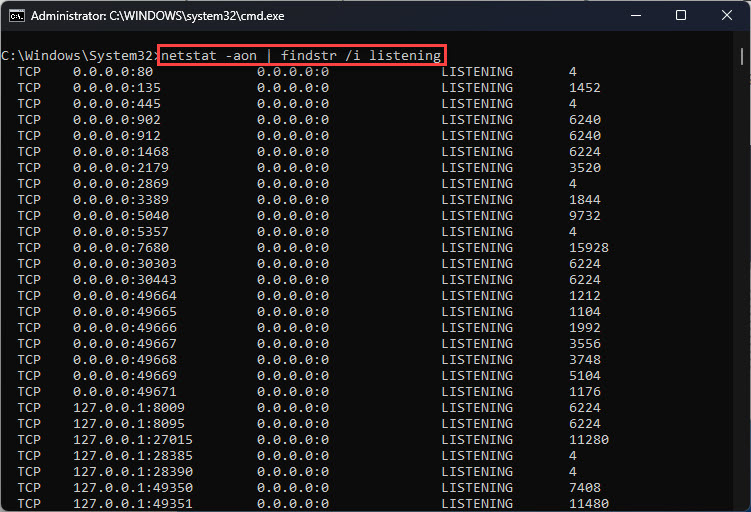
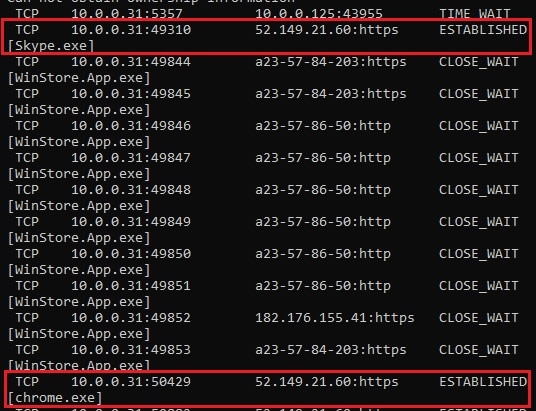
Solution: Run netstat -ano while the app is active to identify the port it is trying to use.
Conclusion
Firewall logging and the rules list quickly reveal whether Windows Defender Firewall is blocking a port. Add a targeted allow rule to restore the connection while keeping your system secure.
About TechHub
This guide is part of the TechHub Knowledge Base. For more step-by-step IT guides and support, visit techhub.com.lk.