Overview
app එකකට connect වෙන්න බැරි වුණාම, Windows Defender Firewall එක නිතර හේතුවක්. නිශ්චිත port එකක් block වෙනවද කියලා confirm කරන්න එහි logs සහ rules check කරන්න පුළුවන්, ඊට පස්සේ ඒක allow කරන්න rule එකක් create කරන්න පුළුවන්. මේ guide එකෙන් කොහොමද කියලා පැහැදිලි කරනවා.
Key Takeaways
- firewall එකට නිශ්චිත ports මත inbound හෝ outbound traffic block කරන්න පුළුවන්.
- firewall logging enable කරද්දී drop වෙන connections record කරනවා.
- දැනට තියෙන inbound සහ outbound rules වලින් allow හෝ block වෙන දේ පෙන්නනවා.
- port එකකට allow rule එකක් add කරලා ඔබ එය open කරනවා.
Enable Firewall Logging
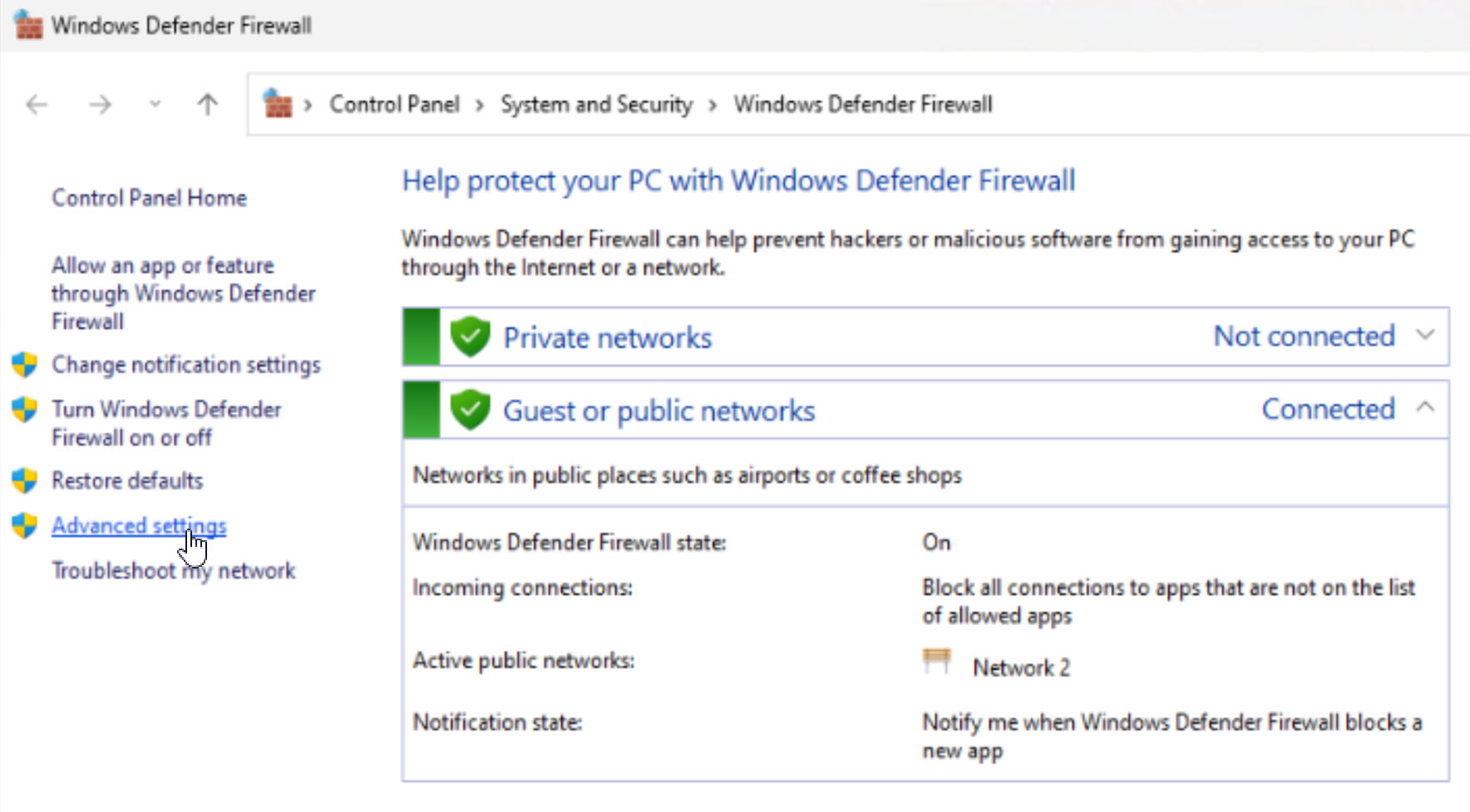
1. Windows Defender Firewall with Advanced Security open කරන්න.
2. Windows Defender Firewall Properties right-click කරන්න.
3. අදාළ profile tab එකේ, Logging යටතේ Customize click කරන්න.
4. Log dropped packets එක Yes කරලා log file path එක සටහන් කරගන්න.
5. connection එක reproduce කරලා, ඊට පස්සේ port එක drop වුණාද කියලා බලන්න log එක open කරන්න.
Check Rules and Open a Port
1. එම console එකේම, port එක සඳහා Inbound Rules සහ Outbound Rules review කරන්න.
2. එය allow කරන්න, New Rule click කරලා, Port තෝරලා, port number එක enter කරන්න.
3. Allow the connection select කරලා අදාළ profiles තෝරන්න.
4. rule එකට නමක් දීලා finish කරන්න; connection එක ආපහු test කරන්න.
Warning: ඇත්තටම ඔබට අවශ්ය ports විතරක් open කරන්න, සහ පුළුවන් තැන rules specific programs හෝ address ranges වලට සීමා කරන්න. ports පුළුල් ලෙස open කරන එකෙන් ඔබේ attack surface වැඩි වෙනවා.
Troubleshooting
Problem: log එකේ dropped packets පෙන්නන්නේ නැහැ.
Solution: active profile එකේ logging enable වෙලා තියෙනවද කියලා සහ ඔබ නිවැරදි pfirewall.log file එක බලනවද කියලා confirm කරන්න.
Problem: rule එකක් add කළාට පස්සෙත් port එක තාම block වෙලා.
Solution: priority එක ගන්න conflicting block rule එකක් තියෙනවද කියලා බලන්න, සහ rule එක නිවැරදි profile එකට apply වෙනවද කියලා තහවුරු කරගන්න.
Problem: firewall එක off කරලත් connection එක fail වෙනවා.
Solution: block එක වෙන තැනක — router එක, third-party security suite එකක්, හෝ destination server එක check කරන්න.
Problem: app එකක් කුමන port එකද පාවිච්චි කරන්නේ කියලා විශ්වාස නැහැ.
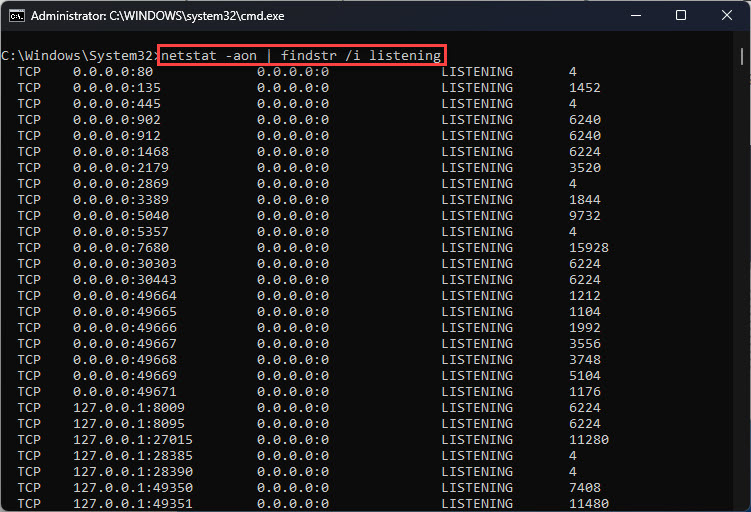
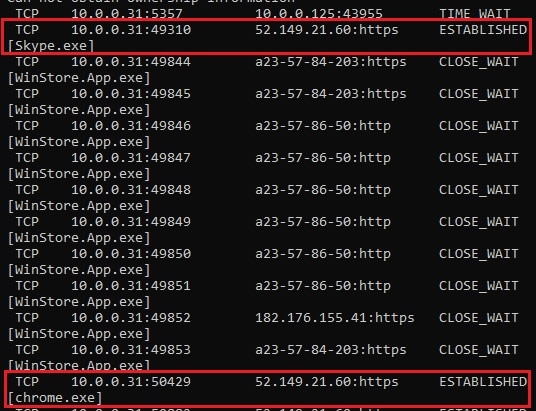
Solution: app එක active වෙලා තියෙද්දී netstat -ano run කරලා එය පාවිච්චි කරන්න හදන port එක identify කරගන්න.
Conclusion
firewall logging සහ rules list එකෙන් Windows Defender Firewall එක port එකක් block කරනවද කියලා ඉක්මනට හෙළිදරව් කරනවා. ඔබේ system එක ආරක්ෂිතව තියාගනිද්දීම connection එක restore කරන්න targeted allow rule එකක් add කරන්න.
About TechHub
මේ guide එක TechHub Knowledge Base එකේ කොටසක්. තව step-by-step IT guides සහ support වලට techhub.com.lk එකට යන්න.