Overview
A listening (open) port is one where a program is waiting for incoming connections. Knowing which ports are open — and which programs own them — helps you troubleshoot networking and close unnecessary ports that could be a security risk. This guide shows how to list listening ports using netstat and PowerShell.
Check which ports your PC is listening on using netstat or PowerShell.
Key Takeaways
- A listening port has a program waiting for connections on it.
- Use netstat -ano to list listening ports with their owning process IDs.
- PowerShell’s Get-NetTCPConnection gives the same information with richer filtering.
- Match the PID to a program in Task Manager to identify what is using a port.
Types of Listening Ports
- TCP ports — connection-oriented; most services (web, remote desktop, databases) use these.
- UDP ports — connectionless; used by DNS, streaming, and some games.
- Well-known ports (0–1023) are reserved for common services; higher ports are used by apps dynamically.
Find Listening Ports With Netstat (Command Prompt)
1. Open Command Prompt as administrator.
2. List all connections and listening ports: netstat -an
3. Include the owning process ID: netstat -ano (look for the LISTENING state).
4. Show the program name for each port (needs admin): netstat -anb
5. Note the PID, then open Task Manager > Details to match it to a program.
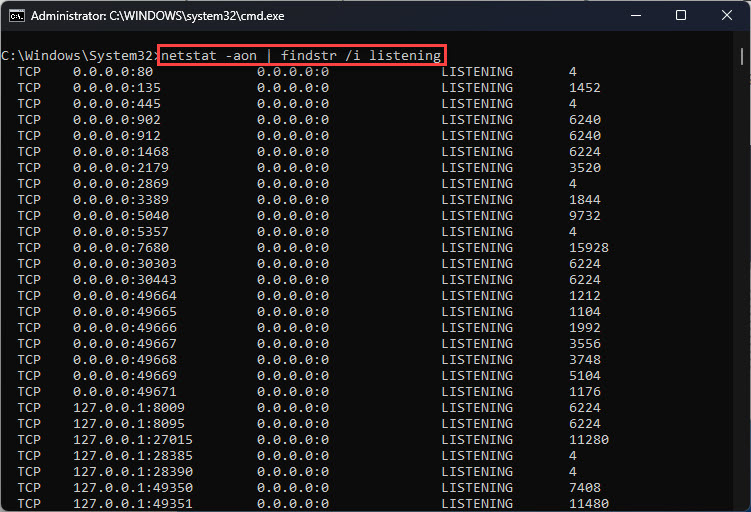
netstat lists listening ports and their states in Command Prompt.
Find Listening Ports With PowerShell
1. Open PowerShell as administrator.
2. List listening TCP ports: Get-NetTCPConnection -State Listen
3. Show the port and owning process: Get-NetTCPConnection -State Listen | Select-Object LocalAddress,LocalPort,OwningProcess
4. Identify the program: Get-Process -Id (the OwningProcess number).
PowerShell’s Get-NetTCPConnection filters listening ports clearly.
Tip: To find what is using a specific port, run: netstat -ano | findstr :PORTNUMBER (for example findstr :443).
Troubleshooting
Problem: netstat -anb shows nothing for the program name.
Solution: Run Command Prompt as administrator — the -b switch requires elevation to read process names.
Problem: A port you do not recognise is listening.
Solution: Match its PID to a program in Task Manager > Details. If it is unknown or suspicious, investigate the program and scan for malware.
Problem: You need to free a port an app is using.
Solution: Find the PID with netstat -ano | findstr :PORT, then end that process (taskkill /PID number /F) or stop the related service.
Problem: A service should be listening but is not.
Solution: Confirm the service is running, check firewall rules, and verify the app is bound to the expected address and port.
Conclusion
netstat -ano and PowerShell’s Get-NetTCPConnection quickly reveal which ports are open and what is using them. Use them to troubleshoot connectivity and to spot and close ports you do not need.
</w:pBdr><w:spacing w:before="220" w:after="40"/></w:pPr><w:r><w:rPr><w:b/><w:bCs/><w:color w:val="0B5394"/><w:sz w:val="21"/><w:szCs w:val="21"/><w:rFonts w:ascii="Calibri" w:cs="Calibri" w:eastAsia="Calibri" w:hAnsi="Calibri"/></w:rPr><w:t xml:space="preserve">About TechHub
This guide is part of the TechHub Knowledge Base. For more step-by-step IT guides and support, visit techhub.com.lk.