Windows Program එකක් 32-bit ද 64-bit ද කියලා Check කරන ක්රම 4ක්
Task Manager, Program Files, සහ command line එක පාවිච්චි කරලා app එකක architecture එක හඳුනාගන්න.
Overview
program එකක් 32-bit ද 64-bit ද කියලා දැනගැනීම compatibility සහ performance තීරණ වලට උදව් වෙනවා. මේ guide එකෙන් Windows එකේ app එකක architecture එක check කරන්න ඉක්මන් ක්රම හතරක් පෙන්නනවා.
program එකක් 32-bit ද 64-bit ද කියලා check කරන හැටි.
Key Takeaways
- Task Manager එකට 32-bit processes label කරන්න පුළුවන්.
- 32-bit apps සාමාන්යයෙන් "Program Files (x86)" එකට install වෙනවා.
- command line/PowerShell එකට binary එකක type එක report කරන්න පුළුවන්.
- 64-bit apps වලට 64-bit Windows ඕන.
Method 1: Task Manager
1. Task Manager (Ctrl + Shift + Esc) open කරලා > Details tab එකට යන්න.
2. column header එකක් Right-click කරලා > Select columns > "Platform" tick කරන්න (හෝ Processes tab එක check කරන්න).
3. 32-bit apps "32-bit" කියලා mark වෙනවා; mark නොවුණාම සාමාන්යයෙන් 64-bit කියන එකයි.
Task Manager එකේ process architecture එක පෙන්නන හැටි.
Method 2: Program Files Folder
1. File Explorer open කරන්න.
2. 64-bit apps සාමාන්යයෙන් C:\Program Files එකේ තියෙනවා.
3. 32-bit apps සාමාන්යයෙන් C:\Program Files (x86) එකේ තියෙනවා.
4. මේක ඉක්මන් hint එකක් (හරියටම නෙවෙයි).
Method 3: Compatibility/Properties
1. app එකේ .exe එක Right-click කරලා > Properties.
2. Compatibility tab එකයි details එකයි check කරන්න.
3. සමහර installers/apps ඒවගේ info එකේ architecture එක සඳහන් කරනවා.
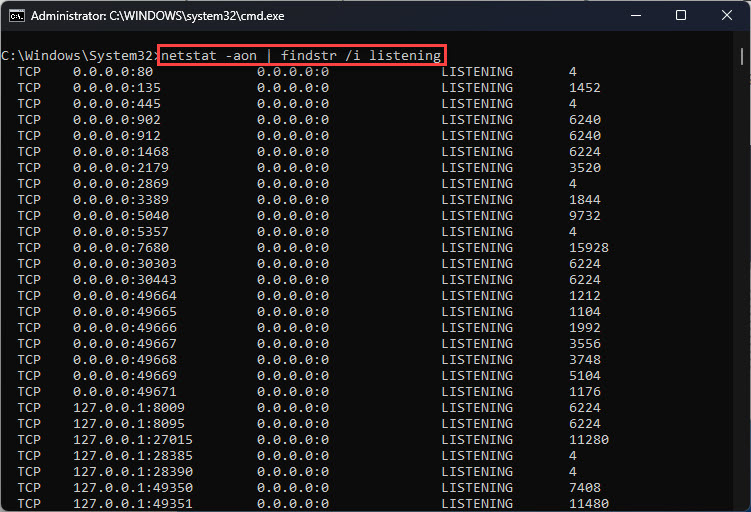
Method 4: Command Line / PowerShell
1. PowerShell: file එකේ PE header එක පාවිච්චි කරන්න, උදා: machine type එක කියවන script එකක්, හෝ dumpbin /headers app.exe වගේ tool එකක් (Visual Studio).
2. ඉක්මන් check එකක්: 64-bit binaries AMD64 machine type එකක් report කරනවා; 32-bit ඒවා I386 report කරනවා.
3. Sysinternals "sigcheck" එකත් architecture එක පෙන්නනවා.
Troubleshooting
Problem: "Platform"/"32-bit" label එකක් නැහැ.
Solution: Task Manager > Details එකේ Platform column එක එකතු කරන්න, හෝ Process Explorer වගේ tool එකක් පාවිච්චි කරන්න.
Problem: App එක Program Files එකේ තියෙනවා ඒත් 32-bit.
Solution: Folder location එක hint එකක් විතරයි — Task Manager එකෙන් හෝ PE header එකෙන් verify කරන්න.
Problem: Programmatically ඕන.
Solution: PE header එක කියවන්න (dumpbin/sigcheck) හෝ machine type එක inspect කරන්න PowerShell පාවිච්චි කරන්න.
Problem: 64-bit app එක run වෙන්නේ නැහැ.
Solution: ඒකට 64-bit Windows ඕන; ඔබේ OS එක Settings > System > About එකෙන් check කරන්න.
Conclusion
ඉක්මන්ම checks තමයි Task Manager එකේ Platform column එකයි Program Files vs Program Files (x86) location එකයි. හරියටම දැනගන්න, sigcheck හෝ dumpbin වගේ tool එකකින් executable එකේ PE header එක inspect කරන්න — 64-bit apps වලට 64-bit Windows ඕන කියන එකත් මතක තියාගන්න.