Windows එකේ Command Line එකෙන් VPN Connection Status එක Check කරන්නේ කොහොමද
rasdial, netsh, සහ PowerShell පාවිච්චි කරලා VPN එකක් connect වෙලාද කියලා verify කරන්න — scripts වලට ප්රයෝජනවත්.
Overview
Command line එකෙන් VPN status එක check කරන එක scripting, automation, සහ ඉක්මන් verification වලට ප්රයෝජනවත්. මේ guide එකෙන් rasdial, netsh, සහ PowerShell එක්ක connection status එක බලාගන්නේ කොහොමද කියලා පෙන්නනවා.
Key Takeaways
- rasdial දැනට connect වෙලා තියෙන VPN/dial-up connections පෙන්නනවා.
- PowerShell එකේ Get-VpnConnection එකෙන් configure කරපු VPN status එක report කරනවා.
- netsh එකෙන් interfaces list කරලා VPN adapter එකක් up ද කියලා confirm කරන්න පුළුවන්.
- VPN state එක අනුව ක්රියා කරන scripts වලට නියමයි.
Method 1: rasdial
1. Command Prompt එක open කරන්න.
2. Run කරන්න: rasdial
3. Arguments නැතුව එක connect වෙලා තියෙන VPN/RAS connections list කරනවා.
4. "No connections" කියන්නේ දැනට කිසිම VPN එකක් dial කරලා නෑ කියන එකයි.
Method 2: PowerShell (Get-VpnConnection)
1. PowerShell එක open කරන්න.
2. Run කරන්න: Get-VpnConnection
3. "ConnectionStatus" field එක check කරන්න (Connected/Disconnected).
4. නිශ්චිත එකකට: Get-VpnConnection -Name "MyVPN"
Method 3: netsh / ipconfig
1. Run කරන්න: netsh interface show interface — VPN adapter එක Connected ද කියලා බලන්න.
2. නැත්නම් ipconfig run කරලා assign කරපු IP එකක් තියෙන VPN adapter එක හොයන්න.
3. VPN tunnel එකක් සාමාන්යයෙන් PPP/WAN Miniport එකක් හෝ virtual adapter එකක් විදිහට පේනවා.
Script එකක පාවිච්චි කරන්න
1. PowerShell එකේ: if ((Get-VpnConnection -Name "MyVPN").ConnectionStatus -eq "Connected") { ... }
2. Connect වෙලා තියෙන කොට විතරක් actions trigger කරන්න (mount drives, sync).
3. Programmatically connect/disconnect කරන්න rasdial එක්ක combine කරන්න.
Troubleshooting
Problem: Get-VpnConnection එකෙන් මුකුත් පෙන්නන්නේ නෑ.
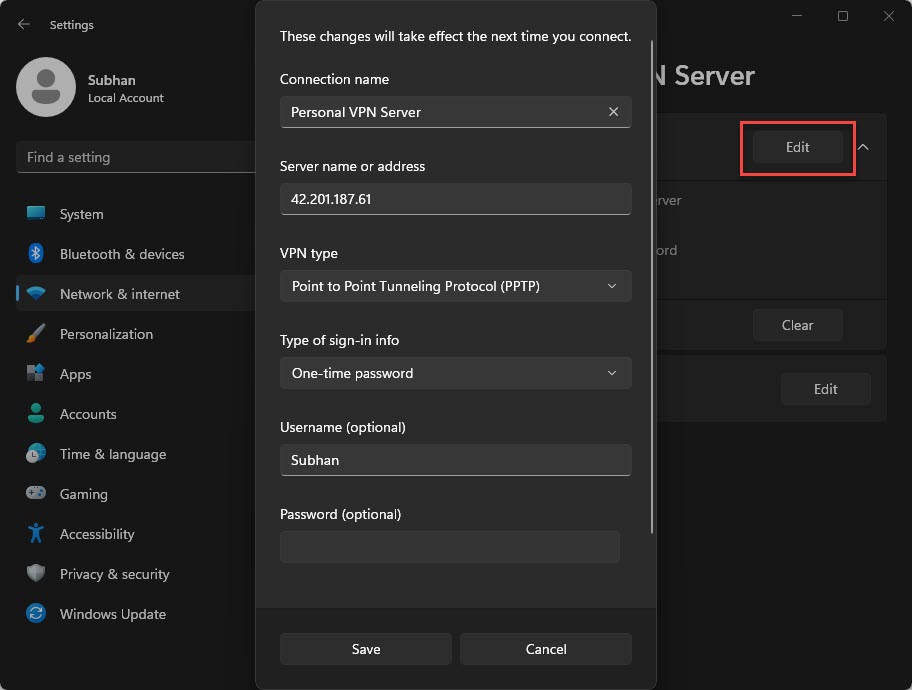
Solution: එයින් user VPN profiles list කරනවා — machine-wide profiles වලට -AllUserConnection එකතු කරන්න, සහ VPN එක Windows එකේ configure කරලා තියෙනවද කියලා (third-party client එකක් නෙවෙයි) confirm කරන්න.
Problem: Third-party VPN එක detect වෙන්නේ නෑ.
Solution: App-based VPNs (උදා: සමහර providers) Windows VPN profiles පාවිච්චි කරන්නේ නෑ — client එකේම CLI එක හෝ network adapter/IP එක check කරන්න.
Problem: මම connect වෙලා ඉන්නවා, ඒත් rasdial මුකුත් පෙන්නන්නේ නෑ.
Solution: ඔබේ VPN එක virtual adapter එකක් පාවිච්චි කරනවා වෙන්න පුළුවන්; ipconfig හෝ netsh interface show interface එකෙන් verify කරන්න.
Problem: Status එක පරණයි (stale).
Solution: Command එක නැවත run කරන්න; සමහර clients status එක ටිකක් delay එකකින් update කරනවා.
Conclusion
Windows එකේ configure කරපු VPNs වලට, PowerShell එකේ Get-VpnConnection එකෙන් පැහැදිලිම status එක ලැබෙනවා, rasdial active connections list කරනවා, සහ netsh/ipconfig adapter එක up ද කියලා confirm කරනවා. App-based VPNs වලට ඒවගේම CLI එකක් හෝ adapter/IP check එකක් අවශ්ය වෙන්න පුළුවන්.