Overview
System uptime එකෙන් අන්තිම boot එකේ ඉඳලා ඔබේ PC එක කොච්චර කල් run වෙලාද කියලා කියනවා — stability troubleshoot කරන්නත්, reboot එකක් effect වුණාද confirm කරන්නත් useful. මේ guide එකෙන් Windows 10 සහ 11 වල uptime බලන ක්රම හයක් පෙන්නනවා.
ඔබේ Windows PC එක කොච්චර කල් run වෙලාද බලන්න.
Key Takeaways
- Task Manager එකෙන් Performance tab එකේ uptime පෙන්නනවා.
- Command-line tools (systeminfo, wmic, net statistics) last boot time report කරනවා.
- PowerShell එකෙන් exact uptime calculate කරන්න පුළුවන්.
- Fast Startup එකෙන් uptime එක last full shutdown එකට වඩා දිග විදිහට පෙන්නන්න පුළුවන්.
Method 1: Task Manager
1. Taskbar එක right-click කරලා Task Manager තෝරන්න (හෝ Ctrl + Shift + Esc press කරන්න).
2. Performance tab එක open කරලා CPU select කරන්න.
3. පහළ Up time value එක කියවන්න (days:hours:minutes:seconds).
Method 2: Network Adapter
1. Settings > Network & Internet > Advanced network settings open කරන්න.
2. Adapter එකේ status බලන්න; ඒකේ duration එකෙන් connection එකේ ඉඳලා කාලය පෙන්නනවා (uptime එකේ approximation එකක්).
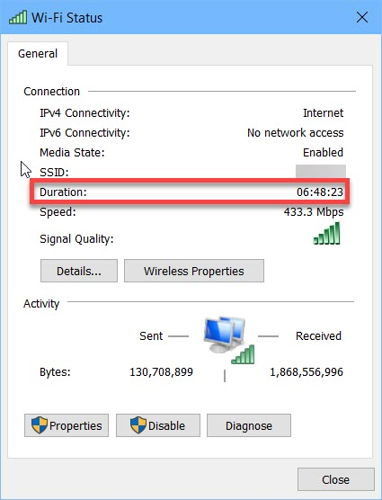
Network adapter duration එකෙන් uptime approximate කරනවා.
Method 3: systeminfo (Command Prompt)
1. Command Prompt open කරන්න.
2. Run: systeminfo | find "System Boot Time"
3. Boot timestamp එක කියවලා, uptime වලට current time එකෙන් අඩු කරන්න.
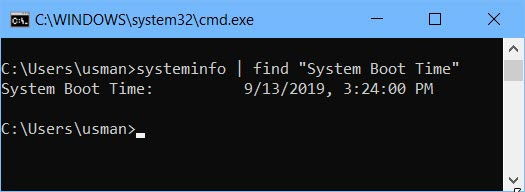
systeminfo එකෙන් System Boot Time එක report කරනවා.
Method 4: wmic
1. Command Prompt open කරන්න.
2. Run: wmic path Win32_OperatingSystem get LastBootUpTime
3. Returned timestamp එක (YYYYMMDDHHMMSS) interpret කරන්න.
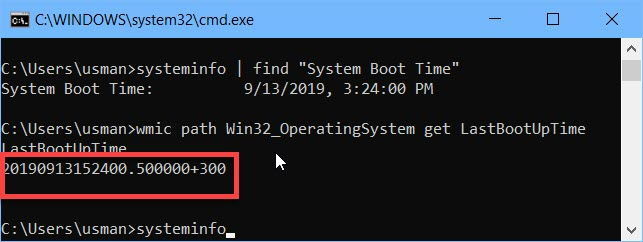
wmic එකෙන් last boot time එක return කරනවා.
Method 5: net statistics
1. Command Prompt open කරන්න.
2. Run: net statistics workstation
3. "Statistics since" line එක කියවන්න — system එක start වුණේ කවදද පෙන්නනවා.
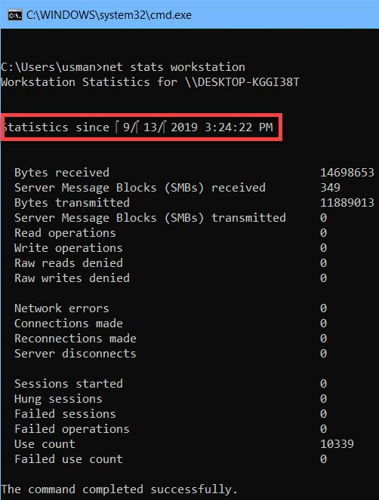
net statistics එකෙන් "since" time එක පෙන්නනවා.
Method 6: PowerShell
1. PowerShell open කරන්න.
2. Run: (get-date) - (gcim Win32_OperatingSystem).LastBootUpTime
3. PowerShell එකෙන් exact uptime එක days, hours, minutes, seconds විදිහට return කරනවා.
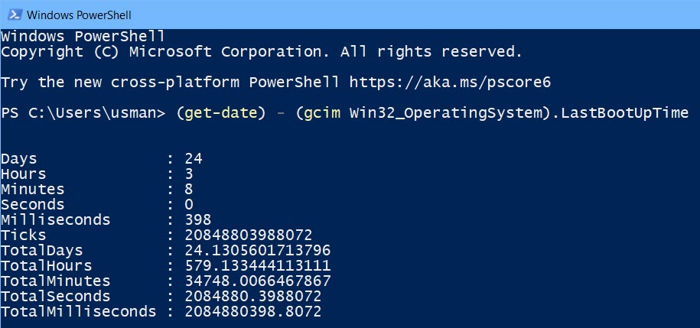
PowerShell එකේ exact uptime calculate කරන්න.
Note: Fast Startup enabled නම්, normal shutdown එකක් partial hibernate එකක්, ඒ නිසා uptime reset නොවෙන්න පුළුවන්. True reboot එකකට Restart පාවිච්චි කරන්න.
Troubleshooting
Problem: Shut down කළාට පස්සේ uptime වැඩිය වගේ.
Solution: Fast Startup kernel session එක තියාගන්නවා — full reboot එකකට Restart, නැත්නම් Power Options වල Fast Startup disable කරන්න.
Problem: systeminfo slow.
Solution: ඒක data ගොඩක් එකතු කරනවා; faster result එකකට wmic හෝ PowerShell one-liners පාවිච්චි කරන්න.
Problem: wmic නෑ.
Solution: wmic අලුත් Windows 11 builds වල deprecated — ඒ වෙනුවට PowerShell CIM method එක පාවිච්චි කරන්න.
Problem: Methods අතර times match වෙන්නේ නෑ.
Solution: සමහර methods OS boot එක වෙනුවට network/service start එක report කරනවා; Task Manager හෝ PowerShell LastBootUpTime value එක trust කරන්න.
Conclusion
GUI එකක් හෝ command line එකක් prefer කරන්නත්, Windows uptime බලන්න ක්රම කිහිපයක් දෙනවා. එක බැල්මකට Task Manager ඉක්මනුයි, troubleshooting වලට precise figures වලට PowerShell එකේ LastBootUpTime.
About TechHub
මේ guide එක TechHub Knowledge Base එකේ කොටසක්. තව step-by-step IT guides සහ support වලට techhub.com.lk එකට යන්න.