Overview
DMG is Apple’s disk-image format; ISO is the cross-platform standard. Converting DMG to ISO lets you mount or burn the image on Windows and Linux. This guide covers free tools on each platform, plus online options.
Converting DMG to ISO.
Note: Download any conversion tool only from its official source. Only convert disk images you have the right to use.
Key Takeaways
- DMG2IMG converts DMG to ISO on Windows and Linux.
- macOS can convert with the built-in Disk Utility / hdiutil.
- ISO Workshop, BurnAware, and ImgBurn also work on Windows.
- Online converters suit small files without installing anything.
Windows: DMG2IMG
1. Download DMG2IMG from its official site.
2. Open Command Prompt in the tool’s folder.
3. Run: dmg2img input.dmg output.iso
4. Use the resulting ISO to mount or burn.
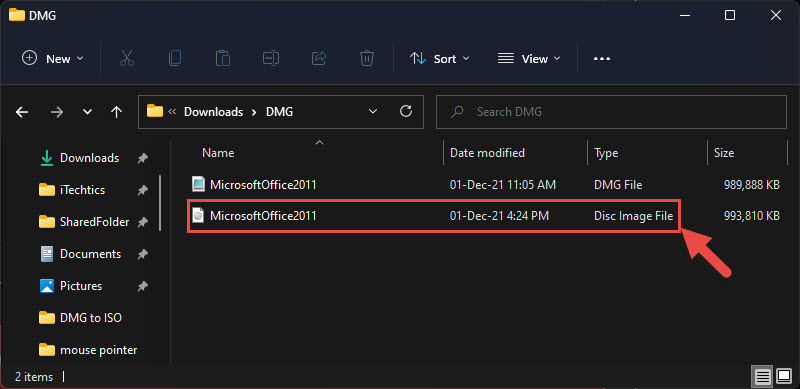
DMG converted to ISO with DMG2IMG.
Windows: GUI Tools
1. Install ISO Workshop, BurnAware, or ImgBurn (official sites).
2. Open the DMG and choose "Convert" / "Create image".
3. Save the output as an ISO file.
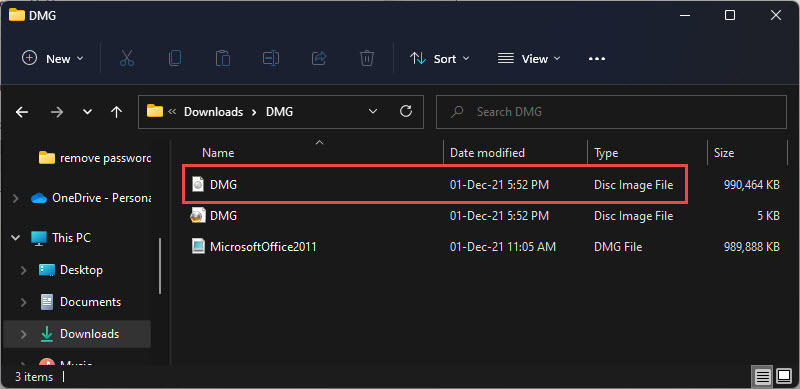
DMG converted to ISO with ImgBurn.
Mac: Disk Utility / hdiutil
1. Open Terminal.
2. Run: hdiutil convert input.dmg -format UDTO -o output
3. Rename the resulting output.cdr to output.iso.
Linux: dmg2img
1. Install it: sudo apt install dmg2img (Debian/Ubuntu).
2. Run: dmg2img input.dmg output.iso
3. Mount or use the ISO as needed.
Online Converters
1. Use a reputable online DMG-to-ISO converter for small files.
2. Upload the DMG, convert, and download the ISO.
3. Avoid uploading sensitive images to third-party sites.
Troubleshooting
Problem: Converted ISO won’t mount.
Solution: Some DMGs use Apple-only (HFS+/APFS) filesystems Windows can’t read; the container converts but content may need macOS.
Problem: hdiutil output is .cdr.
Solution: That’s expected — just rename the .cdr to .iso.
Problem: DMG2IMG errors on the file.
Solution: The DMG may be compressed/encrypted; decrypt or use a GUI tool like ISO Workshop.
Problem: Online upload too large.
Solution: Use a local tool (DMG2IMG/ImgBurn) for big images.
Conclusion
Converting DMG to ISO is straightforward with free tools: DMG2IMG on Windows/Linux, Disk Utility/hdiutil on Mac, or GUI apps like ImgBurn. Just note that Apple-specific filesystems inside a DMG may still require macOS to read the contents.
</w:pBdr><w:spacing w:before="220" w:after="40"/></w:pPr><w:r><w:rPr><w:b/><w:bCs/><w:color w:val="0B5394"/><w:sz w:val="21"/><w:szCs w:val="21"/><w:rFonts w:ascii="Calibri" w:cs="Calibri" w:eastAsia="Calibri" w:hAnsi="Calibri"/></w:rPr><w:t xml:space="preserve">About TechHub
This guide is part of the TechHub Knowledge Base. For more step-by-step IT guides and support, visit techhub.com.lk.