ඔබේ Drive එක HDD ද SSD ද කියලා දැනගන්න ක්රම 4ක්
Built-in tools සහ PowerShell පාවිච්චි කරලා ඔබේ PC එකේ තියෙන්නේ hard drive එකක්ද solid-state drive එකක්ද කියලා දැනගන්න.
Overview
ඔබේ drive එක HDD ද SSD ද කියලා දැනගැනීම performance එක ගැන බලාපොරොත්තු තියාගන්නත් upgrade කරන්නත් උදව් වෙනවා. මේ guide එකෙන් PowerShell, Optimize Drives tool එක, System Information, සහ third-party utilities පාවිච්චි කරලා check කරන ක්රම හතරක් පෙන්නනවා.
HDD ද SSD ද කියලා තීරණය කිරීම.
Key Takeaways
- Optimize Drives tool එක එක් එක් drive එකේ media type එක පෙන්නනවා.
- PowerShell එකේ Get-PhysicalDisk එකෙන් MediaType (HDD/SSD) පෙන්නනවා.
- System Information එකෙන් drive models list කරනවා, ඒවා search කරලා බලන්න පුළුවන්.
- CrystalDiskInfo වගේ tools වලින් type එකයි health එකයි confirm කරනවා.
Method 1: Optimize Drives (Defrag)
1. "Defragment and Optimize Drives" කියලා search කරලා open කරන්න.
2. "Media type" column එක බලන්න.
3. එක් එක් volume එකට "Hard disk drive" හෝ "Solid state drive" කියලා පෙන්නනවා.
Optimize Drives tool එකෙන් media type එක පෙන්නනවා.
Method 2: PowerShell
1. PowerShell එක open කරන්න.
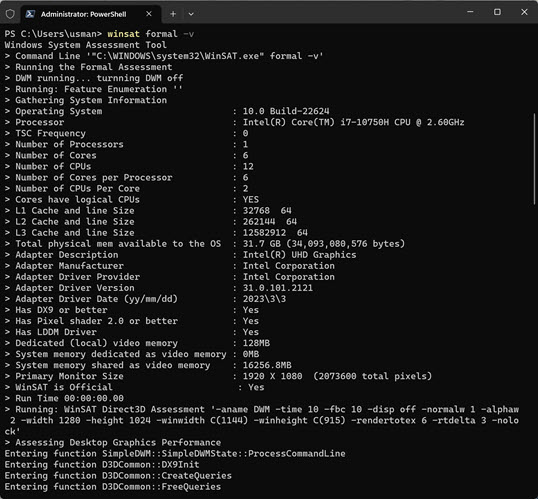
2. මේක run කරන්න: Get-PhysicalDisk | Select FriendlyName, MediaType, Size
3. MediaType column එක බලන්න (SSD හෝ HDD).
Method 3: System Information
1. msinfo32 > Components > Storage > Disks run කරන්න.
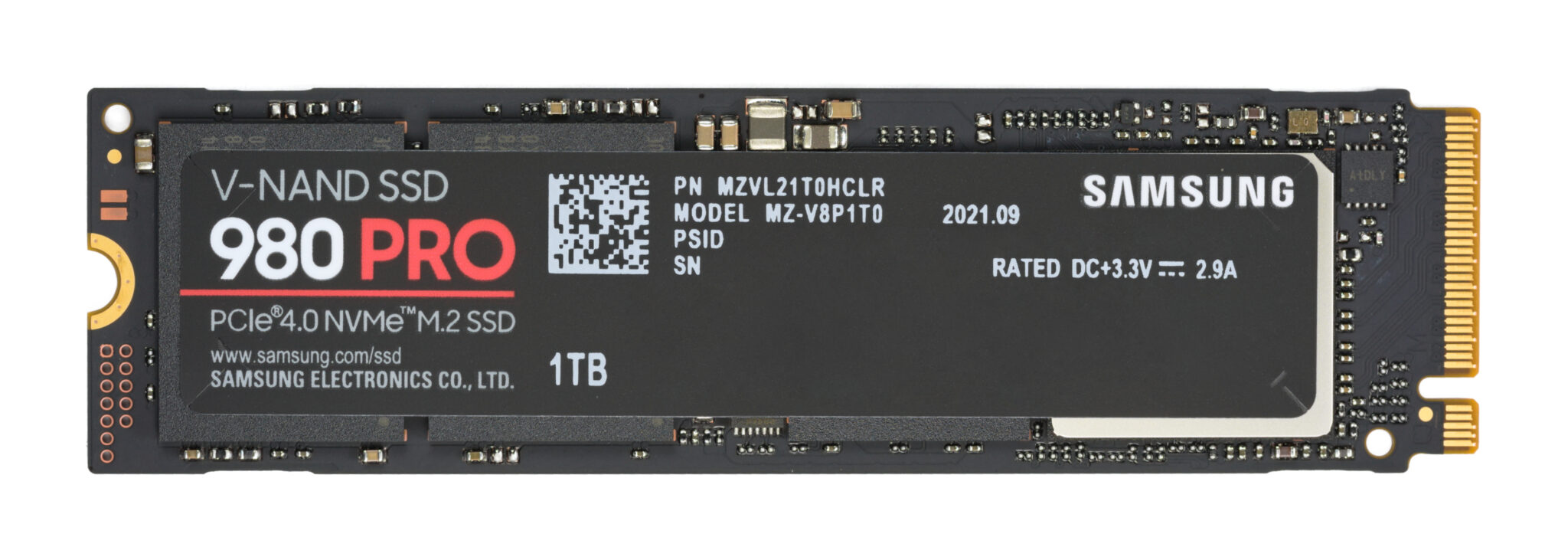
2. drive model name එක සටහන් කරගන්න.
3. ඒ model එක online search කරලා HDD ද SSD ද කියලා confirm කරගන්න.
Method 4: Third-Party Tools
Note: CrystalDiskInfo වගේ tools ඒවගේ official website එකෙන් විතරක් download කරන්න.
1. CrystalDiskInfo (හෝ HWiNFO) install කරන්න.
2. එයින් drive type එක, interface එක, සහ health එක (S.M.A.R.T.) පෙන්නනවා.
3. NVMe ද SATA SSD ද කියලා confirm කරන්නත් හොඳයි.
Troubleshooting
Problem: Optimize Drives එකේ "Unknown" කියලා පෙන්නනවා.
Solution: drive type එක කෙලින්ම read කරන PowerShell Get-PhysicalDisk හෝ CrystalDiskInfo පාවිච්චි කරන්න.
Problem: MediaType එක "Unspecified" කියලා තියෙනවා.
Solution: සමහර drivers එය report කරන්නේ නෑ — System Information එකේ හෝ CrystalDiskInfo වගේ tool එකක model එක check කරන්න.
Problem: NVMe ද SATA ද කියලා දැනගන්න ඕන.
Solution: CrystalDiskInfo/HWiNFO වලින් type එක එක්කම interface එකත් (NVMe/SATA) පෙන්නනවා.
Problem: Drive කිහිපයක් තියෙනවා.
Solution: Get-PhysicalDisk එකෙන් හැම drive එකක්ම එකවර ඒවගේ MediaType එක්ක list කරනවා.
Conclusion
ඉක්මන්ම check කරන ක්රම තමයි Optimize Drives tool එකේ "Media type" column එකයි PowerShell එකේ Get-PhysicalDisk එකයි. interface සහ health details (NVMe ද SATA ද, S.M.A.R.T.) වලට නම් CrystalDiskInfo වගේ tool එකකින් ඔබ ළඟ තියෙන්නේ මොන drive එකද කියලා නිවැරදිවම confirm කරගන්න පුළුවන්.